374
OPUS Projektor Manual
CAN
Open Alarm On Change
If the “Open Alarm On Change” checkbox is enabled, the Alarm Number of an existing Alarm
can be entered in the text field.
Now whenever a new or changed DTC arrives in a DM message this Alarm will pop up and
the currently active DTCs can be presented to the user.
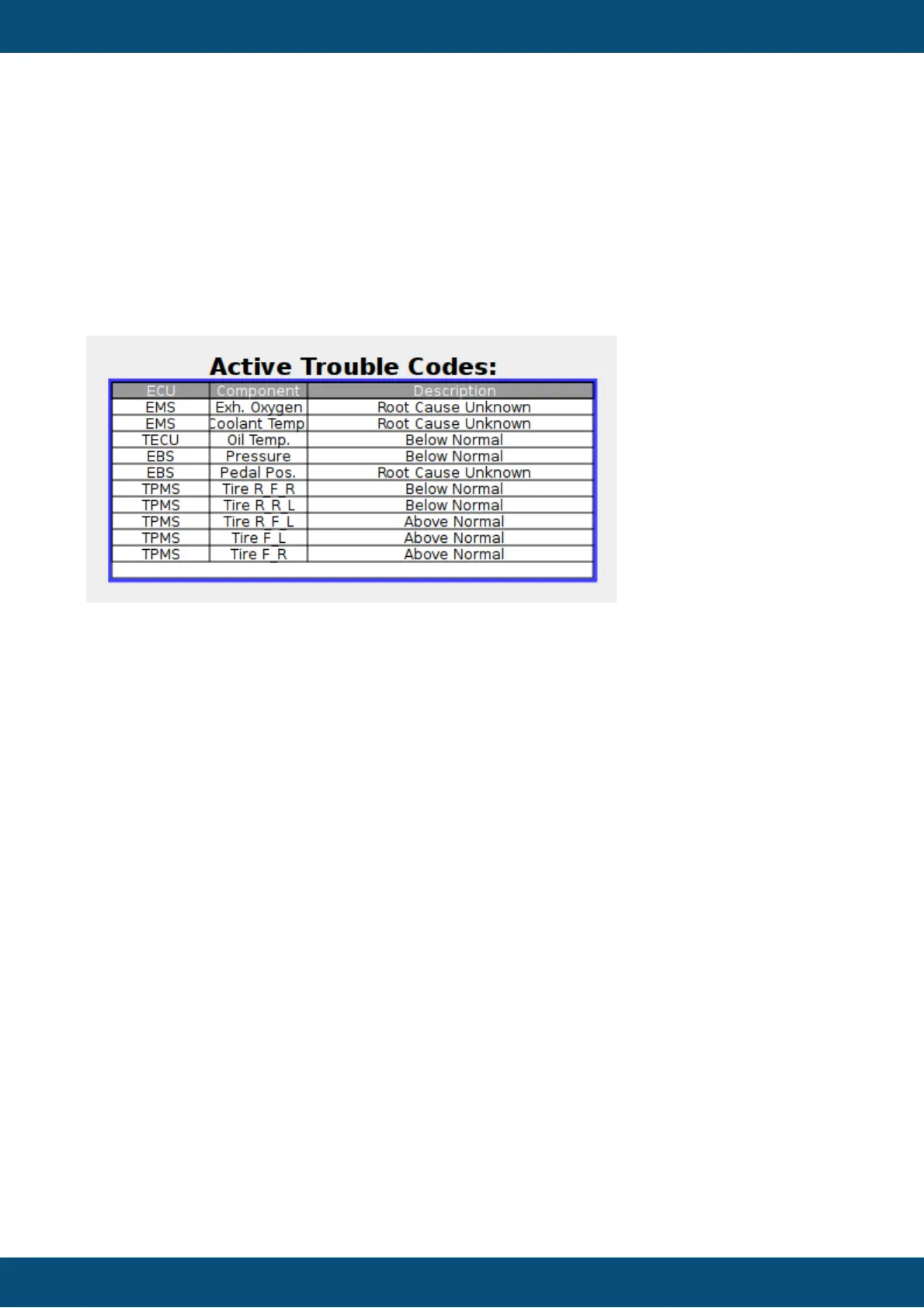
Advise: place a table object inside the alarm to show all active DTCs (see below for table
object settings).
Screenshot of an Alarm displaying DM1 Trouble codes in a table (with a valid translation file
configured):
Update Table with extracted DM1 Data
When the checkbox “Update Table with extracted DM 1 Data” is enabled, the ID of an existing
Table Object can be entered in the filed “Enter ID of the Table Object”.
The DTCs of a DM1 message will be extracted and passed as data to the Table Object. You
can select which components of the DTC shall be passed to the Table Object by enabling or
disabling the “Extract ECU Name”, “Extract SPN”, “Extract OC” and “Extract FMI”
checkboxes.
If the Table Object shall only show ECU, SPN and FMI, select those three and deselect
“Extract OC” (recommended for DM1 since OC is always 1 in DM1 messages). The Table
Object should then be configured to have three columns.
Configure ECUs to track
In this section you can chose if you want to track the DM1 messages of all ECUs on the
selected CAN port or if you want to only handle a selection of ECUs.
If you want to track all ECUs and do no filtering you can just select “Track All ECUs” in the
bottom right.
If you want that not all ECU’s DM1 messages are handled, you have to disable “Track All
ECUs”. After that you can click the “Add ECU” button to add a new ECU to the list of handled
ECUs. Once the ECU was added, the address of the ECU can be changed by clicking in the
cell in the table.
To remove an ECU from the white-list, you can just select one and hit “Remove selected
ECU”.
Each ECU can then be configured if all SPNs shall be handled or only the configured ones.
Furthermore it can be selected if the DM1 message of one ECU shall be passed to a specific
table object. To do the settings for each ECU, click the “…” button in the “Settings” column to
open the ECU settings dialog:



 To Next Page