376
OPUS Projektor Manual
CAN
·
Engage alarm 16 for SPN 116 if FMI is 0 (FMI is 0, Alarm is 16)
·
Engage alarm 17 for SPN 116 if FMI is 1 (FMI is 1, Alarm is 17)
·
Engage alarm 24 for SPN 177 and don’t care for FMI (FMI is -1, Alarm is 24)
·
Don’t engage alarm for SPNs 521 and 1119 (FMI and Alarm is -1)
In the lower part of the dialog, it can be selected if the DM1 message entries of the selected
ECU shall be passed to a specific table object. The settings in this dialog correspond to
those in the parent dialog.
By clicking the “OK” button, all settings will be saved. When clicking “Cancel” all settings will
be discarded.
DM2 Settings
The only settings that can be made for DM2 messages is to enable or disable it and “Update
Table with extracted DM 2 Data” setting. This setting is the same as for DM1 messages. You
can enter a different Table Object ID in the “Enter ID of the Table Object” field than for the
DM1 Table so that you can have different tables for both message types.
DM1 and DM2 How To
How to get DM2 messages
DM2 Messages are only sent on request. They can be either requested for single ECUs or a
global request can be sent. The following example shows how to make a global request for all
ECUs to send the DM2 messages.
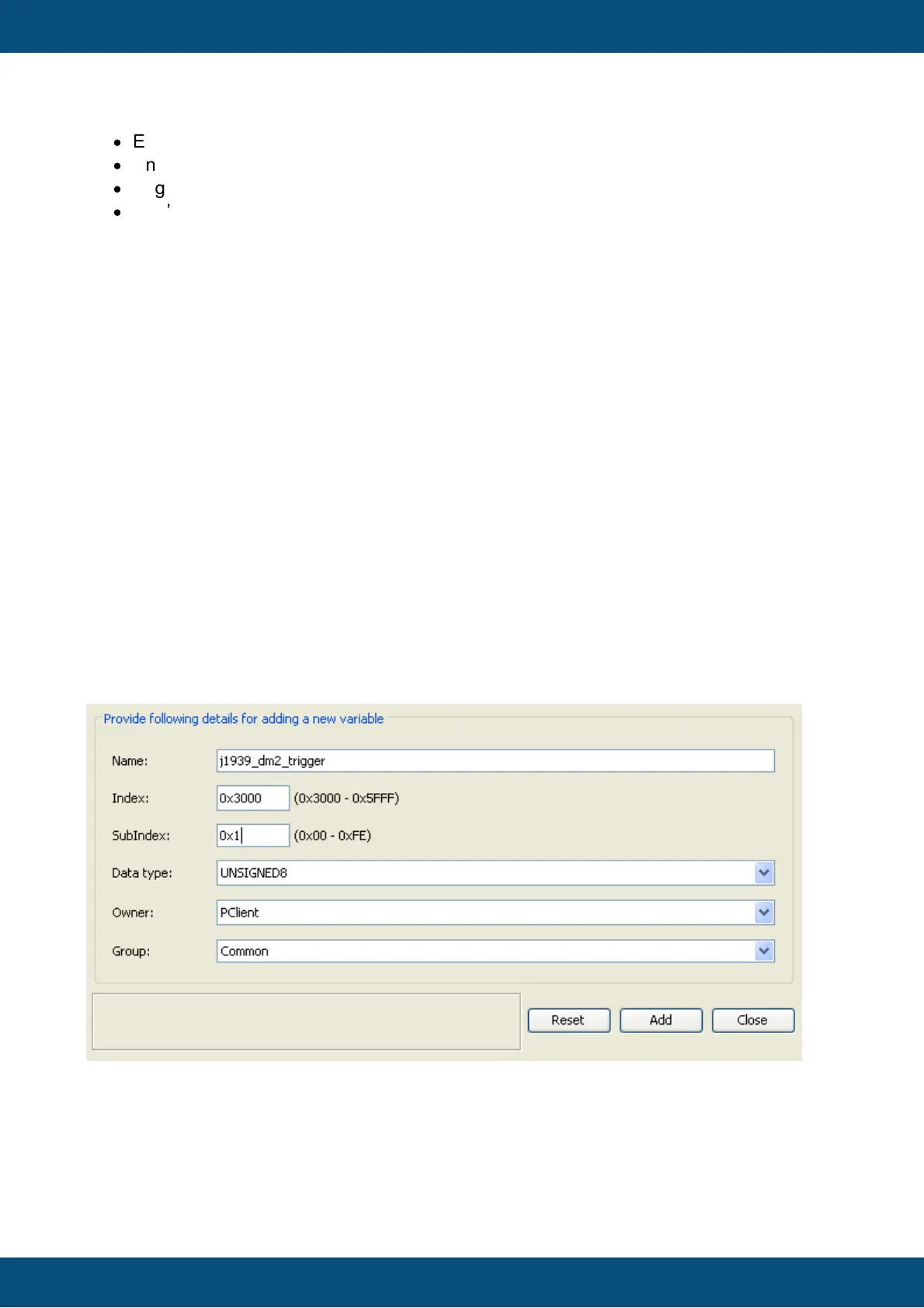
First you have to create an internal variable (Communication | Variable Manager... | button
Create A New Variable) to which we can write. In this example it is called
j1939_dm2_trigger, the owner is PClient and the data type is UNSIGNED8. You are free to
choose index and subindex and the variable group:
Next a J1939 transmit PGN needs to be configured. Go to Communication | Protocols |
J1939 | Configure Mappings.... Enter “dm2_global_request” in the “Name”, as type select
Transmit field and click the “Add” button.
The PGN Id for this request is 0xea00, the priority is 6. Destination is Any ECU and for “Send
Value on” select “Any Variable Change”:



 To Next Page