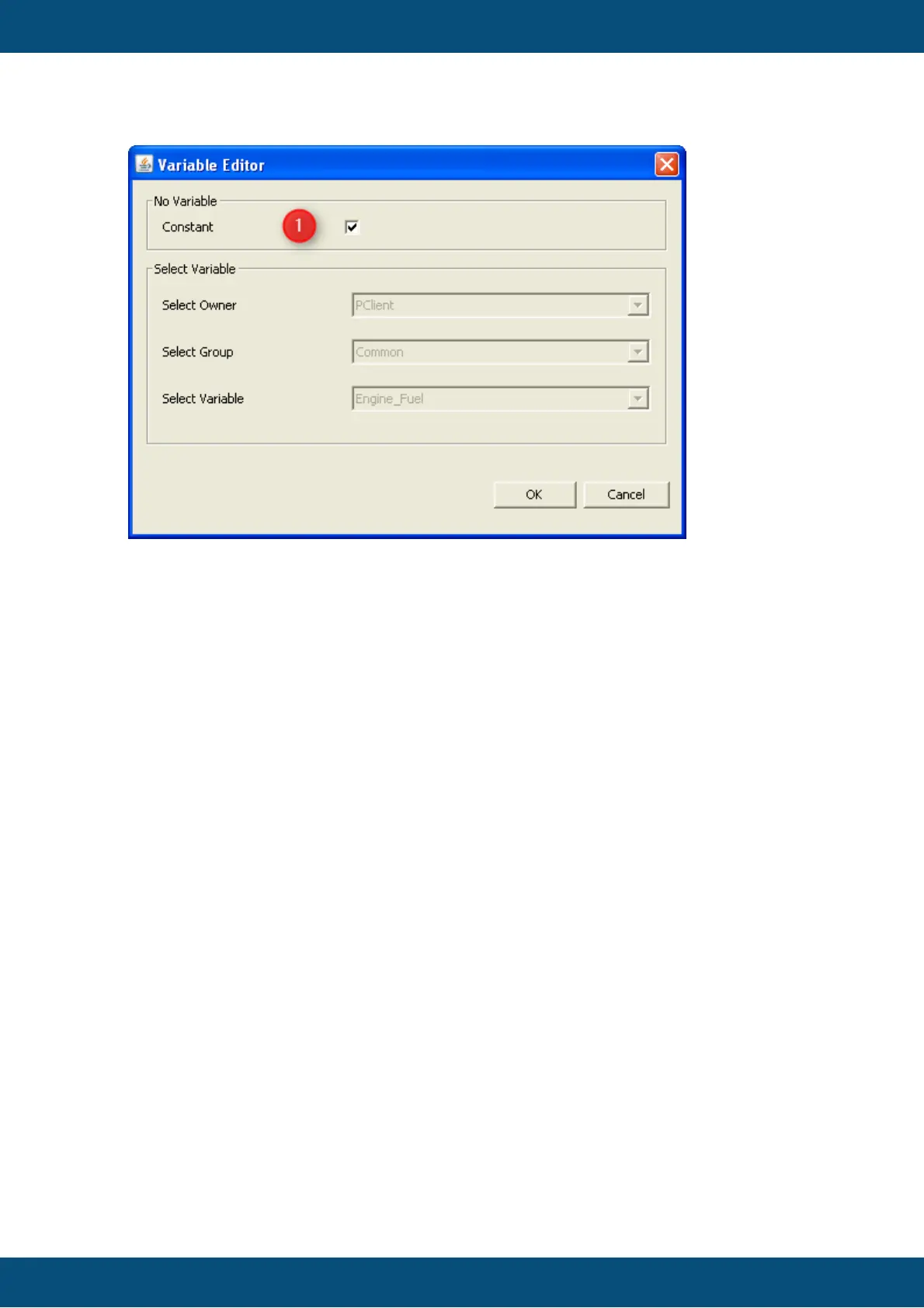
If you want to add a constant you have to select the check box "Constant" (1). All other
fields will become disabled.
By clicking "Add" a constant will be added to the current mapping object.
Note 1:
If a variable is selected the new variable/constant will be added at the start bit of the
selected variable. All other variables will be moved as much as the length of the added
variable.
If no variable is selected the new variable will be added after the last mapped variable.
If there is not enough space for the original length of the variable the mapped length will
be reduced.
If the mapping object is full mapped the add button will be disabled. When it is tried to
drag and drop a variable from variable tree the variable will not be added to the mapping
object.
2. Add variable from variable tree
2a Add variables via drag and drop from variable tree
A comfortable way for adding variables is to drag and drop them from the variable tree.
All available variables will be shown in the tree sorted by groups.
To add a variable to the mapping object you can drag one and drop them at a cell of the
table.
2b. Add constants via drag and drop from variable tree.
If you want to add a constant from variable tree you can select a constant form group
"Constants" (only for CANFreestyle and J1939). For CANopen the group "Constants" is
replaced with the group "Dummy Variables".
It works as same as for variables (see above 2a.).



 To Next Page