56
OPUS Projektor Manual
User Interface
Type the new desired image in the dialog and press OK to confirm. Press Cancel to cancel
the process.
All scaled images in the project will be updated.
Note that the image names are case insensitive, i.e. IMAGE.jpg and image.jpg (and Image
and iMage and so on) will be treated as the same name and the renaming will not work.
Note that only alphanumerical characters A-Z (a-z), 0-9 and _ and - are allowed as image file
names.
Note that only the image name itself can be changed, not the file type suffix.
Note that if the image name is used in JavaScripts, the references are not updated, this has
to be done manually.
Updating and Replacing Images
If an original image should be replaced by a different one, i.e. all instances of the original
image get the new image, there are three ways to do that.
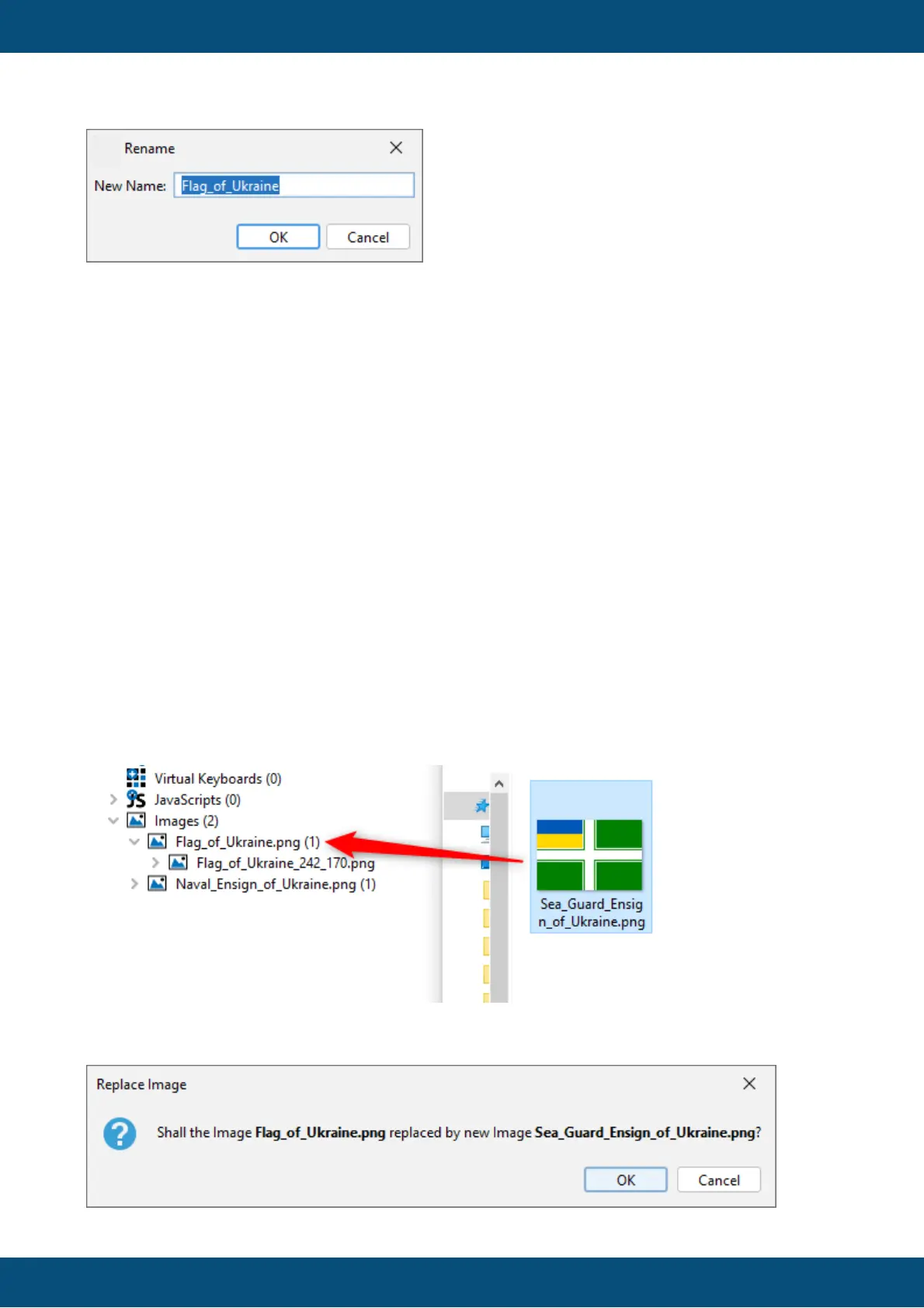
1) Drag & drop from Windows Explorer
A dialog will be opened asking for confirmation.



 To Next Page