Step 5: Disconnect device
This step disconnects the HostUpdater from ClientUpdater.
If the CAN connection is interrupted, the ClientUpdater will automatically disconnect
itself after 3 seconds.
Afterwards the project is starting on the device.
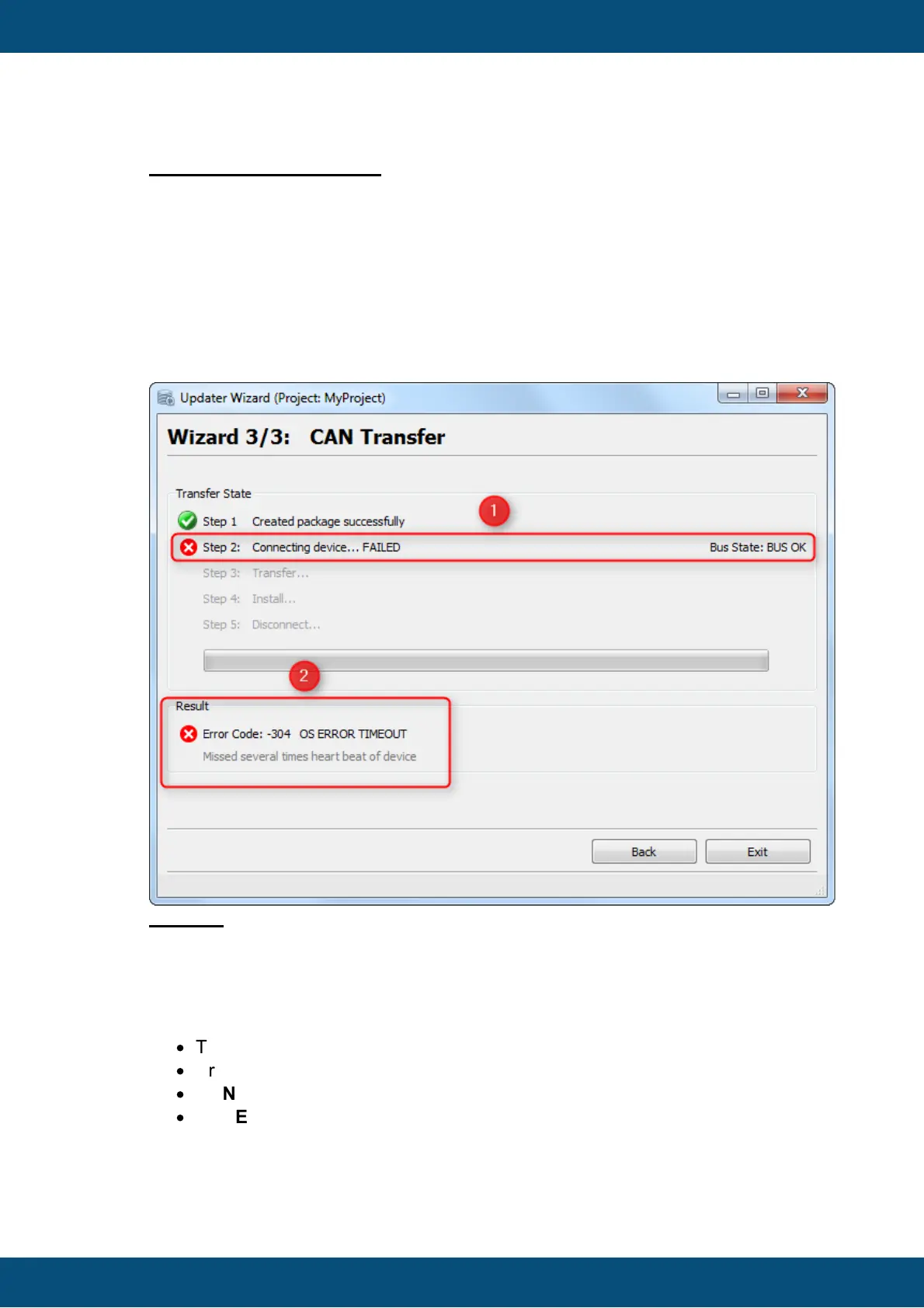
If the CAN Transfer does not work properly, an Error Code with Error Message is
shown on the CAN Transfer Page. This shall help to identify the issue quickly.
In this example, the Step 2: Connecting device runs into a time out:
Legend:
(1) Step 1: The connection process failed and a red x icon is shown.
(2) The Error Code (here: -304) is shown under the progress bar. After the code, the
appropriate Error Message is shown (here: OS ERROR TIMEOUT).
In this case the HostUpdater gets no response from the ClientUpdater. Possible
reasons for this error are:
·
The ClientUpdater is not running on device
·
Pre-defined variable @EnableUpdater is not set properly
·
CAN IDs are not set properly.
·
NOTE: Bus State shows BUS OK which indicates that the baud rate is set
properly. If Bus State shows BUS HEAVY, BUS_LIGHT or BUS OFF it
indicates that the baudrate is not set properly.



 To Next Page