Now you can start selecting characters by clicking them in the table (6). The table shows
the characters in Unicode (UTF-8 encoding form) code pages.
For faster selection of code pages, you can select the subset (4) (it contains a list of
character blocks) and click Select all characters button. Using the same procedure, you
can also unselect code pages by clicking the Select all characters button again.
Furthermore there are buttons available for fast selection of typical character ranges (7).
They can also be used to unselect characters by pressing the buttons again.
The selected characters are further shown in the bottom of the window (8).
Note: For a complete listing of the normative character blocks in the Unicode Standard,
see here.
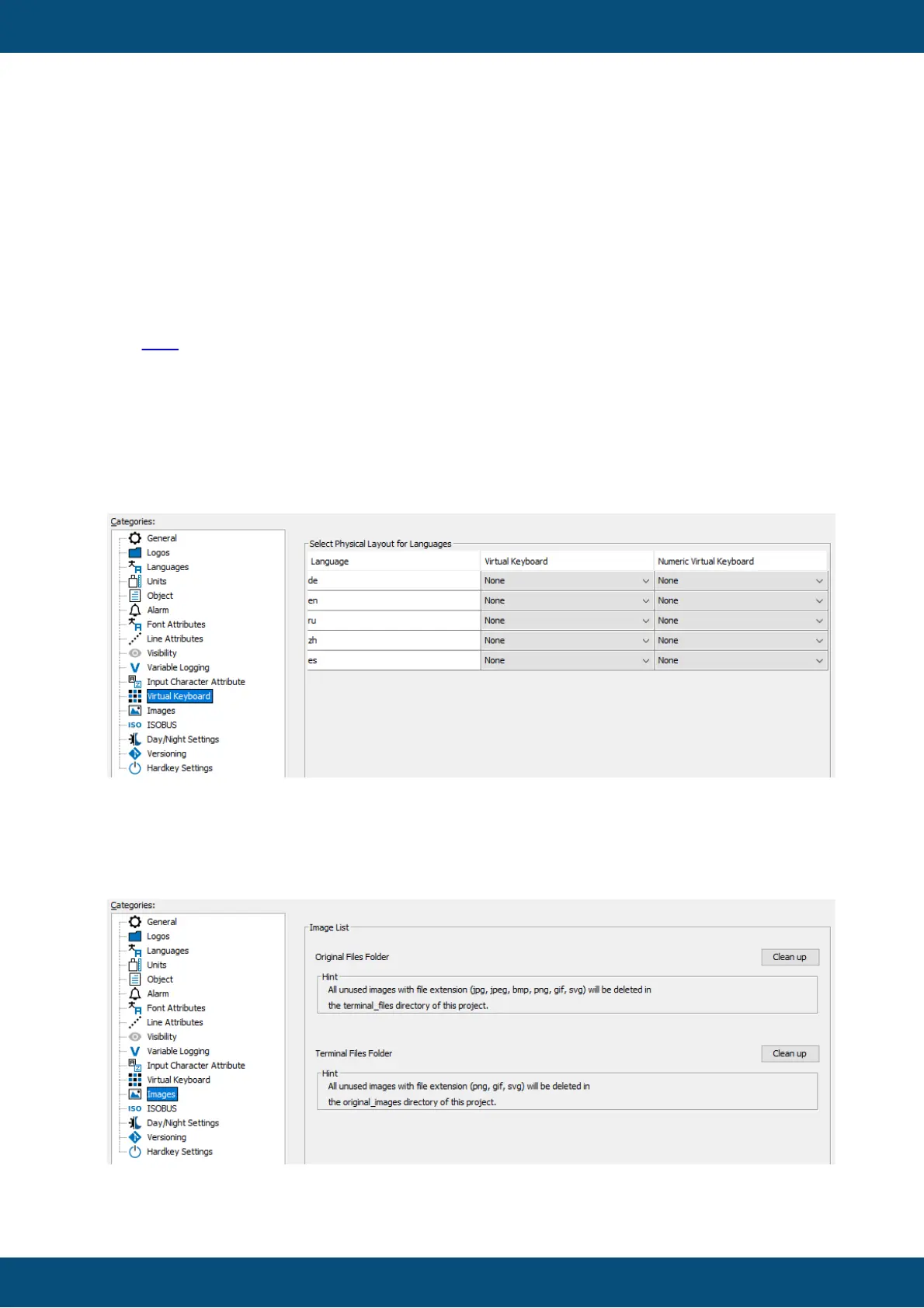
When your project uses virtual keyboards for entering values you should configure, which
virtual keyboards have to be used for which language. Because the character set used by
languages are very different, you most likely need to create one virtual keyboard per
language used in your project.
First you need to create the virtual keyboards. Then open the virtual Keyboard section of
the project properties and select the virtual keyboards that have to be used for each
language.



 To Next Page