Enlargement and Reduction Copying 109
5
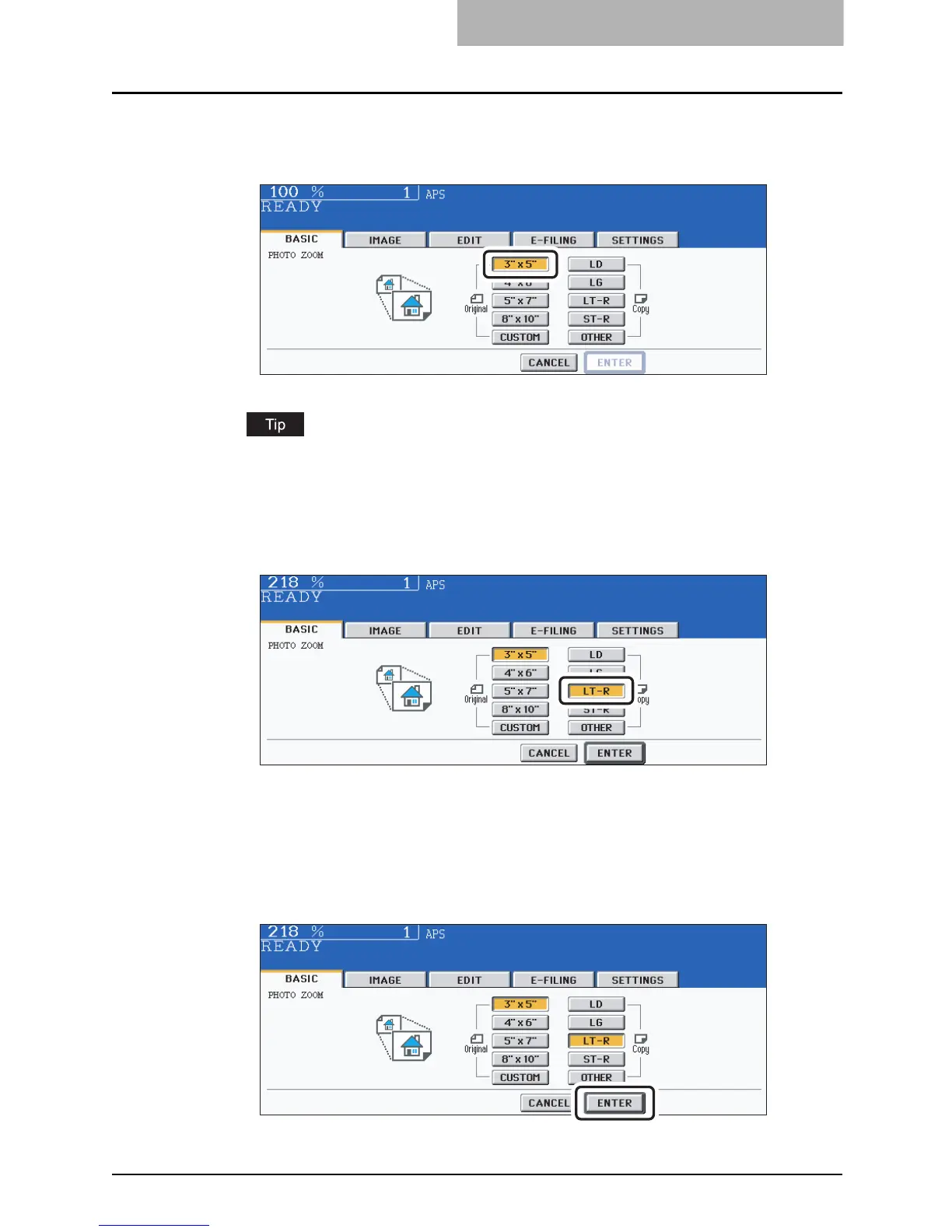
Specify the original size.
The size can be selected from “3" x 5"”, “4" x 6"”, “5" x 7"” and “8" x 10"”.
E.g.: When placing 3" x 5" photo original
If the original size is other than “3" x 5"”, “4" x 6"”, “5" x 7"” or “8" x 10"”, key in the hori-
zontal and vertical sizes of the original manually. For how to key them in, see “When
placing photo originals in other sizes”.
6
Specify the copy paper size.
E.g.: When selecting LT-R paper
y When you specify original size and copy paper size, the enlargement or reduction
ratio is automatically calculated and displayed on the menu.
y If the copy paper size is a standard size other than LD, LG, LT or ST-R, you need to
register the size to the [OTHER] button in advance. For how to register it, see
P.105 “When a standard size paper other than LD, LG, LT and ST-R is set”.
7
Press the [ENTER] button.
y Select other copy modes as required.



 To Next Page
 Loading...



