System Software: Editor Menu
Issue 2
101
Part No. 306-0430-102
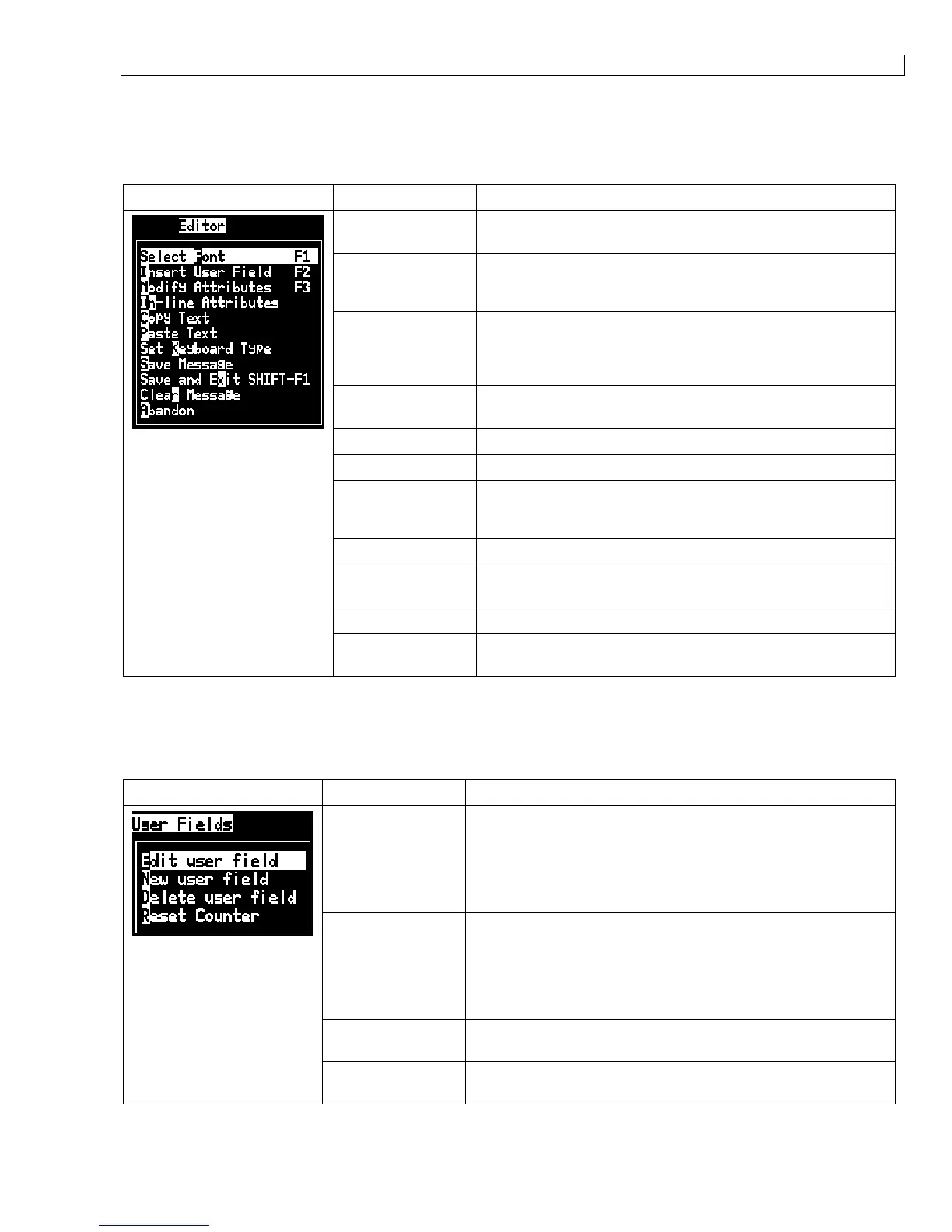
Editor Menu
Editor Menu Menu Option Function
Select Font
Opens the
Select Font
menu. The selected font is applied to the
selected text in the message.
Insert User Field
Opens the
Select user field
menu. The contents of the user
field is copied into the message at print time e.g. expiry date,
shift code.
Modify Attributes
Opens the
Set Attributes
menu. One or more attributes can be
set. Set attributes are shown as highlighted. The set attributes
are applied to the selected text in the message. (Attributes are
properties which can be applied to individual characters).
In-line Attributes
Opens the
Select Attribute
menu. One selected attribute is
applied to text about to be typed in the message.
Copy Text Copies the selected text to the clipboard.
Paste Text Pastes the text from the clipboard at the cursor position.
Set Keyboard Type
Opens the
Select keyboard Type
menu. Select the keyboard
type to be used for the edit session. Characters from more than
one language alphabet can be included in a message.
Save Message Saves the message being edited and continues editing.
Save and Exit
(
SHIFT-F1
)
Saves the message being edited and exits the editor screen.
Clear Message Deletes the entire content of the message being edited.
Abandon Exits the editor screen without saving any changes to the
message.
User Fields Menu
User Fields Menu Menu Option Function
Edit user field
Opens the
Select user field to edit
menu. Options are all the
existing user fields. Selecting a text field opens an individual
dialogue for the new user field with
Text
and
Attribute
options.
Selecting a counter field opens a menu with options for the
counter parameters. Selecting a logo field opens the
Edit logo
screen.
New user field
Adds a new user field to the selected message. Opens the
New
User Field
dialogue with
Name
and
Description
fields. Selecting
a
Text
description opens the
New Field
dialogue with
Text
and
Attribute
fields. Selecting a
Counter
description opens the
New
counter
dialogue with fields for the counter parameters. Selecting
a
Logo
description opens the
Edit logo
screen.
Delete user field
Opens the
Select user field to delete
menu with options of all
existing user fields.
Reset Counter
Opens the
Select counter to reset
menu with options of all
existing counters.


 To Next Page