Appendix F - Remote Access
Acterna ANT-5 Page 149
• Click New.
• In the new line, type SET TZ=GMT+n or SET TZ=GMT-n, depending on the
relative difference in time zones between your PC and the BN4565/01.
Examples:
• PC and BN4565/01 in same time zone If the BN4565/01 is in Berlin
(GMT+1) and the PC is also in Berlin, the time zone difference is zero, so set
TZ to GMT+0.
• PC in earlier time zone than BN4565/01 If the BN4565/01 is in Berlin
(GMT+1) and the PC is in London (GMT+0), the time zone difference is +1,
so set TZ to GMT+1.
• PC in later time zone than BN4565/01 If the BN4565/01 is in Washington,
DC (GMT-5) and the PC is in Moscow (GMT+3), the time zone difference is
-8, so set TZ to GMT-8.
• Daylight Savings Time If the BN4565/01 is in London (GMT+0) during the
local Daylight Savings Time and the PC is in Washington, DC (GMT-5), the
time zone difference is +5, so set TZ one count greater to GMT+6. It does not
matter if Washington, DC is also in Daylight Savings Time.
• Click OK, and exit the System Configuration Utility.
9. A connection to an external power supply is advisable. Reboot the ANT-5, launch
the REMOTE application and leave on.
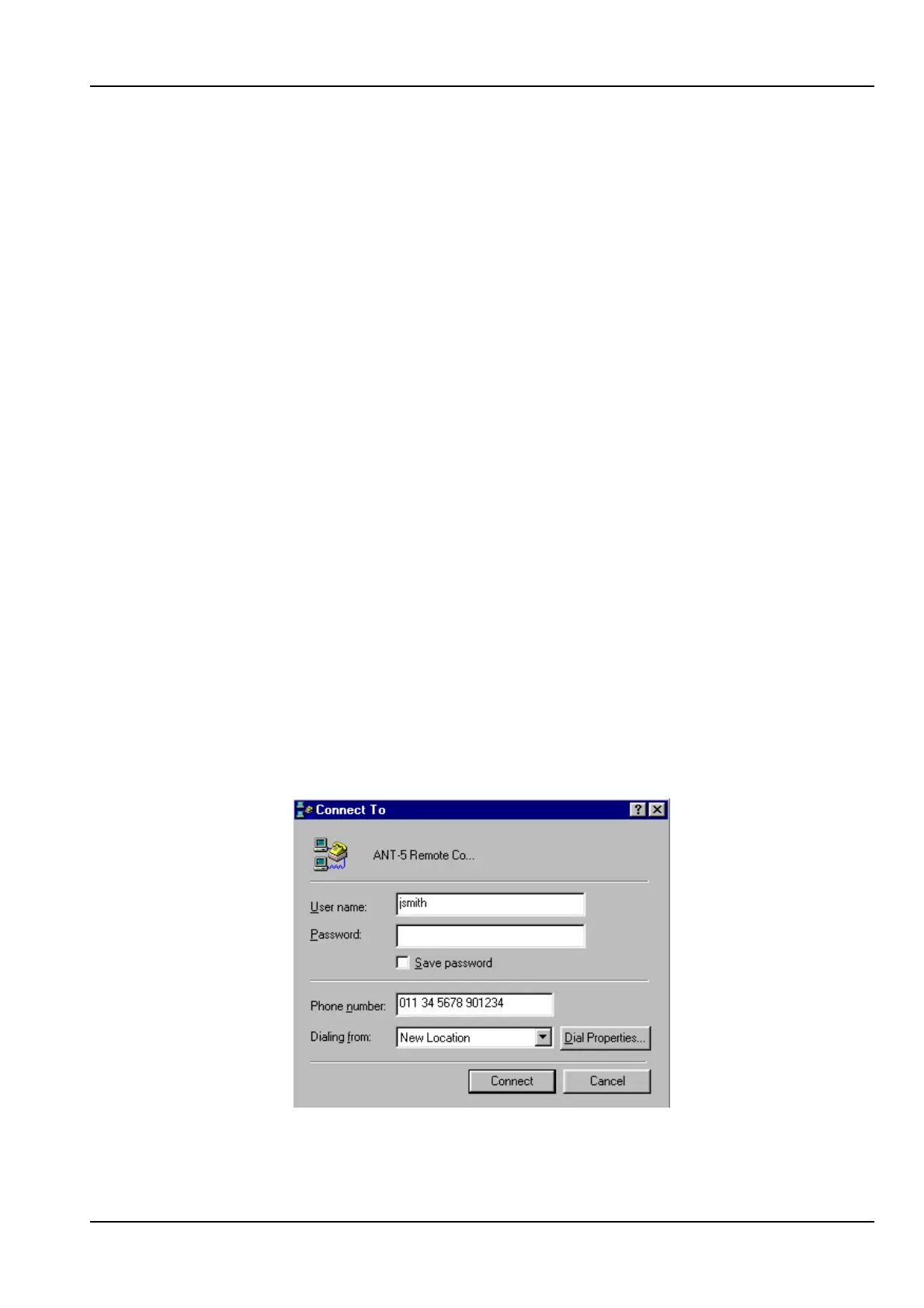
10. From Dial-Up Networking double click on the icon for the ANT-5 remote
connection and select Connect.
11. The modem will then dial out to the remotely located ANT-5 modem and establish
a connection.


 To Next Page