The Acterna ANT-5 operating system
Page 38 Acterna ANT-5
The File Manager utility is provided to
allow viewing of the contents of the
storage card. This utility will also allow
common housekeeping operations
such as formatting cards and copying,
deleting and renaming files.
To run the File Manager utility, press
Alt + Menu and select File Manager
from the Tools menu. To perform an
operation on an object, highlight its
name using the directional keys and
then press Menu to display a list of
valid operations.
3.2.1 Navigating the file system
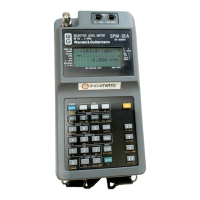
When the user first enters the file
system browser, and there is a
formatted card inserted in the slot, the
screen shown here will be displayed.
A message will be displayed if no
storage device is available or no card
is inserted.
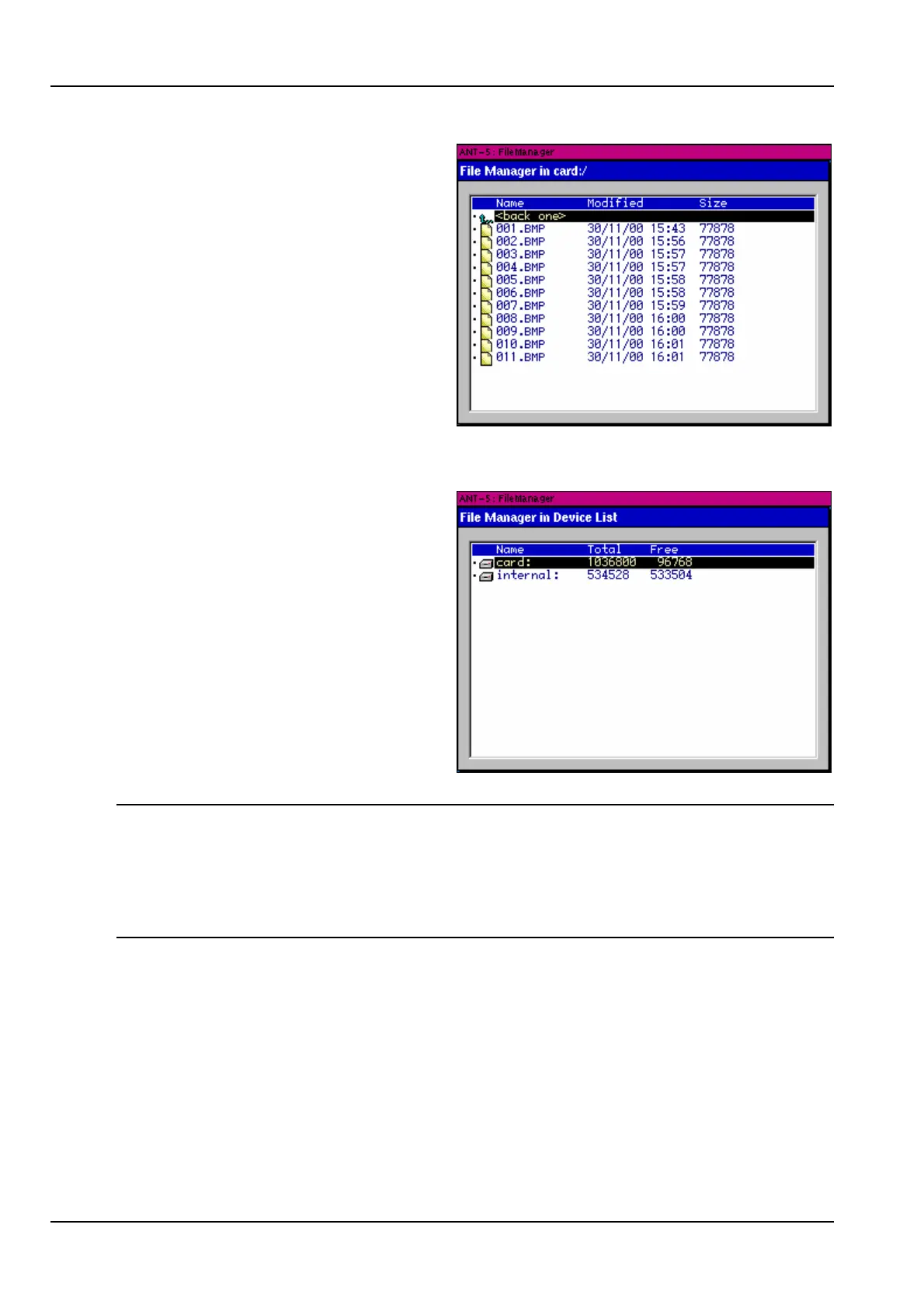
To browse the contents of the storage
card, move the highlight to the device
named “card:” and press the Enter
key or right directional key. The
contents of the root directory of the
card will then be displayed.
Note: The “internal:” device is the internal RAM storage. In normal circumstances the
ANT-5 operating system copies the data stored in this area into non-volatile memory
during its power-down sequence. Data may be lost from this device in exceptional
circumstances when the power-down is not controlled by the operating system, for
example if the ANT-5 is switched off by holding the Off key down for more than 6
seconds.
3.2.2 Directories
The File Manager in… message at the top of the screen shows the current position in
the directory structure. To display the contents of a subdirectory, position the highlight
over the directory name and press the Enter key or right directional key.
To move back to a higher directory, press the left directional key or position the
highlight over the <back one> entry and press the Enter key; the contents of the
parent directory will then be displayed.


 To Next Page