The Acterna ANT-5 operating system
Acterna ANT-5 Page 41
1. Connect an appropriate serial cable, such as K1524 or K1619, from the ANT-5 to
the COM1 port on the PC/Laptop
2. Switch on the ANT-5 and make a note of the Serial Port settings from the System
menu.
3. Run Windows HyperTerminal on the PC and choose a name for the connection.
4. Use HyperTerminal to establish a connection by selecting Direct to Com1.
5. When the COM1 properties appear in the HyperTerminal window, choose port
settings to emulate those on the ANT-5 and set the flow control to Xon/Xoff.
6. In the HyperTerminal window click on Transfer, and then Capture Text. Give the
file a name, and click on Start.
7. Open the ANT-5 File Manager and highlight the file to be transmitted.
8. Press the ANT-5 Menu key and select Transmit… from the File menu. A dialog
box will appear on the ANT-5 screen confirming the transfer and the
HyperTerminal screen will fill with data.
9. To stop the capture click on Transfer in the HyperTerminal window, followed by
Capture Text and then Stop.
Note: It is also possible to send a test pattern by selecting Send Test Pattern under
the Serial Port item in the ANT-5 System menu.
3.3.2 File Transfer
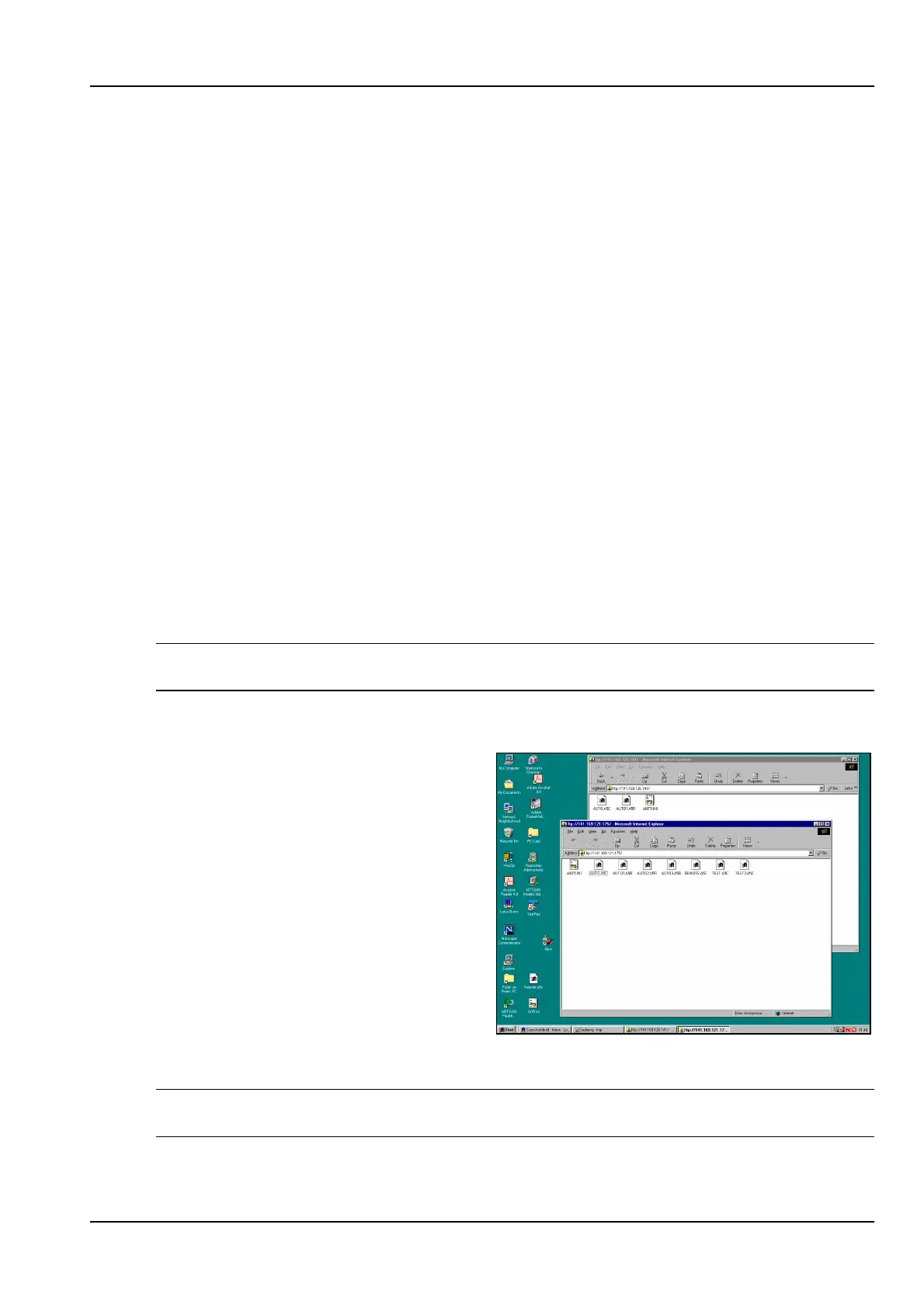
Assuming the ANT-5 is connected to
a network, users are able to transfer
files between the PC and an ANT-5
using either a command line FTP
client or via a graphical FTP with
programs such as Internet Explorer.
Refer to section 2.8.1 for information
on communications configuration.
In this example two sessions of
Internet Explorer have been opened
to transfer files between two ANT-5’s,
by typing in the command ftp://
followed by the relevant IP addresses
of the ANT-5.
Tip: Master configuration files for an ANT-5 can be simply copied to other units by
transferring the .A5C files.


 To Next Page