The SDH Access Tester application
Page 44 Acterna ANT-5
Some of the Results view pages are split into two halves. The left half of these pages
are used for displaying results and the right half is used for setting the various test
parameters.
Note: The results of a test are always displayed with regard to the test parameters
which were set up at the time the test was run. These may not match the current setup
parameters if any changes have been made since the test was run.
4.1 General screen layout
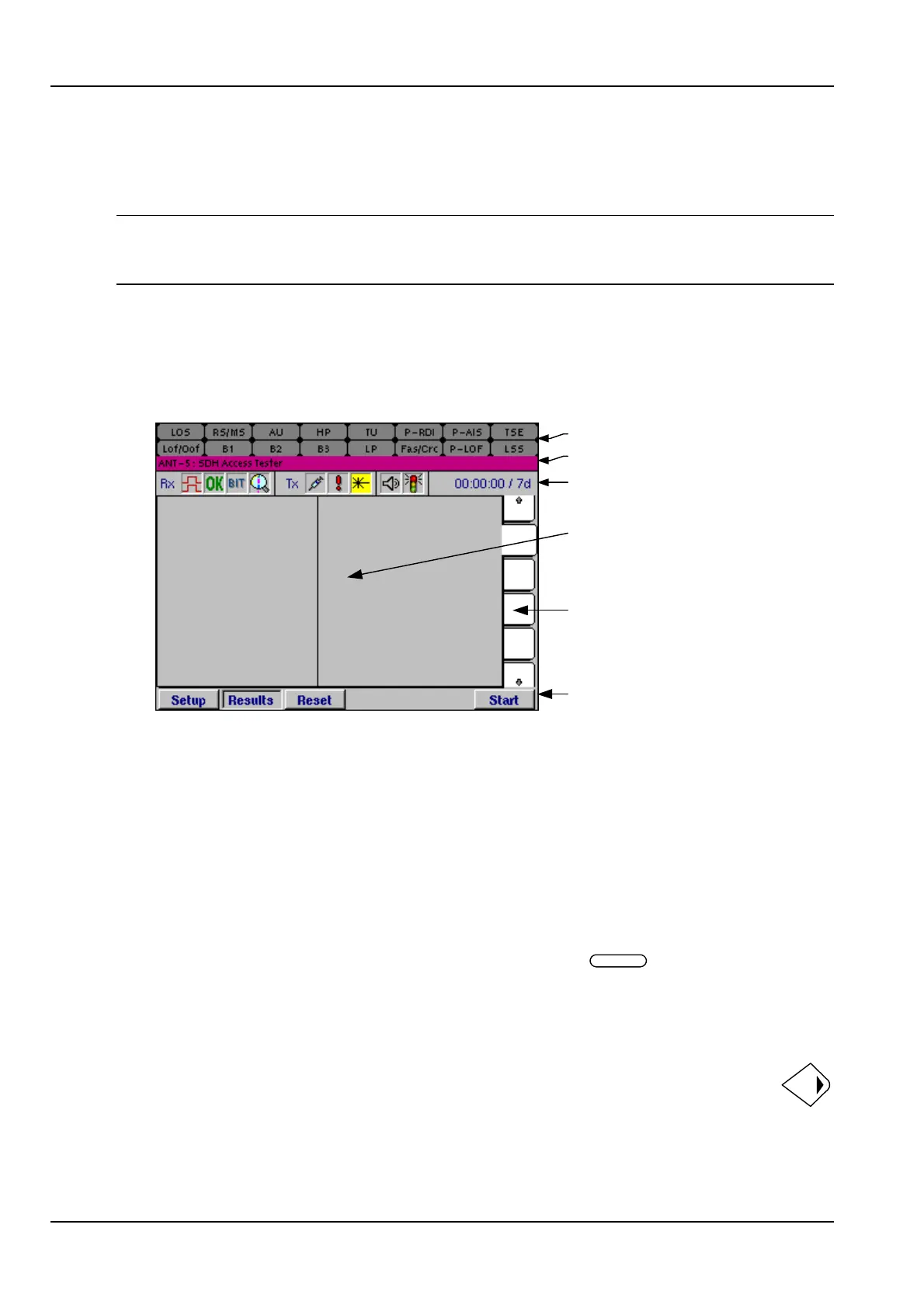
The SDH Access Tester application organises the screen into the typical areas shown
below.
Display area
Page tabs
Function keys
On-screen 'LED' indicators
Application title bar
Status bar
• The top portion of the screen is used by the application to simulate LED indicators
on-screen in order to display information which is relevant to the current setup of
the application. See Section 4.24 The title of the current application is shown in the
application title bar.
• The status bar is used to display the status of the interface and the current test.
• The display area has a number of tabbed pages which can be made active by
selecting the tabs down the right side. The display area is used for setting up tests
and displaying results. For some pages the display area may be split into left and
right areas and may have multiple results pages which can be selected.
• The six unmarked keys at the top of the keyboard, , are function keys to
control certain features of the ANT-5. The function of each active key is identified by
an animated button on the screen just above the actual key.
4.1.1 Moving around the screen
Use the directional keys for moving around active parts of the display area,
such as buttons and list boxes, which are highlighted in turn. The page tabs
can be highlighted by moving up and down the right side of the display area.


 To Next Page