Optional software for the ANT-5
Page 92 Acterna ANT-5
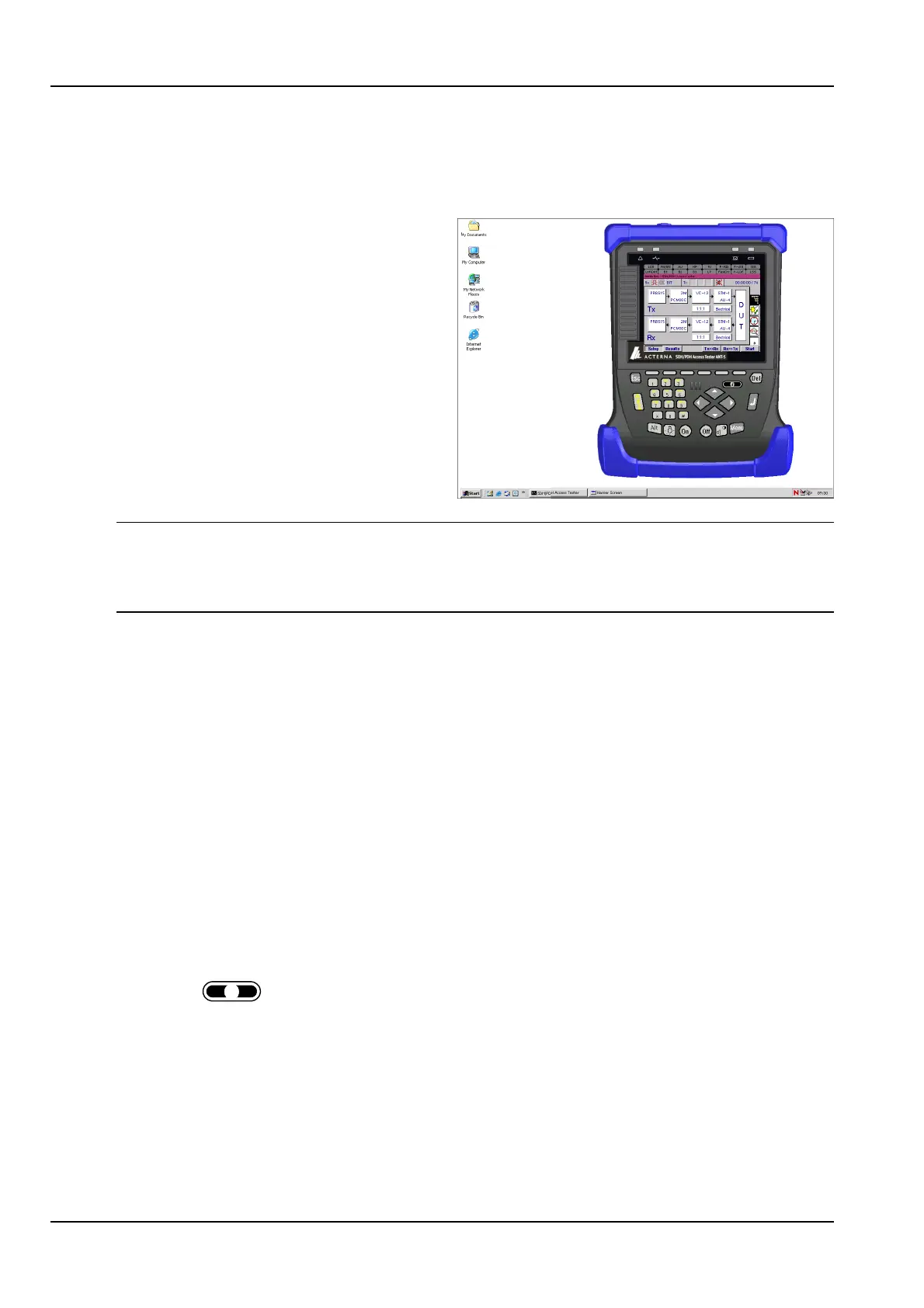
After a short while the ANT-5 graphical user interface will load on the PC, green LEDs
will flash in the Tx and Rx boxes of the ANT-5 indicating that the link has been
established.
The PC’s mouse and keyboard are
used to operate the remote ANT-5
just as if you were sitting in front of it.
Use the PC’s keyboard cursor keys to
move around the ANT-5 and the
mouse to select the ANT-5 keyboard
keys. For ease-of-use the function
keys F1-F6 match the function keys
on the ANT-5. Key F10 takes on the
role of the ANT-5 menu key.
Tip: Create a directory on your PC, e.g. ANT-5. Select Menu > File > Save >
Configuration to save configuration files to this directory which later can be opened
by selecting Menu > File > Open > Configuration. Alternatively files can be copied to
other units using FTP, See Section 3.3.2, File Transfer for further details.
5.4.2 Exporting
From the GUI faceplate select Menu > File > Export. From the standard Windows
dialog box, .csv files can be saved to any directory on your PC.
5.4.3 Printing
From the GUI faceplate select Menu > File > Print. A standard Windows dialog box
will allow users to select and configure a printer.
5.4.4 Remote Operation Troubleshooting
1. Ensure that all physical connectors are secure
2. Check that IP address of the physical ANT-5 matches the one used from the GUI
faceplate. (See Sections 2.8.1 and 4.25)
3. Press
i
from the gui faceplate. If the M/M Version shows a series of zeros,
check the IP address and re-launch the application from the PC.
4. Errors may occur on re-launching the ANT-5 application if previously it has failed to
shutdown correctly. In this instance delete the Auto.A5C file from your C: drive
and re-launch the application from your PC.


 To Next Page