The SDH Access Tester application
Page 84 Acterna ANT-5
4.23.1 Exporting data to a spreadsheet using a storage card
Assuming that an appropriate driver is available on the PC or laptop, the following
example demonstrates how test results can be saved to a spreadsheet.
1. Insert an appropriate card into the ANT-5.
2. Stop the test and press the Menu key.
3. Select Export from the File menu option.
4. Select Results.
5. Using the arrow keys highlight card: and press the enter key.
6. Select <new file> and enter a filename. (The file will automatically be saved with the
extension .csv)
7. Insert the card into the appropriate slot on the PC or laptop and using a suitable
application open the file.
Note: Ensure that the necessary drivers are enabled and the card is located in the
correct slot. Contact your IT department for further assistance if required.
8. This file displays a host of information relevant to the results and the configuration of
the unit.
4.24 On-Screen LED Indicators
The top portion of the screen is used
by the SDH Access Tester application
to simulate LED indicators on-screen.
Red LED’s are used to display
information that is relevant to the
current setup, whilst yellow LED’s
show historic alarms. The LED will
stay yellow until a new test is started
or of a configuration is changed.
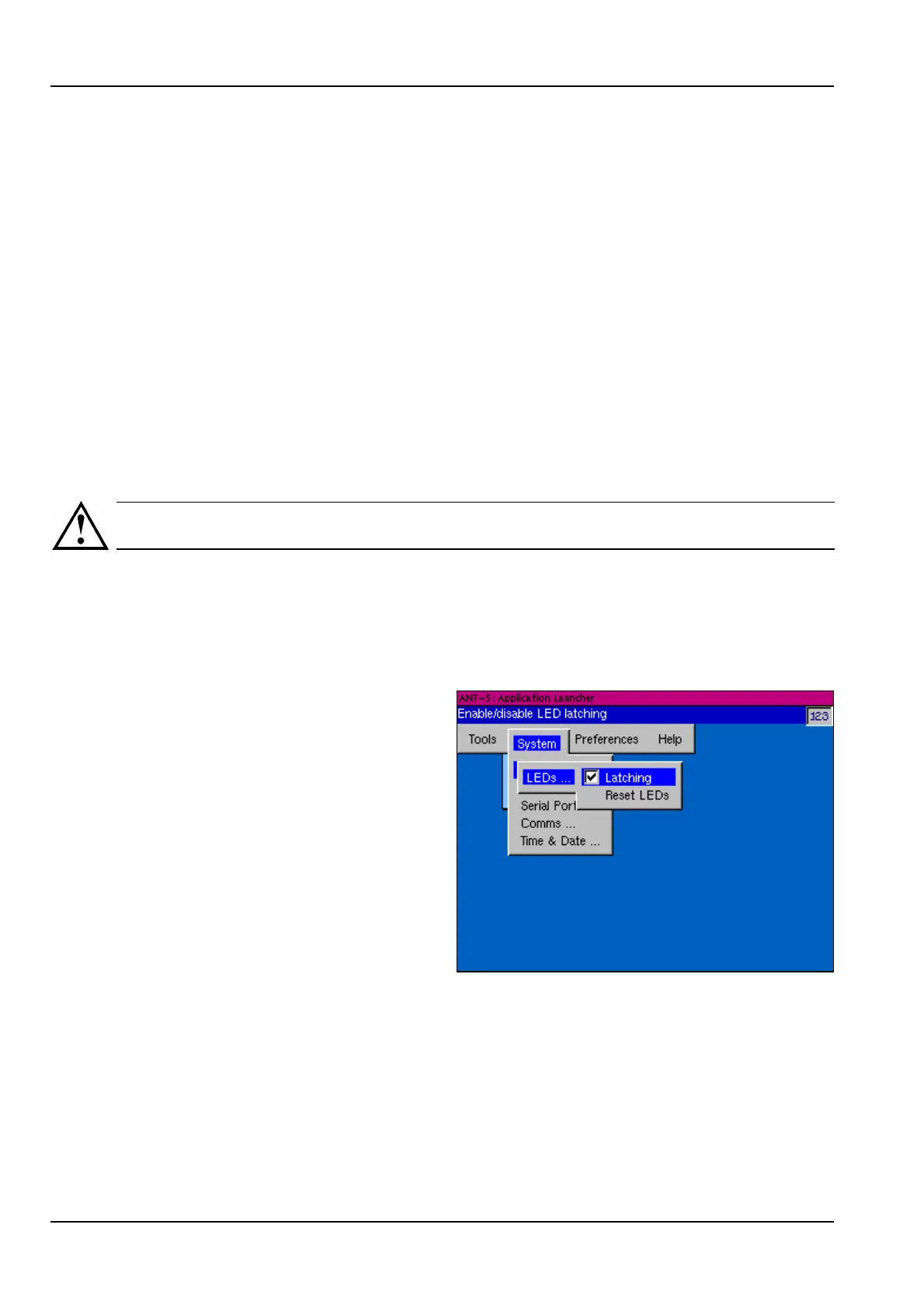
LEDs can be set to be latching or
non-latching in the LEDs section of
the System menu, which can be
displayed by pressing the Alt + Menu key at any time. If the Latching box is checked,
you can reset all latched LED’s by selecting Reset LEDs from the System menu or
alternatively LEDs can be reset from within the ANT-5 application by pressing Menu,
and selecting Tools > Reset LEDs.


 To Next Page