Getting started
Acterna ANT-5 Page 29
2.6.1 Adjusting the screen contrast
To adjust the screen contrast, press the Beeper/Contrast key whilst holding
the Alt key down.
The contrast is increased or decreased using the directional keys. A scale will be
displayed on the screen which reflects the contrast level. To remove the scale from
the screen, press the Enter key to accept the new setting or the Esc key to cancel it.
The ANT-5 will continue to operate during contrast adjustment but will not receive any
keypad input until the adjustment is completed.
2.6.2 Switching the beeper on or off
The ANT-5 has an internal beeper which can be used to provide an audible
notification when defects and anomalies are detected. When the SDH
Access Tester application is running, this feature can be turned on or off by
pressing the Beeper/Contrast key.
2.6.3 Function keys
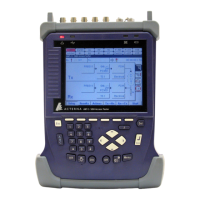
The six unmarked keys at the top of the keyboard are function keys which
can be used in different ways by applications. Labels will appear along the
bottom edge of the screen to show that a function key is active and to
indicate its purpose.
2.6.4 Using the alphanumeric keypad
The alphanumeric keypad is normally used for entering numbers in setup menus but it
can also be used for entering alphabetic and special characters. Entry boxes generally
have a character on their right hand side to indicate that a specific type of data is
expected, such as a ‘b’ for binary, ‘d’ for decimal or ‘h’ for hexadecimal.
The ABC key is used to enter and leave the extended alphabetic mode, in
which strings of alphanumeric and special characters can be entered by
using repeated key presses punctuated by short pauses. The current mode
is indicated in non-specific data entry boxes by an ‘A’ or a ‘1’.
Each key has a set of characters associated with it, and the sequence will repeat in a
cycle until either a different key is pressed or a pause of one second occurs.
For example, repeatedly pressing the 9 key will display the sequence W-X-Y-Z-9-W-X-
Y… until there is a pause or another key is pressed. The last character will then be
accepted and the screen cursor will advance to allow entry of another character. To
switch between upper and lower case letters, hold any letter key down for one second
or more. Use the Del key to backspace over any mis-typed characters.
A
B
C


 To Next Page