Test Set Operation
Subject to Export Control, see Cover Page for details.
3-35
Managing Files
Copying Files to Test Set
To import a file to the Test Set:
1. Power on Test Set.
2. Press UTILS Key
to access the UTILS Floating Menu.
3. Select File Management from the UTILS Floating Menu.
4. Connect memory device (example uses USB device) to Test Set USB Connector.
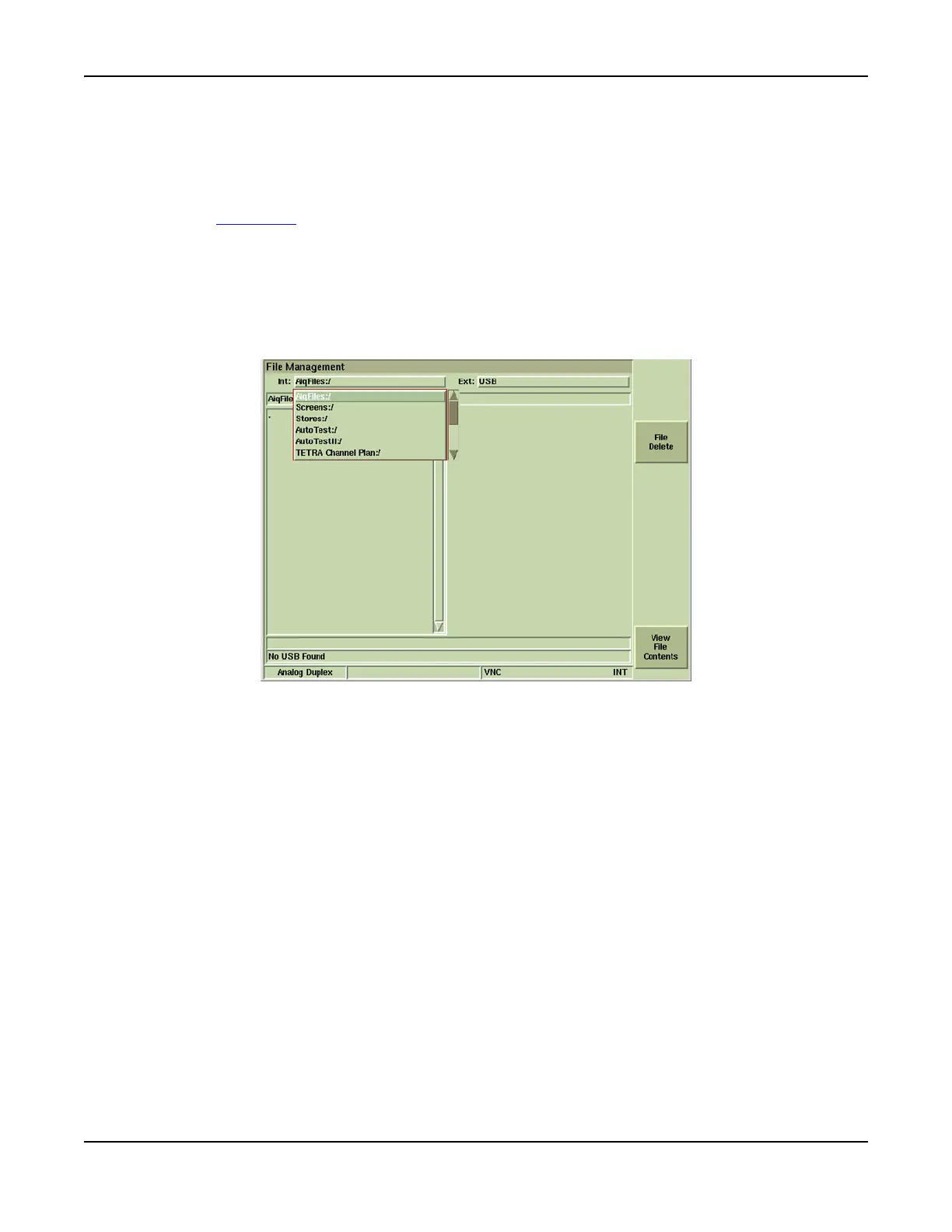
5. Select internal drive to copy file(s) to: Internal Drive: drop-down menu (example uses
AiqFiles).
6. Select external drive to copy file(s) from: External drive: drop-down menu (example uses
USB).
Fig. 3-31 File Management - Selecting File
7. The File Management Tile opens for the selected file type. The data field on the left is empty
if no files have been imported to this drive directory. The field to the right displays the file to
be copied from the USB to the Test set.



 To Next Page