BMP
®
61 Label Printer
User’s Manual
1-11
Connecting
Connecting
The BMP
®
61 Label Printer is
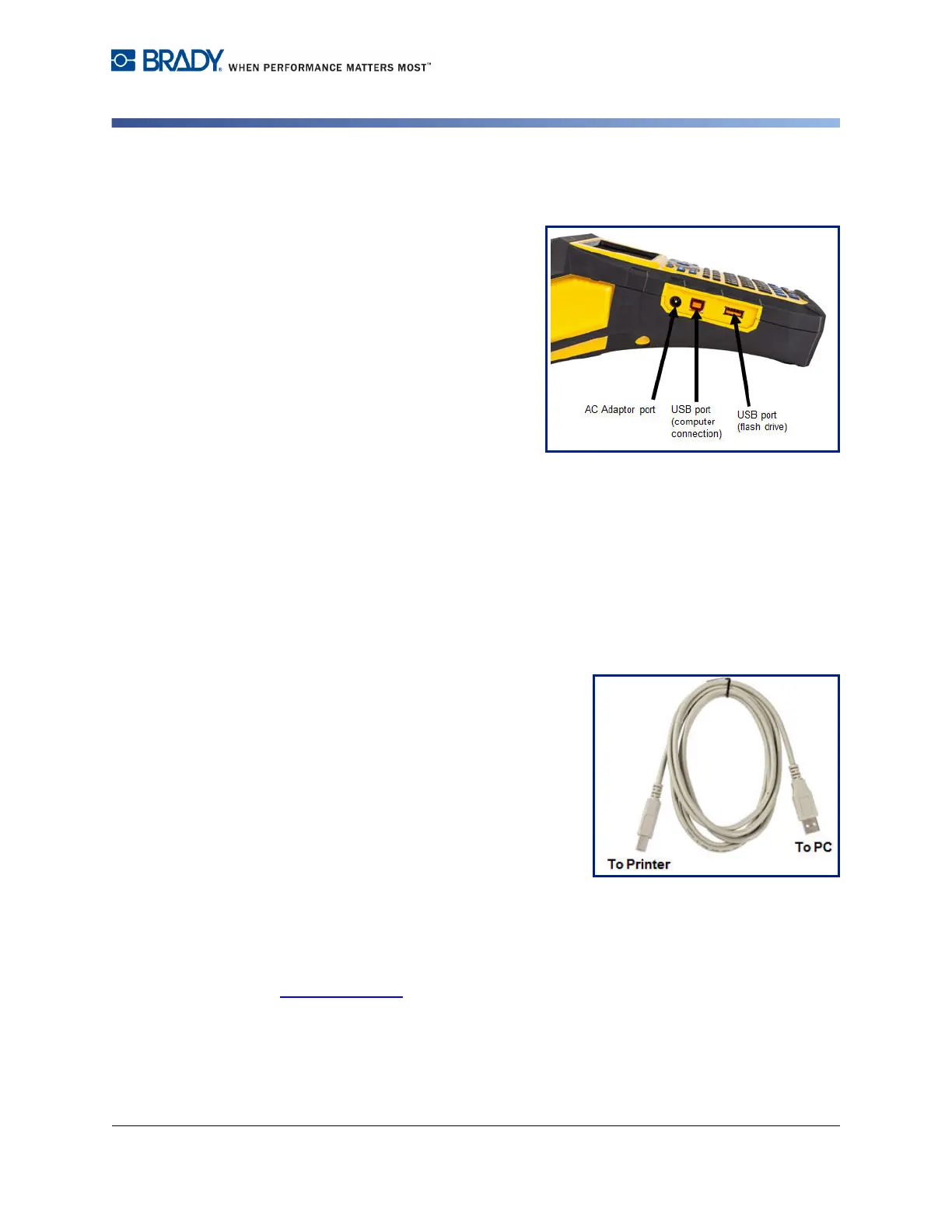
equipped with a USB port to connect
to a computer and a USB host port to
be used with a flash drive. Labels
created in various applications (such
as LabelMark™
Labeling Software or
Brady Mobile Software) can be
printed on the BMP
®
61. You can also
copy data files and graphics between
printers by placing the files on a flash
drive which can be connected
directly to the BMP
®
61 printer.
Connecting to a PC
In order to send data from a Brady PC labeling program to the BMP
®
61 printer,
you must install the BMP
®
61 printer driver. The printer drivers can be found on the
Product CD enclosed with your BMP
®
61 printer package.
The BMP
®
61 printer is a “plug-and-play” printer which means your PC will
automatically recognize the new hardware (printer) when it is attached and will
launch a wizard that will auto-install the printer drivers.
To install the printer drivers:
1. Insert the Product CD into the CD drive
of your computer.
2. Attach the small end of the USB cable to
the printer, then the flat end of the cable
to the PC.
3. Turn the printer on.
On the PC, “Found New Hardware” pops up
in the lower right corner of the screen and
the printer driver wizard is launched.
4. Follow the prompts in the printer driver wizard.
Download Print Drivers
You can also download the print drivers from the Brady website, such as
www.bradyid.com
, or your local site. On the website, choose
Support>Downloads, then follow the instructions on the screen.



 To Next Page