3-2 BMP
®
61 Label Printer
User’s Manual
Font
Size
Font size applies to an entire line of data at a time and is measured in point size or
millimeters, as determined in the Setup function.
To change the size of the chosen font:
1. Press Font .
A pop-up menu displays the available font sizes for the media installed.
2. Select Size, then select the font size desired.
If the desired size is not displayed, you can manually enter a font size within the
valid size range. This option is available under “Custom” of the Size menu.
To manually enter a font size:
3. Select Custom and enter the font size.
4. Press Enter .
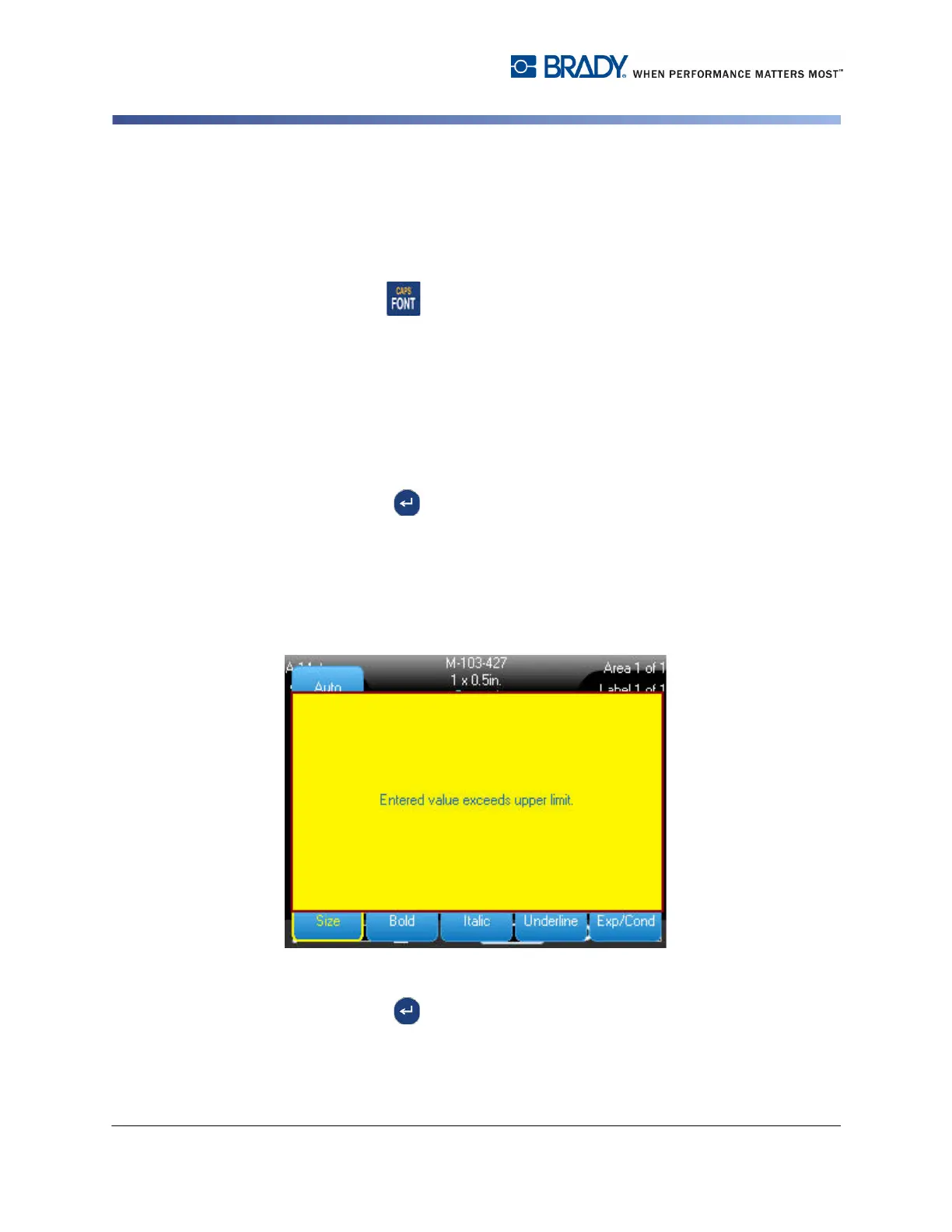
When entering a custom font size, a minimum/maximum range is presented to
accommodate the label size loaded in the printer. The minimum size reflects
readability and the maximum size accommodates proper fit on a label. If you enter
a size smaller than the minimum or larger than the maximum, an error message
displays indicating the entered size exceeds lower or upper limits.
To remove the error message:
5. Press Enter .
OR
Touch the error message screen.



 To Next Page