3-44 BMP
®
61 Label Printer
User’s Manual
List
Advanced Merge
You can create a data source to have many fields with varying information.
However, you do not have to use every field on every label. For instance, even
though the example database contains four fields (name, address, city-state, and
customer number), you can create a label that uses only one or two of the fields.
When you merge the data source with that label, you can indicate which specific
fields you want to merge. This enables you to create one large data source file
containing many fields of information that can be used with various label formats.
You would not have to create a separate data source for each label format.
To merge only some fields in a database:
1. With the label open, press List .
2. Select Adv Merge.
3. Select Internal or External to indicate where the data source file is stored.
4. Select the data source file.
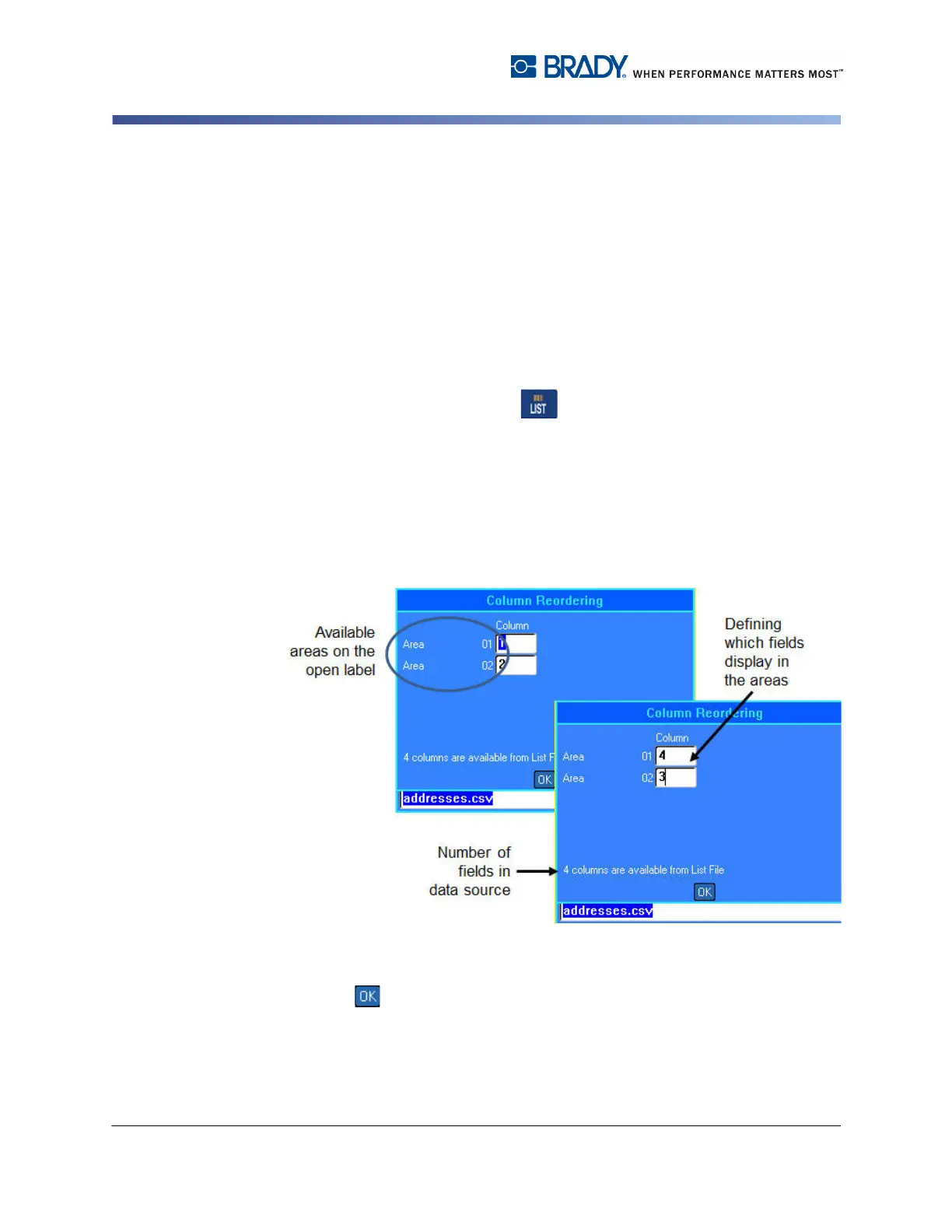
The screen indicates how many areas are available on the particular label. It also
lists how many fields are available in the data source. You can change which field
in the data source you want to display in the areas of your label.
Figure 3-17. Reordering columns in List merge
5. Select the Area field and enter the data source column number to use.
6. Select .



 To Next Page