BMP
®
61 Label Printer
User’s Manual
3-43
List
Merging Files
Fields from the data source merge into specific areas defined on the label.
To merge the data source with the label:
1. Create, or open, the label that will receive the data from the data source.
With the label in the Editing screen:
2. Press List .
3. Select Merge.
4. Select Internal or External to indicate where the data source file is stored.
5. Select the data source file.
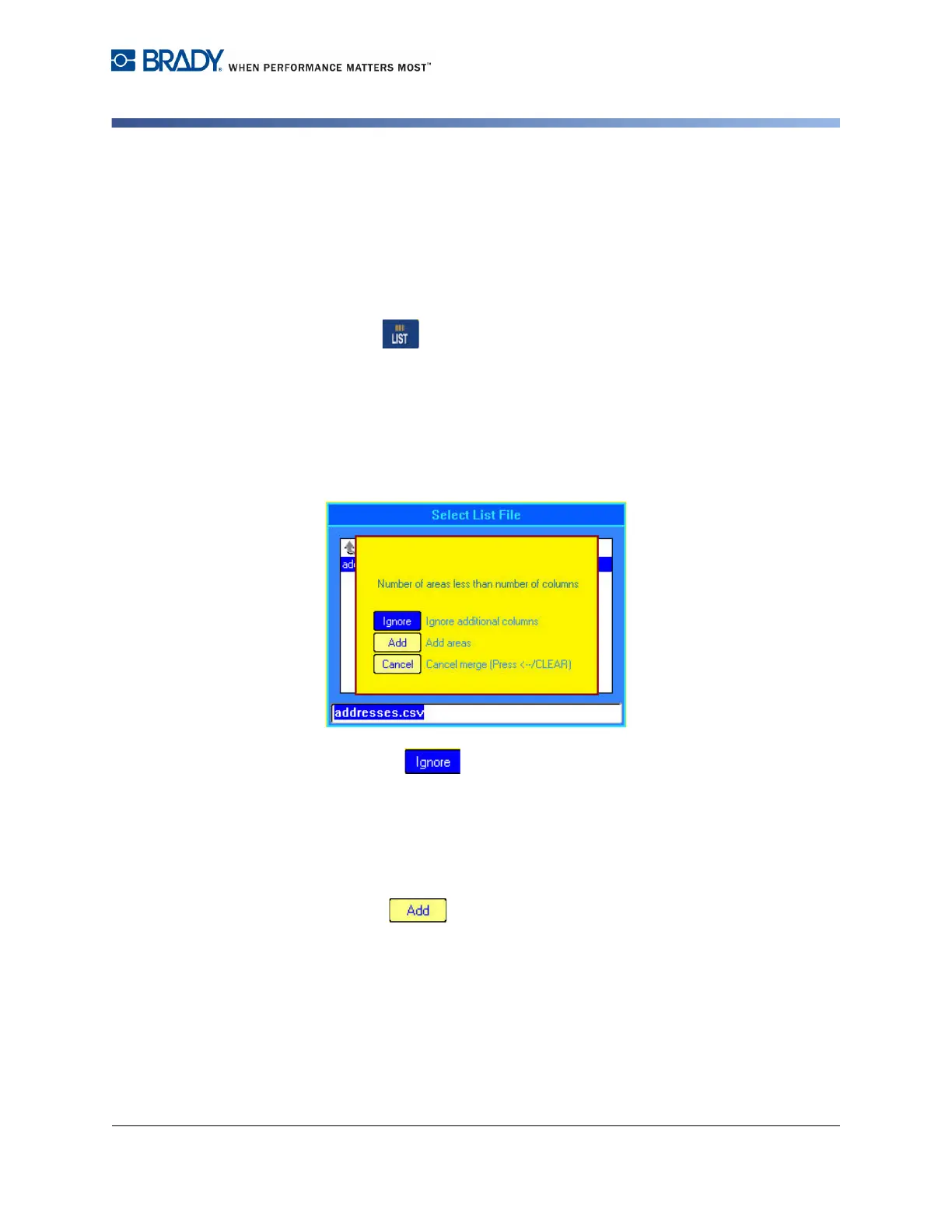
If your label does not have the same number of defined areas as there are fields
in the data source, the List function asks if you want to add additional areas.
6. Select Ignore if you do not want to add additional areas.
The fields from the data source sequentially merge into the label, depending on
how many areas are defined on the label. If you have four fields in the data source
but only two areas defined on the label, the first two fields merge on to the label.
The other fields are ignored and will not display on the label.
OR
7. Select Add if you want the printer to define as many areas on the
label as there are fields in the data source. Once the merge is complete, you
can go back into the label and format the added areas.
The unique data in the data source file is merged to the label. Each field displays
in a different area of one label. Each record (the collection of the fields) displays
on a different label.



 To Next Page