BMP
®
61 Label Printer
User’s Manual
3-21
Labels and Areas
Rotate
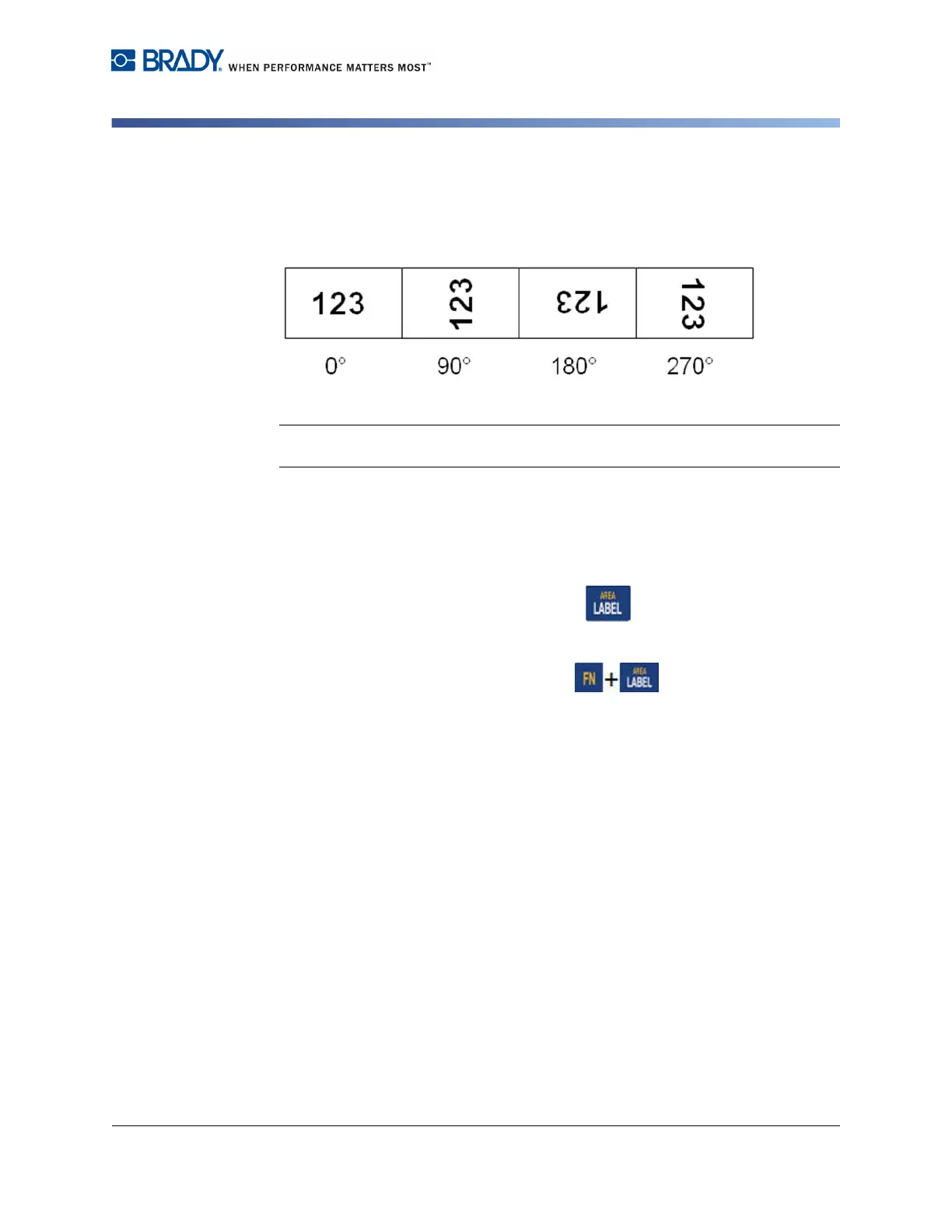
Rotation flips the data on a label or in an area, counter-clockwise, at 90°
increments. Rotation affects all data on a label or in an area.
Figure 3-9. Degrees of rotation on printed label
Note: If rotation is applied individually to areas, you cannot apply rotation to the
entire label.
Data cannot be rotated on a line-by-line basis. When adding a new area or label,
the rotation is the same as the previous area or label.
To rotate data:
1. Navigate to the label or area where rotation will take affect.
2. To set rotation for the label, press Label .
OR
To set rotation for an area, press Area .
3. Choose Rotate>degree of rotation.
Rotated data is autosized to accommodate the height vs. the width of the label.
Rotation does not display on the editing screen, although the degree of rotation is
displayed in the upper left corner of the screen. To view the actual rotation, use
Print Preview. (See "Print Preview” on page 5-2).



 To Next Page