6. Operation AUSTROMAT
®
664 iSiC
®
/ 674 baSiC
2
106 Operating Instructions (Version 03/2018)
6.9. Access the firing furnace via FTP (optional)
NOTE:
This functionality is available as an option.
• The options that are enabled for your firing furnace can be found in the menu
Setup > Furnace ID > Options (see section 5.8.2.1).
• You can find
information
on enabling options in section 7.6.
NOTE:
Consult your network administrator if you are uncertain.
NOTE:
Several programs can be used to access an FTP site including a web browser like
Internet Explorer. The following procedure describes how to create an FTP link between
a computer and the firing furnace.
The computer and firing furnace have to be connected via an Ethernet connection.
1. Start Windows Explorer on the computer.
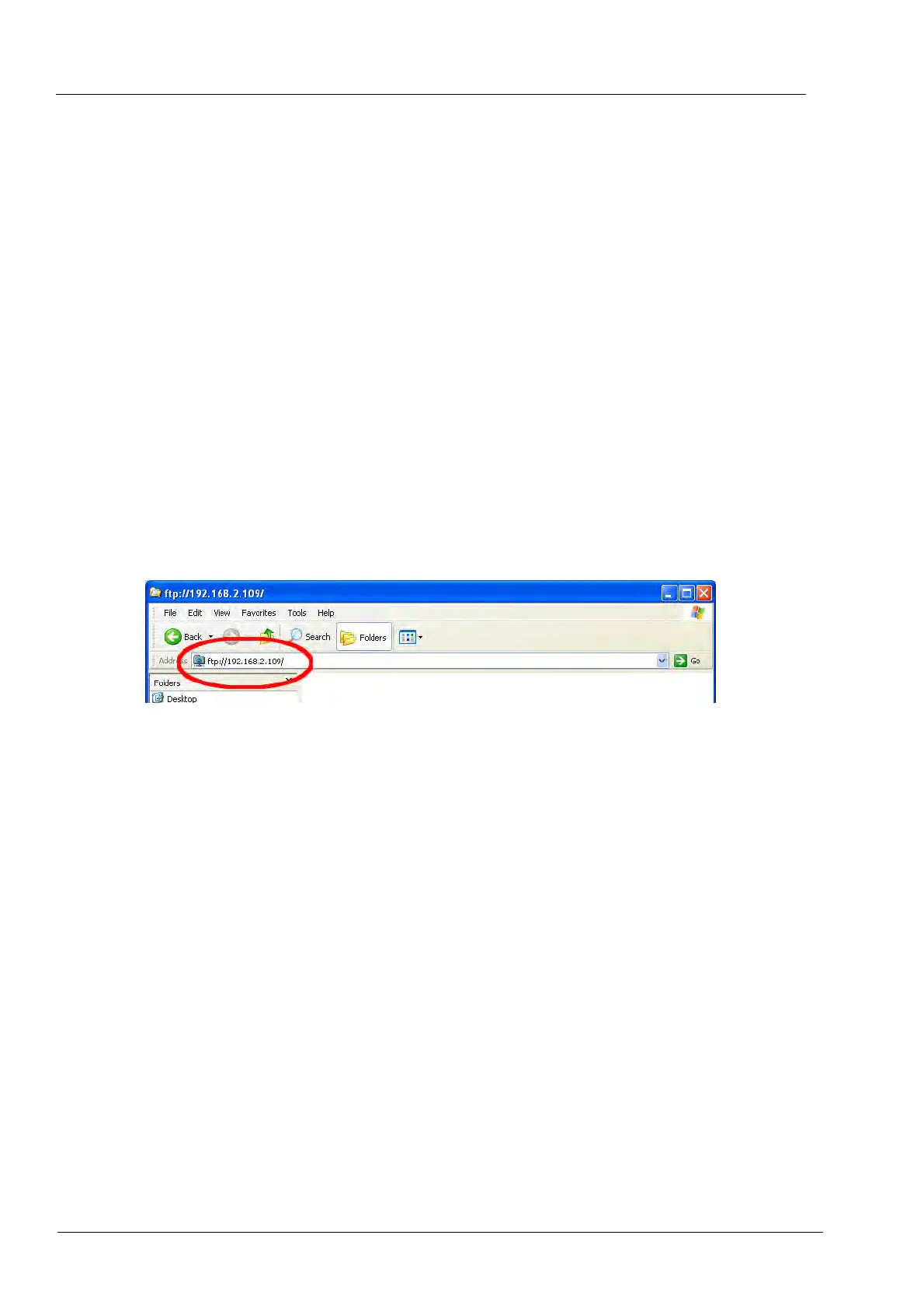
2. In the address line of Windows Explorer, enter the IP address of the firing furnace (
"http://192.168.2.109" in the following example), and press the Enter key.
Fig. 6-13 Enter the IP address in Windows Explorer (example)
NOTE:
For immediate access, you can enter the complete FTP address for the firing furnace. An
FTP address such as "ftp://ftp_username:ftp_PWD@IP_address" is composed of the
following elements (observe the separators between the individual elements):
• The network protocol "ftp",
• the username "ftp_username" and password "ftp_PWD" for FTP access to the firing
furnace,
• the IP address "IP_address" of the firing furnace and the network (see section 4.5.1).
3.
An erro
r message appears (FTP folder error) because the firing furnace is password-
protected. Click [OK] to confirm the error message.
4. Open the context menu (right click) in the empty window of Windows Explorer. Select
“Login as...".



 To Next Page