AUSTROMAT
®
664 iSiC
®
/ 674 baSiC
2
5. User interface
Operating Instructions (Version 03/2018) 67
5.8.1.4. Screen settings
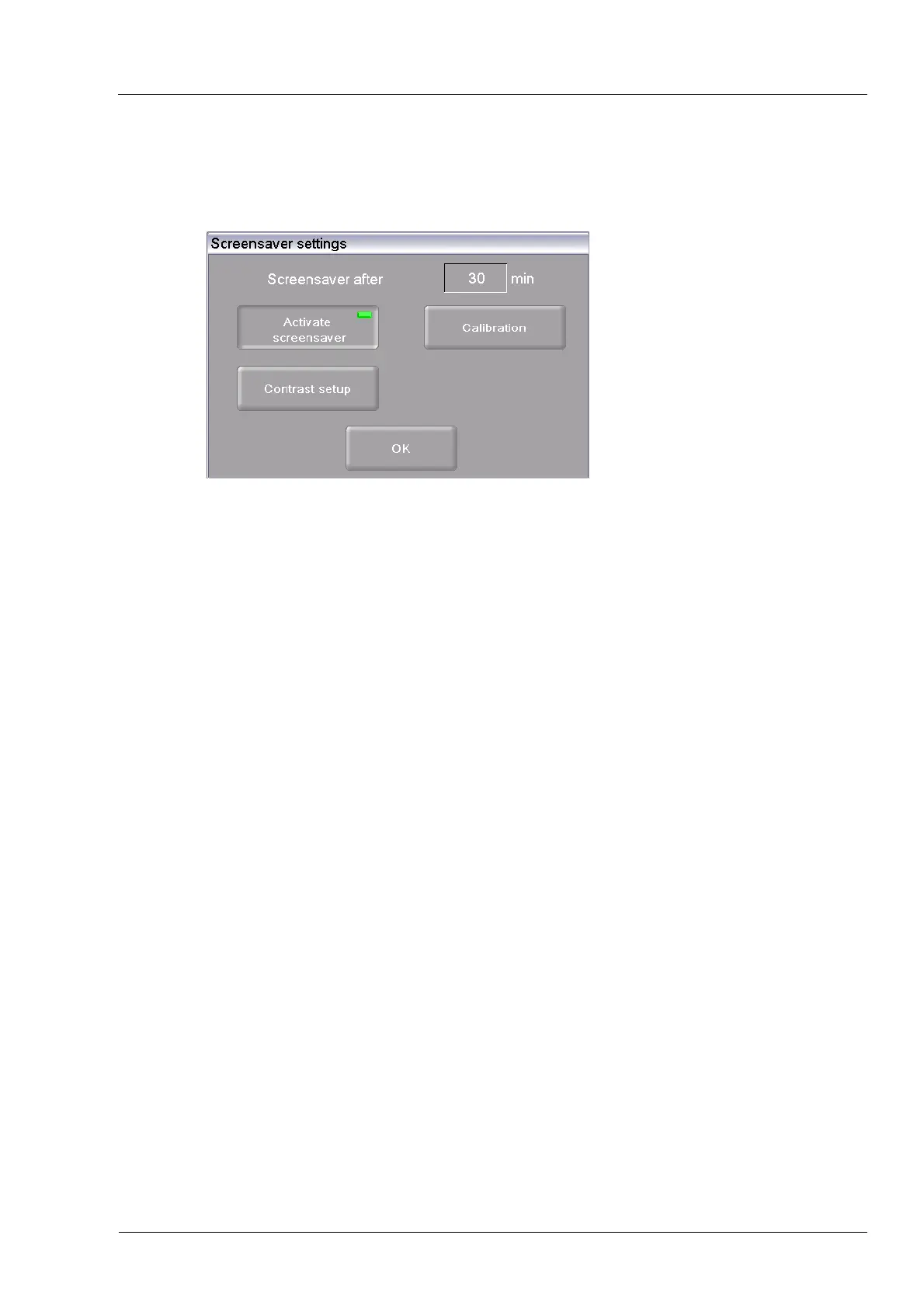
In the "Setup" menu, click the [Screen settings] button. The following window appears for setting
the screen saver.
Fig. 5-16 Setup > Screensaver settings
Buttons
• [Calibration]:
Starts a process for calibrating the screen. Crosshairs are
displayed on a black background. Click the white dot in the
middle of the crosshairs. The crosshairs change position. Again
click the white dot and continue until calibration is finished (a
total of six crosshair positions).
• [Contrast setup]:
Opens a window where you can set the screen contrast. See
Fig. 5-17. Higher value = stronger contrast, lower value =
w
e
aker contrast.
• [OK]:
Accepts the settings and switches back to the "Setup" menu.
Screensaver
after…min
The screen saver makes the screen go dark after the device has not
been used for a while (less power consumption and longer screen
life). When you press any key or touch the touchscreen, the original
display appears. The screensaver starts after the indicated time
without an entry (inactivity of the entry device). Change this time as
follows:
• Click on the time. The numeric keyboard window appears.
• Enter the desired time.
Activate screen saver You can activate and deactivate the screensaver with the button. An
LED within the button indicates that the screensaver is active.



 To Next Page