Chapter 21: Browser
From the
Home
menu, press
Upstream
(F2) and use the rotary knob to open the
Browser
application. This
function equips the DS2831 with a basic web browser, able to load simple text, pictures, and hyperlinks and
remember a number of website URLs.
Before opening any web page, ensure that your network setup is correct and active; the DS2831 must be
connected to the Internet with an Ethernet cable, WiFi connection, or active Cable Modem session.
Note that web page Java or Flash plug-ins may not work as intended on the DS2831’s browser, and may
not be properly formatted for the unit’s display.
Hyperlinks are highlighted in blue ( ) and may be available in the title bar of the browser. Use the
arrow keys to scroll through different hyperlinks, then click the rotary knob to execute and open the related
webpage. If the page is too large to fit on the DS2831’s display, use the rotary knob to scroll up and down.
To skip ahead to the next page or return to the previous page, use the
Next
(F5) and
Previous
(F4) keys.
Press
URL
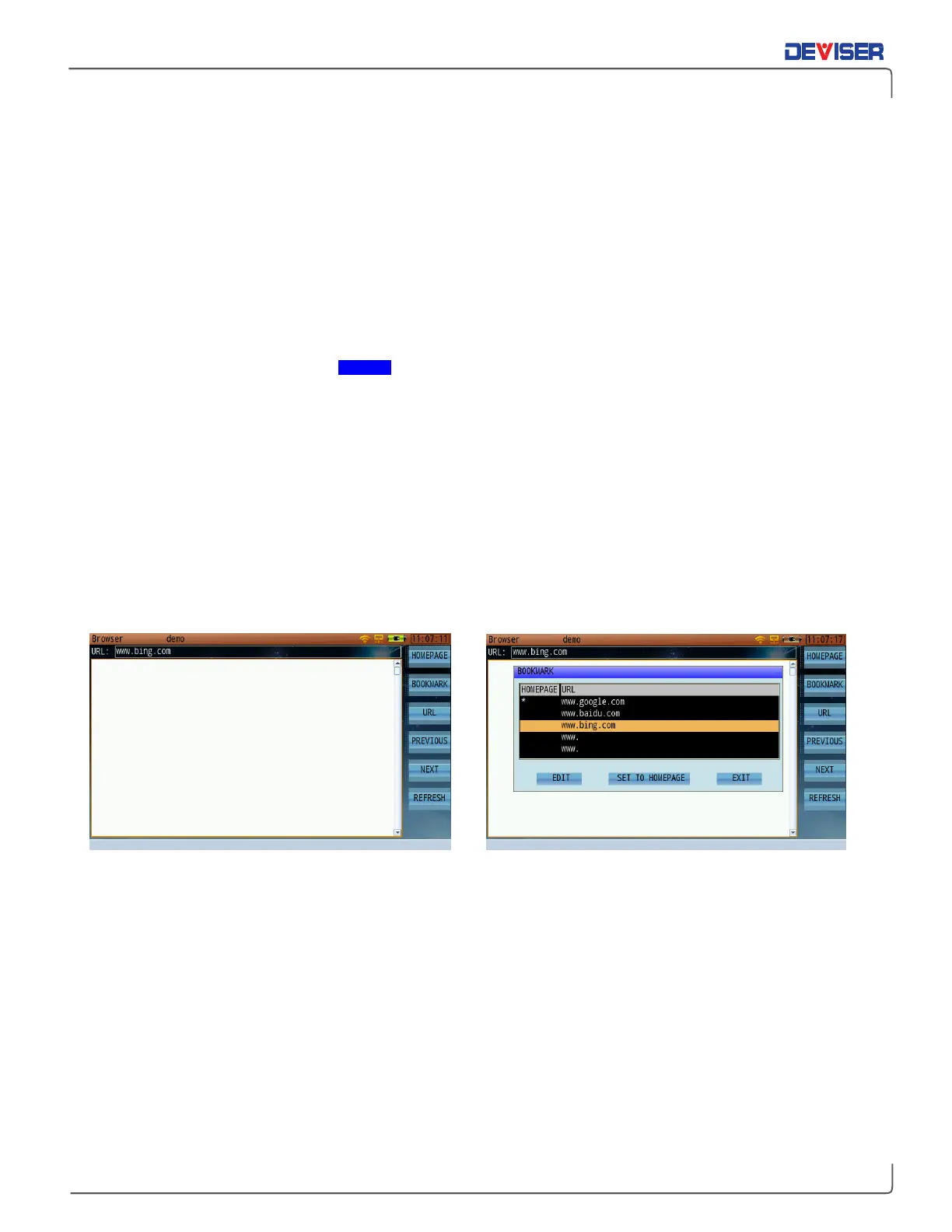
(F3) to enter a new web site address with the alphanumeric keypad. Press the rotary knob to
confirm your selection (shown below).
For frequently-accessed websites, a Bookmark menu is available for your convenience. Press
Bookmark
(F2)
to open the bookmarks dialog. Use the arrow keys to highlight a URL from the list, and press the rotary knob
to confirm your selection. If you want to set a particular URL as your homepage, use the rotary knob to
select the
Set to Homepage
button. An asterisk (*) in the homepage column (shown below) indicates that
this URL is the homepage, and will open automatically when the browser is opened.
Browser stored Website URLs Browser Bookmark menu
NOTE:
An updated browser is now available. If your DS2831 unit is unable to display images on the Internet,
inquire with your local Deviser representative about upgrading your firmware to take full advantage of a
better-performing Browser function.


 To Next Page