Part IV: System Functions
31-2 Importing and Exporting Data
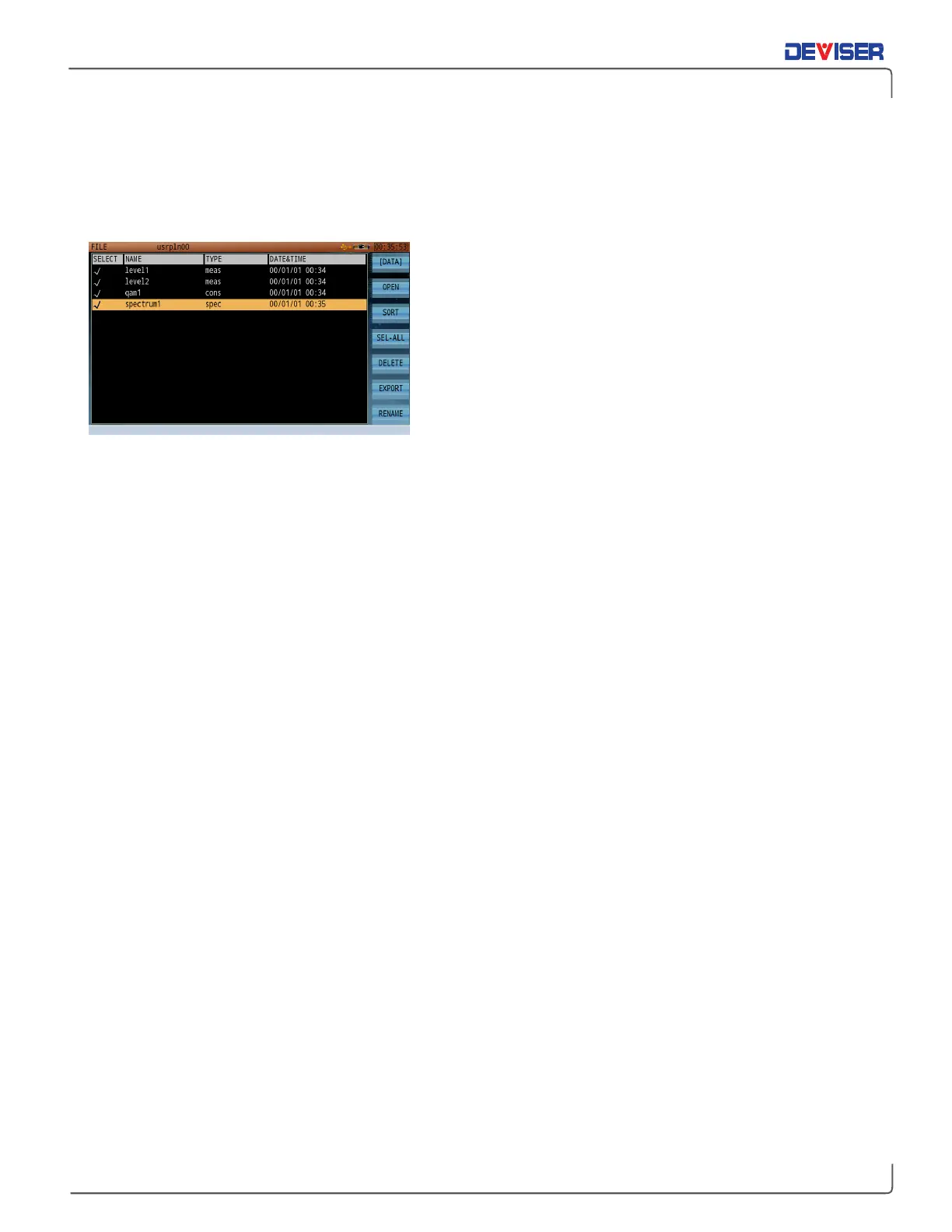
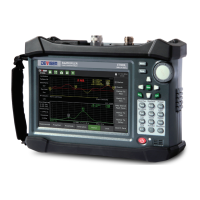
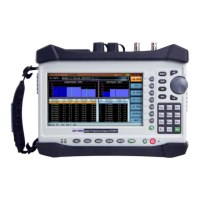
To export files to a USB storage device, first ensure the device is connected via the DS2831’s top panel. The
USB icon will appear in the status bar. Turn the rotary knob to highlight the desired file, press the knob to
select files to export, and then press the
Export
(F6) button.
Upon transfer to USB, new directories will be automatically
created on the storage device. (If these folders already exist,
files will be copied to them as normal.) Measurement data
files will be placed in “DS2831_file” and screenshot / image
files in “DS2831_bmp”. Data files will export in CSV format,
which can be opened with Microsoft Excel or another
spreadsheet software. The Toolbox PC software can also
review and analyze DS2831 exported files.
Work order test results can only be uploaded to the
asset and test data management platform
Deviser
EDGE
through a network connection. They can, however, be
viewed on the DS2831. (See subsection 31-1.1.)


 To Next Page