Part IV: System Functions
Chapter 31: File Management
The ability to save and manipulate data is a key feature of using the DS2831 Digital TV Spectrum Analyzer.
From the File Management utility – accessible by pressing the
File
( ) key under the display – you can
delete, view, move, and sort data files saved to the system’s internal 1GB hard drive.
Files can also be transferred to a USB storage device. Simply connect the drive to the Type-A USB port on the
DS2831’s top panel, and look for the USB icon to appear in the status bar.
31-1 File Operations
In the file management menu, you can view all readable files currently saved to the DS2831’s internal hard
drive. These files are separated by type. Image files appear in one list, data files in another, and so on.
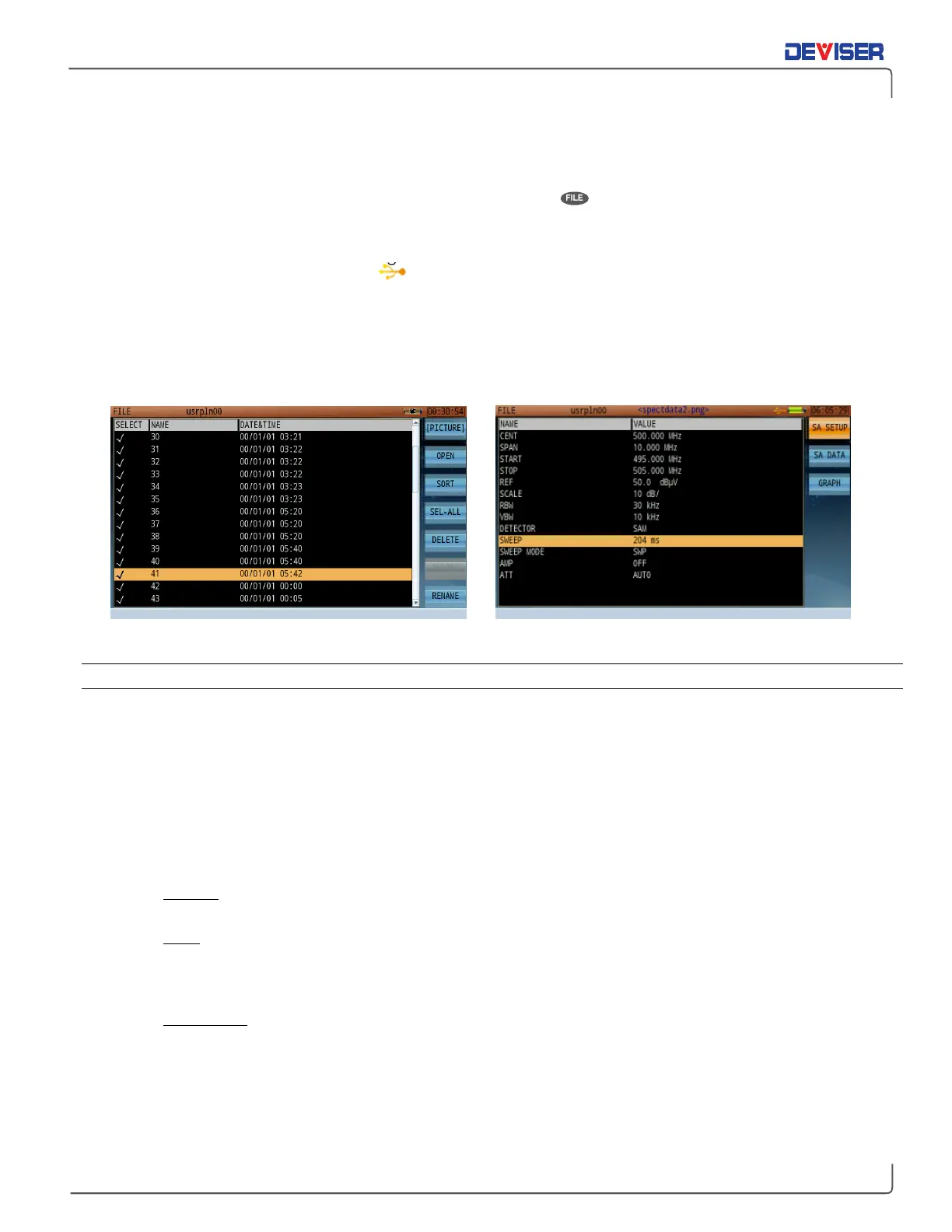
File Management Menu: Pictures File Management Menu: Open Data
31-1.1 Open
In the above image, the top function key (F1) is labeled
[PICTURE]
. This indicates that the user is viewing a list
of all picture files saved to the instrument. Press F1 to cycle through
picture, data
, and
work order
files.
By default, files are listed alphabetically by name in ascending order, and bear timestamps according to
when the data was recorded. (See subsection 31-1.2.) Use the rotary knob or arrow keys to scroll up and
down, highlighting files.
Press
Open
(F2) to view the highlighted file. This means different things for different filetypes. If available, use
the function keys to shift between tabs.
•
Pictures will be displayed on the DS2831’s screen. Turn the rotary knob to cycle through other
saved images.
•
Data will display a summary of the time, GPS location, associated work order, and system serial #
on which the data was taken. Press
F2
to view additional data about the captured measurement,
including testing parameters, data points, and a screenshot of the measurement trace. Auto test
results show channel level/frequency, chan-scan, tilt, and spectrum measurements separately.
•
Work orders will display a list of their component projects and measurements. Work orders that
have been initiated by an Auto Test setup may be exported in .csv format.
You may only open one file at a time. When you have finished viewing files, press the
Esc
key to go back.


 To Next Page