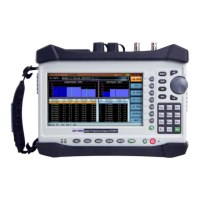
2-3 Front Panel Overview
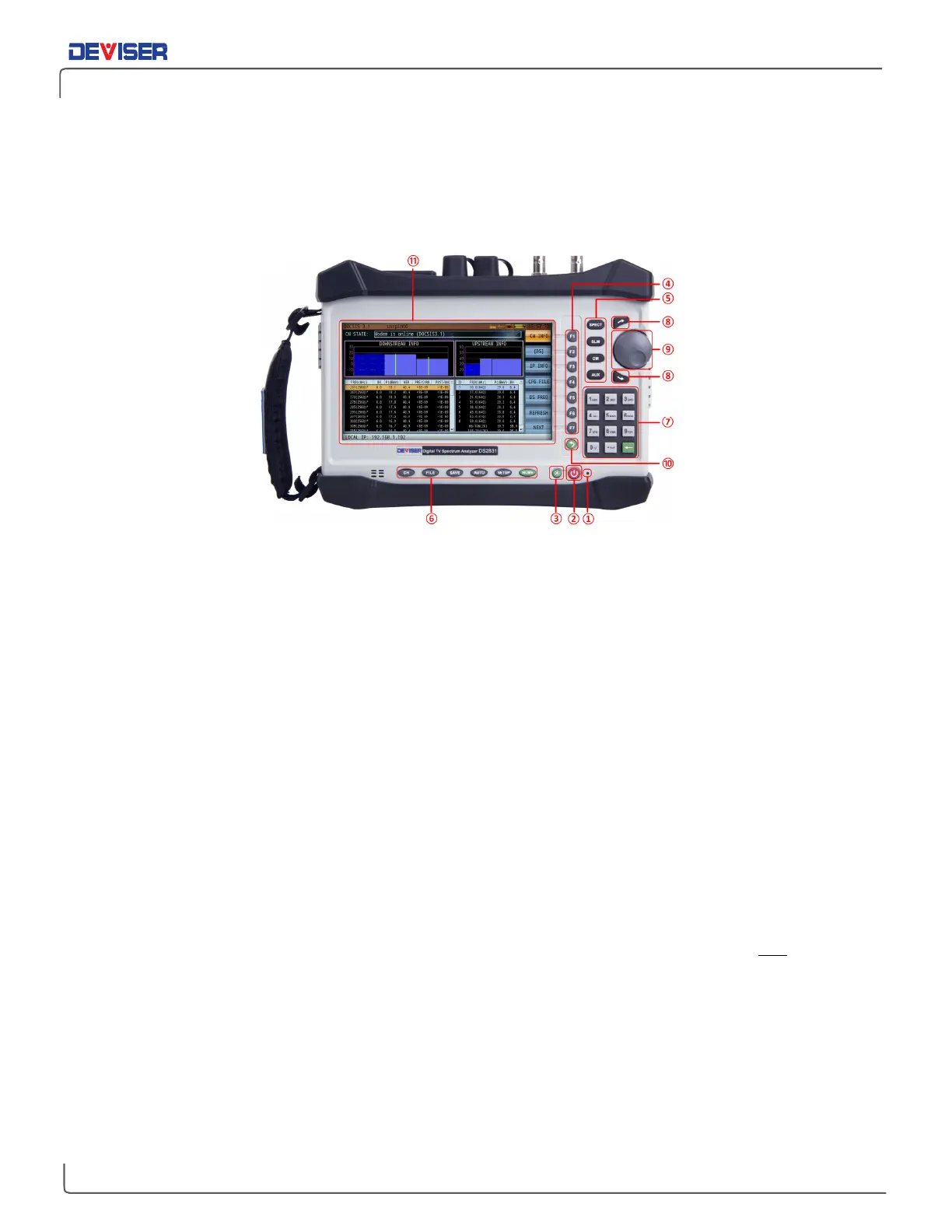
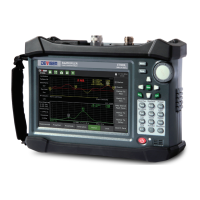
The DS2831 Digital TV Spectrum Analyzer’s front panel contains the software boot switch and a number of
LED status indicator lights. It also bears the unit’s model number. You can use the LCD touchscreen to
navigate most basic functions; just use your finger or the provided stylus to tap the desired icon or setting.
1. LED Charge Indicator
This light shows the battery charge status. When red, the battery is charging; when green, it is fully charged.
2. Power ON/OFF
Press to turn the DS2831’s application software ON and OFF. Press while ON to shut down, reboot, or place
the unit in standby mode.
3. Brightness Control
With the unit powered on, press the green button to the left of the power button to launch the DS2831
screen brightness control. Use the arrow keys (8) or rotary knob (9) to adjust the setting from 0-100%, then
press this button again to confirm.
4. Function Keys
Keys F1-F7 are used to select corresponding settings or features displayed on the screen. Press one of these
keys to select the menu item displayed closest to it. For example, when selecting “Downstream” or
“Upstream”, the listed settings will appear next to the F1 and F2 keys, respectively. Press F1 to select
Downstream and F2 to select Upstream.
5. Measurement Modes
The four keys located next to the rotary knob will activate different measurement modes. Press
SPECT
for the
spectrum analysis mode;
SLM
for channel measurement
; CM
for cable modem; and
AUX
for simultaneous
QAM and spectrum analysis (provided that the DS2831 is tuned to a digital carrier frequency and is in FFT
acquisition setting).
6. Navigation Keys
The six keys located along the bottom of the screen activate different DS2831 management menus. Press
CH
for the Channel Editor menu;
FILE
to manage or view saved files;
SAVE
to save a screenshot or data file;
AUTO
to access the auto test menu;
SETUP
to change system settings; and
HOME
to return to the
measurement application menu.


 To Next Page