2-7 Measurement Mode Selection
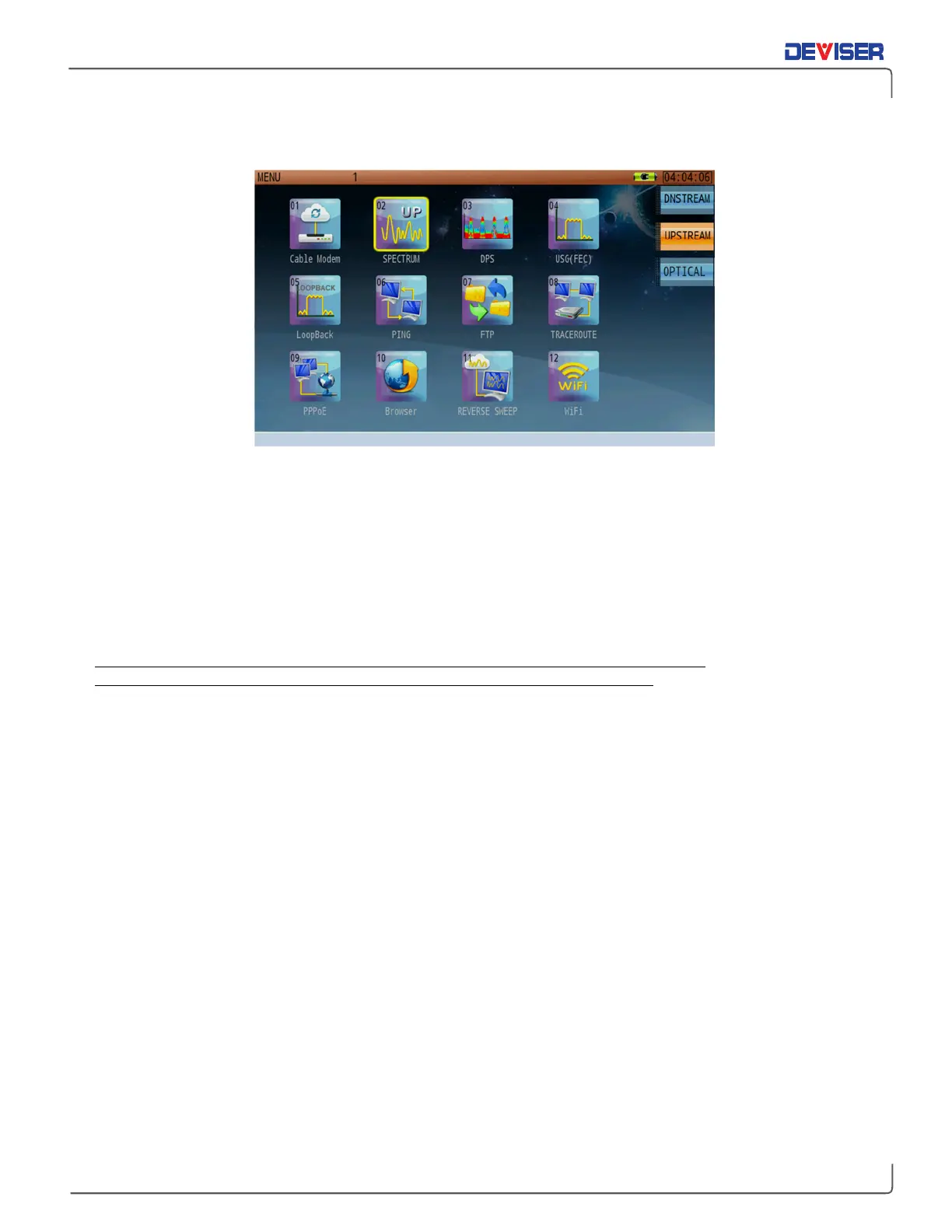
DS2831 Main Menu
There are three ways to choose a measurement application. (To switch between Downstream, Upstream,
and Optical applications pages, tap the named submenus to the right.)
1.
Tap the desired measurement icon with your finger or the included stylus pen.
2.
Turn the rotary knob (or use the arrow keys) to move the yellow selector on the screen. Highlight the
application you want and press the rotary knob to start the measurement.
3.
Each application has a small number in its icon. Use the data keypad to enter the number of the
desired application, starting the measurement.
Optional measurement modes, not included in the DS2831’s standard measurements (see Section 2-6),
can be purchased initially, or at a later date after the unit has been delivered. A software keycode must
be entered to enable the desired function.
When enabled, any optional modes and associated measurement applications will also be displayed on
the main menu. Please consult Section 1-2 regarding available product measurement options.
For instructions on using individual measurement functions, see Part 2: Settings and Measurements.
2-8 About the Soft Carrying Case
The DS2831 can be operated while in the soft carrying case. On the back of the case is a large storage
pouch for accessories and power supply.
To place the instrument into the soft carrying case:
1.
Place the carrying case face-down on a stable surface, with the front panel fully closed and lying flat.
2.
Open the zippered back of the case.
3.
Insert the instrument face-down into the case. Take care that the connectors fit properly through the
opening in the case top.


 To Next Page