Part IV: System Functions
30-2 General Settings
The General tab contains general system settings that do not apply to particular measurement functions. This
tab is divided into different categories, listed on the left-hand side of the screen; turn the rotary knob to
change pages, and press the knob to select a page and begin editing settings. Press Esc to go back.
30-2.1 Network Settings
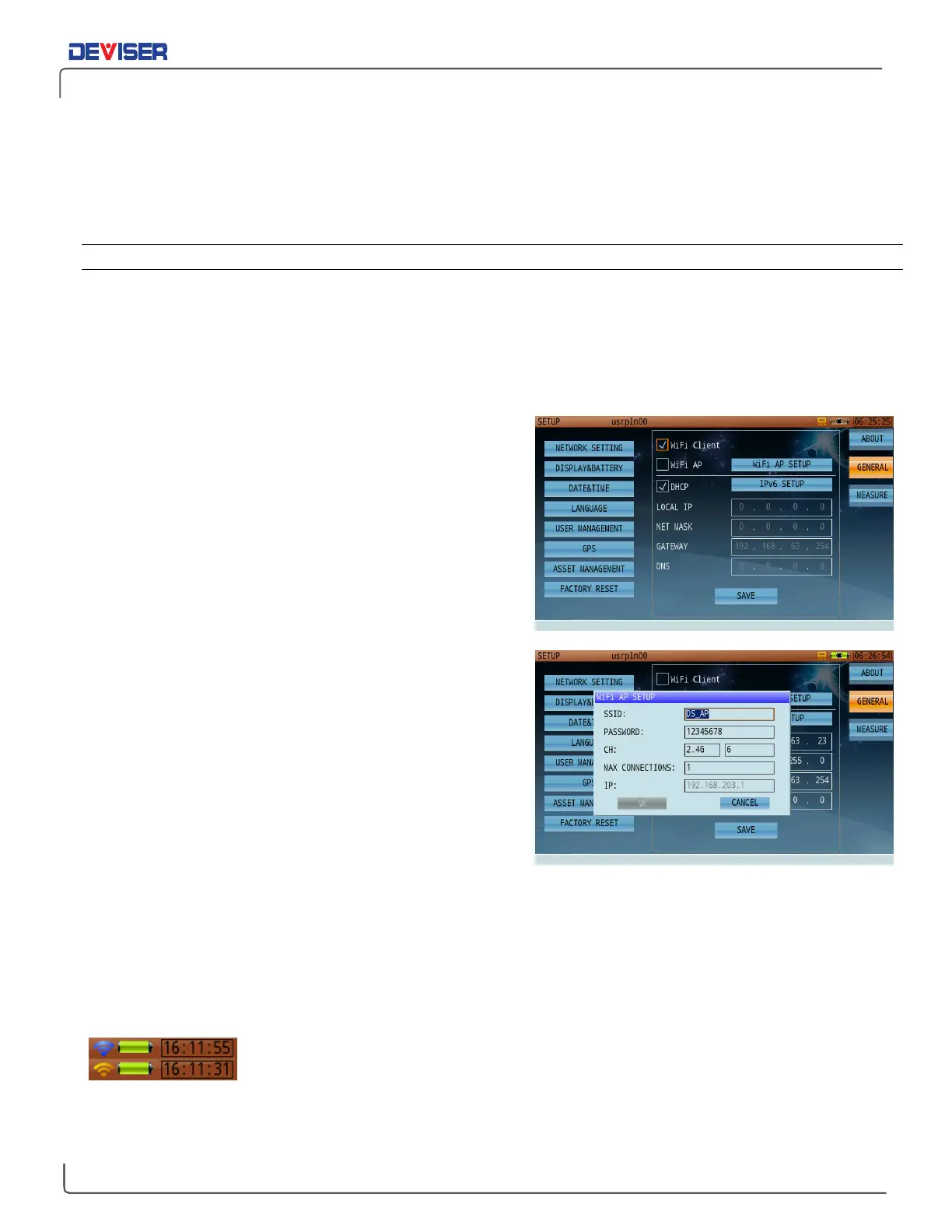
This page contains settings for allowing the DS2831 to interact with other networked devices via Ethernet LAN
cable or Wi-Fi. This includes the
Local IP, Net Mask, Gateway,
and
DNS
addresses and the
DHCP
option.
Highlight DHCP and press the rotary knob to activate it, or deactivate to keep the static IP settings.
To change an address, turn the rotary knob to highlight one of its bytes and enter up to 3 digits using the
keypad. Continue as needed until the address is complete.
Using Wi-Fi
The Wi-Fi feature is only available if enabled on your DS2831
unit. To activate it, check the Wi-Fi Client box in the Network
Settings menu. If DHCP is checked, the unit will automatically
connect to the wireless network. Otherwise, you can set up
a static IP configuration.
Using Ethernet
In Network Settings, when the WiFi Client box is empty, the
default connection is through the Ethernet port on the top
panel. Connect an Ethernet cable from an active network
to the DS2831 and set up the static IP information to
connect. (If DHCP is checked, the unit will auto-set a
network address and configuration.)
Wi-Fi Access Point (Hotspot) Setup
The DS2831 offers a Wi-Fi AP (Access Point) function, which
allows connection from a mobile device. Technicians can
use this function to have the DS2831 access public networks
during field operations. You can record/measure data even
if no suitable networks are present. Note that this tool is
currently available only on Android devices; future firmware
releases will include other mobile OSs.
Select WLAN AP setup parameters to open a settings dialog (shown above). This includes:
•
SSID: Service Set Identifier. User selects the correct name.
•
Password: User-defined.
•
IP Address: This is a fixed IP address; users cannot modify it.
If a wi-fi connection is successful, a
yellow
wi-fi icon will appear in the status bar.
If the hotspot is set up correctly and is ready to receive connections, a
blue
wi-fi icon will appear.


 To Next Page