7700 Multiframe Manual
7725DSK-LG / 7725DSK-LG-HD HD/SD Logo Inserter & Media Keyer
Page 8-4 Revision 1.4 UPGRADING FIRMWARE
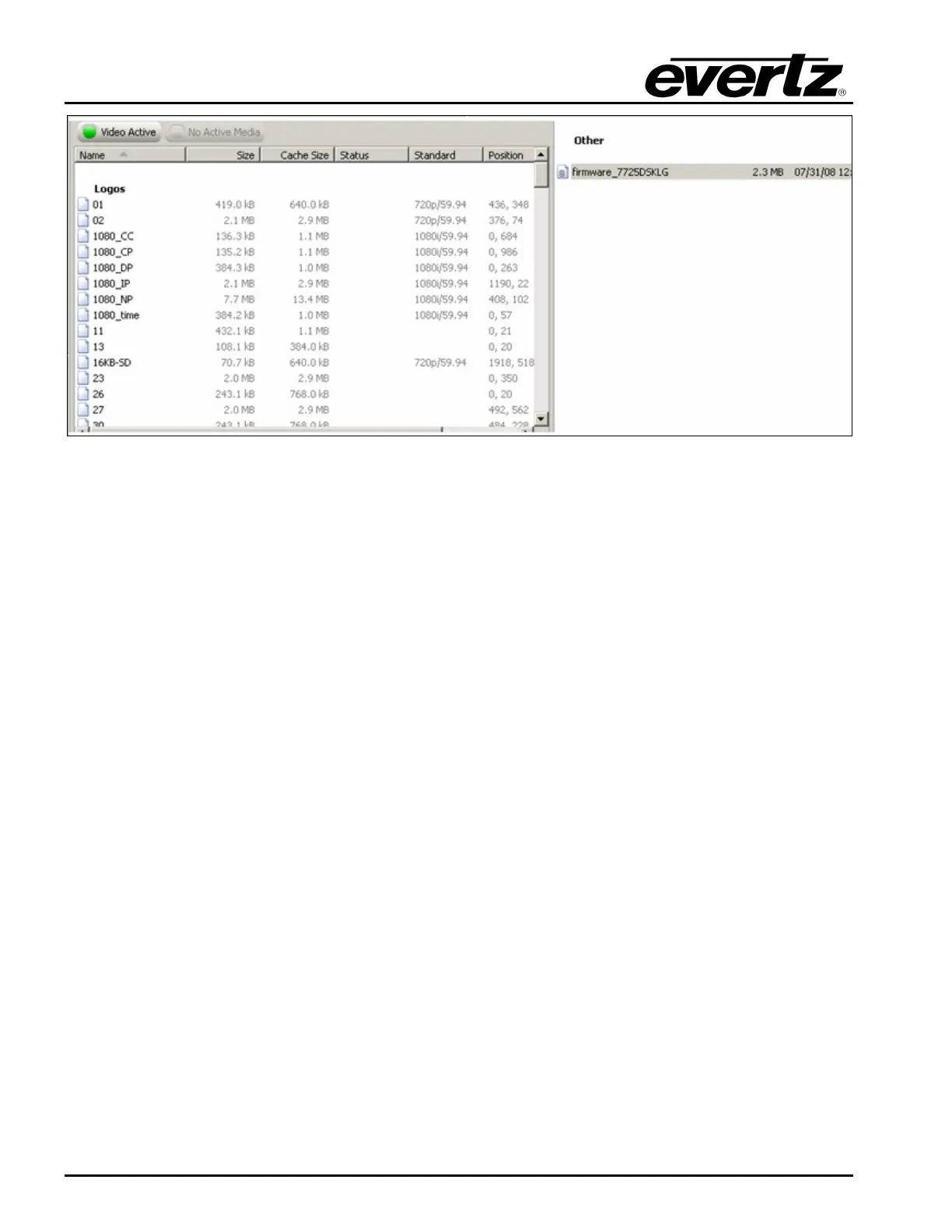
Figure 8-2: Transferring File in Overture
8.3.1.2. Method 2: Copy Using a CF Reader
The user can transfer the "firmware_7725DSKLG" to the CF using a CF reader.
1. To transfer this file, remove the CF card from the 7725DSK and insert it into a CF reader. Once
in the CF reader, copy the "firmware_7725DSKLG" file.
2.
Once the “firmware_7725DSKLG” file resides on the CF, place the CF back in the 7725DSK-LG
unit. The user can then proceed to step 2 (section 8.3.2).
8.3.2. Step 2: Serial Upgrade Procedure
8.3.2.1. Terminal Program Setup
1. In order to upgrade your unit serially, you will be required to download the
hd7725dsklg_2v01_xxx.bin file (zipped file) from the Evertz website, which contains the following
items:
• boot2.bin
• The firmware file is “firmware_7725DSKLG
The “firmware_7725DSKLG” file is put onto the CF, and boot2.bin is applied using the "upgrade"
command in the serial prompt.
2. When you are updating the keyer unit firmware, connect the rainbow cable (Evertz part #
WA-S76)
to the four pin connector on the front of the 7725DSK-LG module. Connect the other end of the
rainbow cable to the serial connector.
3. Connect the 9 pin connector on the end of the serial update cable to the PCs’ RS-232
communications port.
4. Start the terminal program.



 To Next Page