Falcon M-Class | User Guide
91
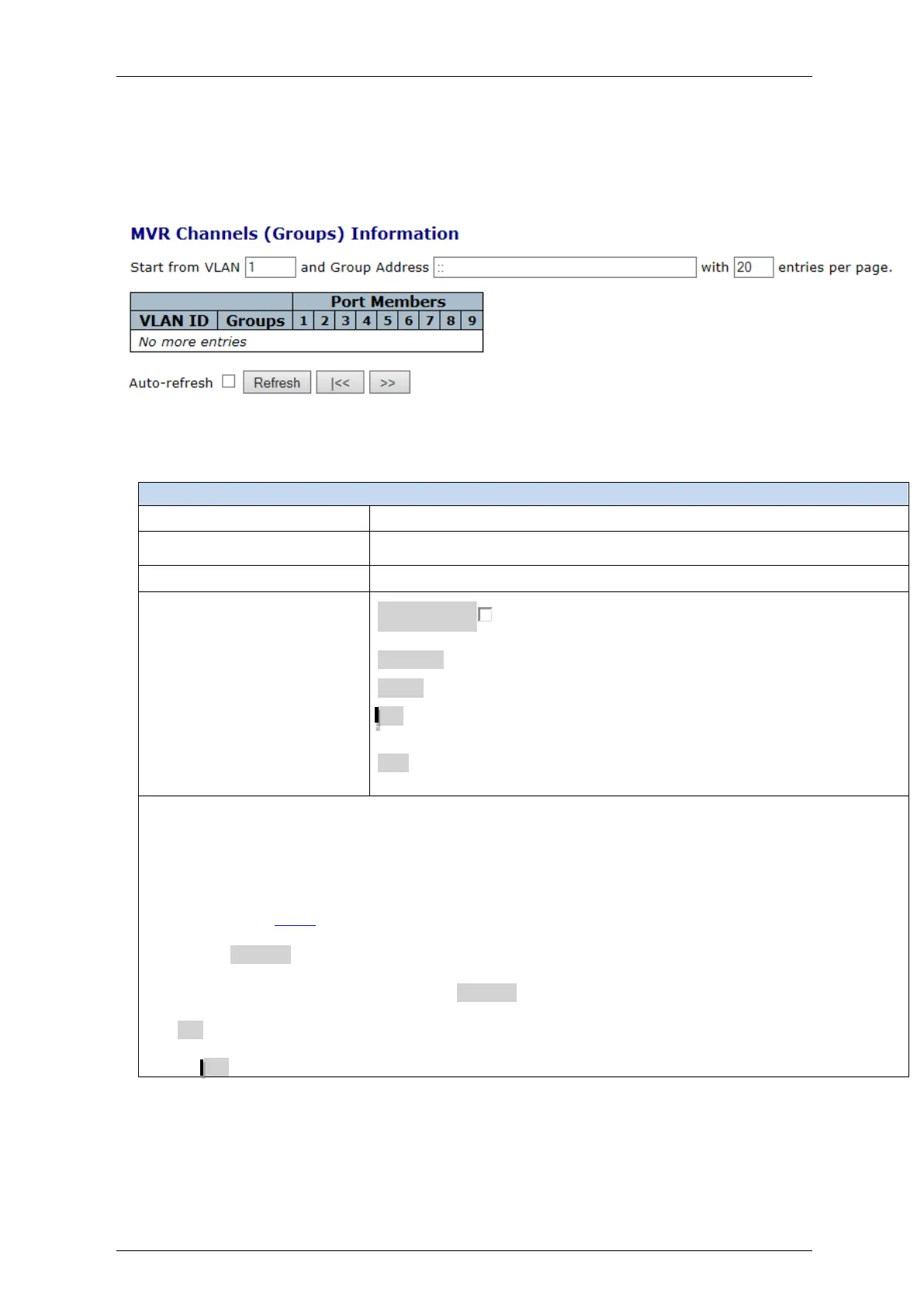
4.7.7.5 MVR Channels (Groups) Information
Entries in the MVR Channels (Groups) Information Table are shown on this section.
The MVR Channels (Groups) Information Table is sorted first by VLAN ID, and then by group.
Figure 4-45: MVR Channels (Group) Information display
Table 4-43: MVR Channels (Group) Information parameters
Auto-refresh : Check this box to refresh the page automatically.
Automatic refresh occurs every 3 seconds
Refresh: Click to refresh the page immediately
Clear: Clears all Statistics counters.
<<: Updates the table starting from the first entry in the MVR Channels
(Groups) Information Table.
>>: Updates the table, starting with the entry after the last entry currently
displayed.
Navigating the MVR Channels (Groups) Information Table
Each page shows up to 99 entries from the MVR Group table, default being 20, selected through the "entries
per page" input field
When first visited, the web page will show the first 20 entries from the beginning of the MVR Channels
(Groups) Information Table.
The "Start from VLAN", and "Group Address" input fields allow the user to select the starting
point in the MVR Channels (Groups) Information Table.
Clicking the Refresh button will update the displayed table starting from that or the closest next MVR
Channels (Groups) Information Table match
In addition, the two input fields will - upon a Refresh button click - assume the value of the first displayed
entry, allowing for continuous refresh with the same start address.
The >> will use the last entry of the currently displayed table as a basis for the next lookup. When the end
is reached the text "No more entries" is shown in the displayed table.
Use the <<button to start over.


 To Next Page