TDR Testing and Fault Location
TDR Auto-Test
6
6-5
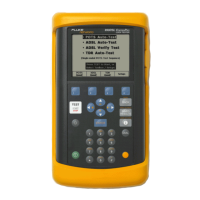
Setting Up a TDR Auto-Test
To set up a TDR Auto-Test, complete the following:
1. From the
Main menu, select TDR Auto-Test. Then, press D(Setups).
2. Select the appropriate
Cable Type and Gauge (refer to Table 6-2).
Note
Before you run this test, you must select the proper Cable Type and
Gauge. If these parameters are specified, the CopperPro will use the
industry-standard VOP for that cable type and gauge. If the actual
VOP is known, however, you can supply it as well.
3. Select the desired
Pulse Width (Range) to use for the test. Use Auto
(default) to auto-range and find the largest reflection, regardless of range.
If interested in reflections within a particular range of the cable, select the
pulse width corresponding to the desired range.
4. Select the
Cable Makeup option, using Single Gauge when the pair is
predominantly one gauge; otherwise, use
Multi-Gauge / Uncertain.
Note
The
Single Gauge option yields the most accurate reflection analysis.
5. Enable the
Filter option when a high level of power influence is present.
6. Enable the
Average option to smooth out instantaneous noise bursts.
7. If less sensitivity to reflections is desired, enter a lower value for
Fault
Detect Sensitivity.
If more sensitivity is needed, increase this % value.
8. Set up the individual parametric tests (Voltage, Load Coils, Opens, and
Shorts & Grounds). To do this, display the Setup screen for each test and
enter the desired options (see Chapter 4 for Setup instructions for each
test).
9. If an active ADSLx modem is on the line (but not the DSLAM), enable
the
ADSLx Modem Filter.
Note
This forces the TDR to operate only during the modem silent
intervals, resulting in interference-free operation.


 To Next Page