Setting Up and Operating the CopperPro
Performing Basic Operations
3
3-25
Transferring a Screen Image to a PC
To transfer any screen image to a PC in the in the “.BMP” file format (for
viewing or printing to a non-supported printer):
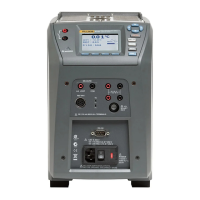
1. Connect the supplied serial cable to the CopperPro’s serial port and a PC
COM port.
2. Display the desired CopperPro screen for transfer.
3. On the PC, open a standard ASCII data communications program
(HyperTerminal, TeraTerm, etc.). Set up the program as follows:
• Baud Rate = 38,400 bps.
• 8 Data bits, 1 Stop bit, No Parity.
• Set data transfer mode to the XMODEM Receive File format, with
CRC enabled.
• Name the file with a “.BMP” file extension.
4. On the CopperPro, press >, then N (“Print Screen” function). A
message is displayed prompting you to start the file transfer.
5. Start the PC communications program XMODEM file transfer. The
“.BMP” screen file begins transferring.
6. When complete, open the transferred file using a standard graphics
program (for example, Microsoft Paint or PowerPoint).
The graphics file can then be viewed or printed on any attached Windows-
compatible printer.


 To Next Page