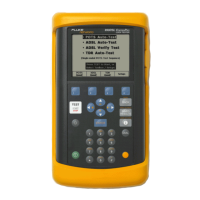
990DSL
Users Guide
5-18
Running a DSL Modem Test
To run a DSL Modem Test, do the following:
1. Connect the GM to the line under test (using the DSL Test Cord supplied
with the GM) and disconnect the CPE modem (or DSLAM) from the line.
2. From the 990
Main menu, select the DSL Modem Test, then press K.
The primary
Modem Results screen is displayed, showing the Physical
Layer modem statistics. Results fields are initially blank, and an hourglass
(in the lower left corner) indicates that the test is in progress. A flashing
dot in the lower left corner indicates continuous updating of the Noise
Margin on the primary
Modem Results screen, as well as all Error
statistics on the secondary
Modem Results screen.
The
Modem Status field in the upper right corner displays the real-time
status of the process:
a)
Power Up: The 990 is applying power to the GM (GM POWER LED
is on, and remains on until you exit the test).
b)
Booting: The GM is booting its operating system
c)
Connecting: The GM is training with the far end DSLAM or CPE
Modem (GM
SYNC LED flashes slowly at first, then rapidly).
d)
Showtime (GM/2) or Showtime TC Syn (GM/V): The GM has
successfully trained with and connected to the DSLAM (or CPE
Modem), and Physical Layer link statistics are being retrieved or are
available for display. (GM
SYNC LED on steady).
Physical Layer (primary) link statistics are available on Page 1 of the
Modem Results screen.
3. Press the
Bits/Bin softkey to display the Bits/Bin graph.
4. Press the
More softkey to display the secondary Modem Results screen,
which contains continuously updated error counts.
5. Press the
SNR/Bin softkey to display the SNR/Bin graph (not supported by
“VDSL1.5” Service Type DSLAM equipment).


 To Next Page