Saving Test Results
Printing Test Results
7
7-11
2. Press F or H to select the graph. Then, press B(View).
4. If you want to edit the notes you made about the graph, select the graph,
then press A(
Edit Remarks). In the space provided type the desired
information.
Deleting a Saved Frequency Graph
To delete a saved frequency graph, do the following:
1. Display the list frequency sweep graphs (see Figure 7-5). Then, press F
or H to select the graph.
2. Press C(
Erase).
The selected graph and associated notes are permanently deleted from the
tester’s memory.
Printing Test Results
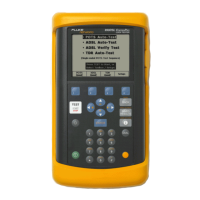
To print a saved text result, TDR waveform trace, or a frequency sweep graph,
do the following:
1. Connect the CopperPro to a serial graphics printer (see “Connecting to a
Printer” in Chapter 2) using the optional Printer Cable.
2. Select the proper printer type in User Options “RS232 Port Setup” (default
is Seiko DPU-414).
3. To print a displayed TDR waveform or graph:
• Press > then N (“Print Screen” function)
• Press A (Printer)
• The screen graphic image will be printed
4. To print text-based test results:
• Select the desired results (view by wire center, time stamp, or all)
• Press > then N (“Print Screen” function)
• Press A (Print Screen) to print only the results displayed on the
screen, then A (Printer) or
• Press B (Print Results) to print the range of selected results.


 To Next Page