© 2019 Align Technology, Inc. All rights reserved.
iTero Element 2 and iTero Element Flex User Manual
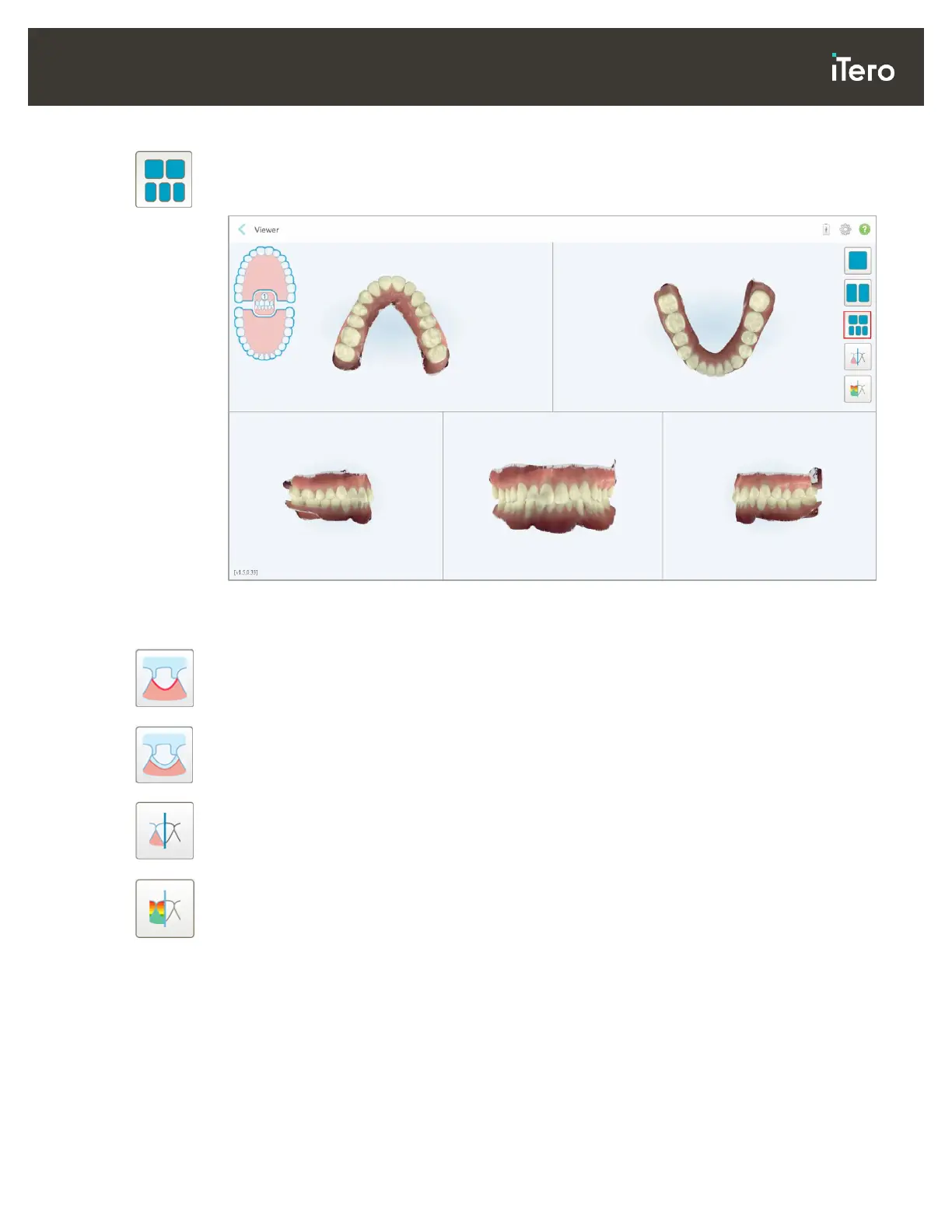
Display the model in a 5-window view, with the upper and lower jaws separately, and both
jaws from the left, center, and right (Gallery view). Each model can be controlled separately,
for better evaluation.
Figure 100: Model in a 5-window view
Relevant for Orthodontic case types only.
Display/hide the margin line of the prepped tooth.
Relevant for Restorative case types only.
Show/hide the ditch created by the Modeling team.
Relevant for Restorative case types only.
Toggle between viewing the model in color or in monochrome.
Show/hide the clearance between the opposing teeth, as described in section 4.7.1.
Note: When the case status is iTero Modeling, it is in the early stages of modeling and the margin line and
die tools are disabled.
When the modeling process is completed, and the die and margin line have been edited, the changes will
appear in color on the model and the tools will be displayed in color, indicating that they are active.



 To Next Page