3.3 Shutting down the scanner
It is recommended to shut down the system at the end of each day to allow software updates to be installed.
To shut down the scanner:
Close all files and applications.
Press and release the Power button located at the bottom right of the screen to shut down the system.
Warning: Holding the button for more than 4 seconds activates a hard reset, which can cause problems
such as gray and blue screens.
3.4 Moving the scanner within the office
The iTero Element 2 scanner can be moved within the office.
To move the scanner:
Ensure that the wand is firmly positioned in the cradle.
Unplug the system from the wall outlet.
Place the system at its new location and plug it into a wall outlet.
3.5 User interface
The iTero software provides an intuitive user interface for performing digital scans for Restorative or
Orthodontic use. The touch screen and wand buttons are used to respond to screen instructions during the
scanning process.
For a list of the touch-screen gestures that can be used, see section 3.5.2.
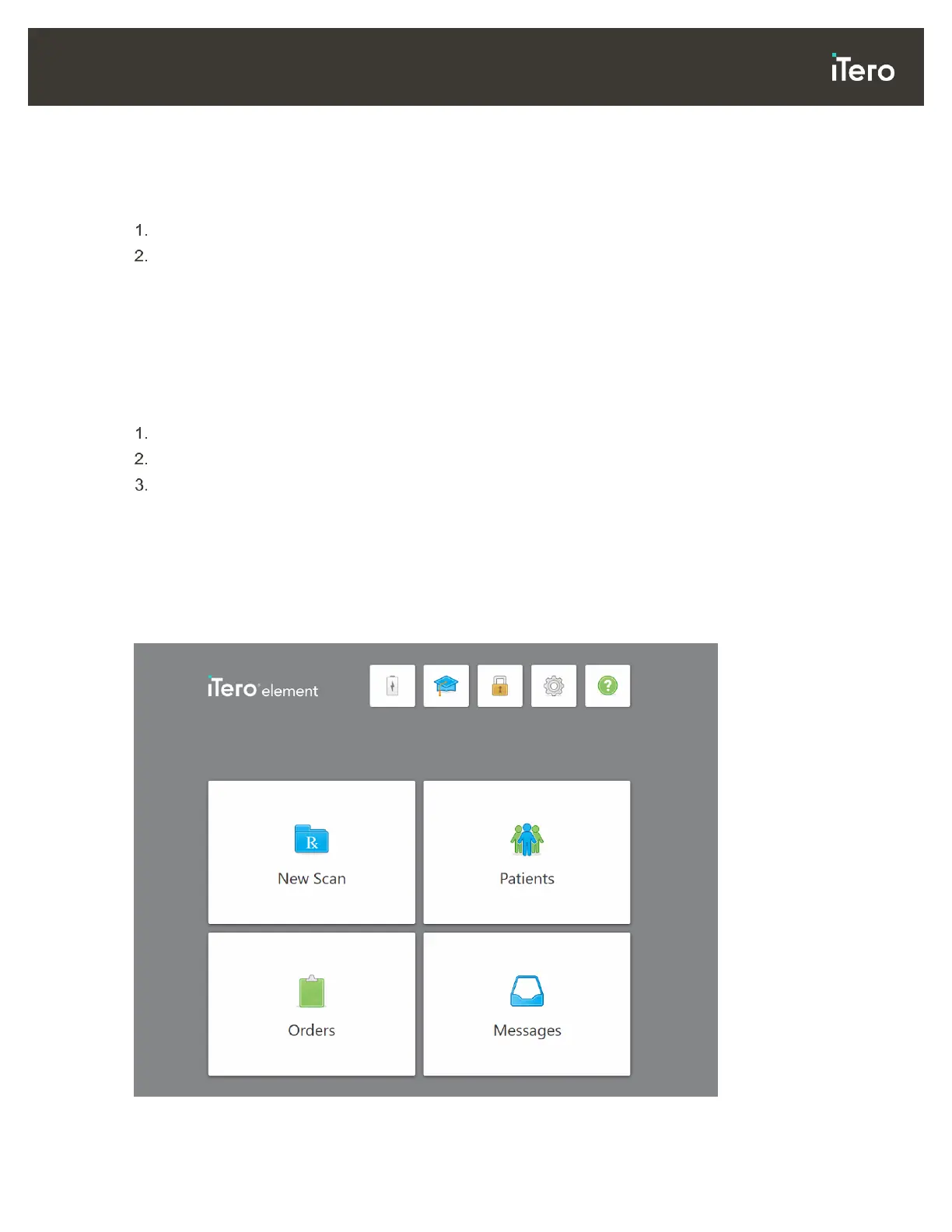
Figure 33: iTero home screen



 To Next Page