DVR Settings
Entering/Changing the Wireless Options
Flashback3 & Flashback HD User’s Guide
L3 Mobile-Vision 6.23.2017 Page 147
Entering/Changing the Wireless IP
This section describes how to enter or change the IP address of the DVR’s wireless
network interface controller (NIC).
N
OTE: If you want your DHCP server to automatically provide the wireless IP
addresses to this DVR, do not enter this field. Instead, turn the Wireless DHCP
option on, as described in “Turning the Wireless DHCP Option On/Off” on page 155.
1 Make sure the door to your DVR is open and Auto mode is off. (If necessary, press
the button until the light turns off.)
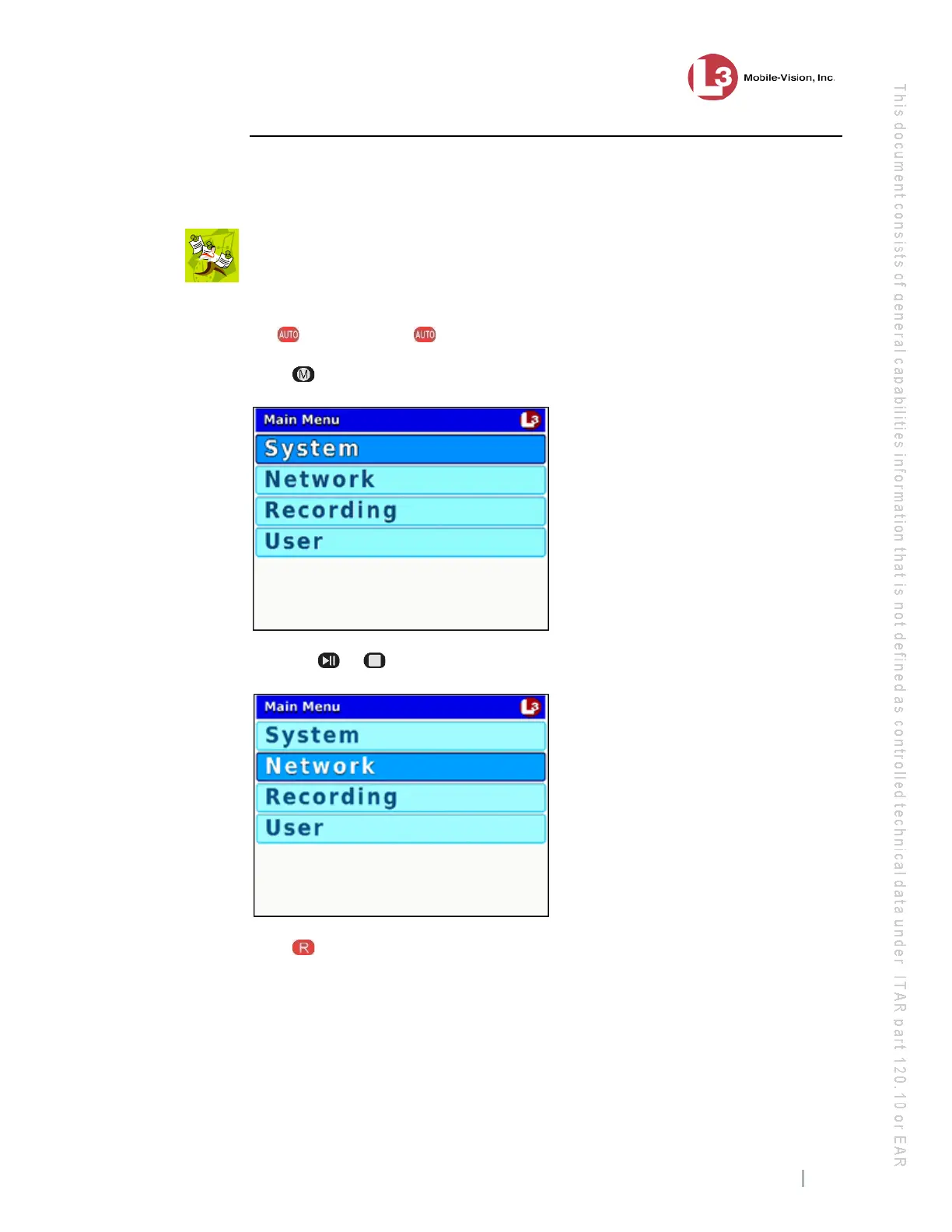
2 Press . The Main Menu displays.
3 Press the or button until Network is highlighted.
4 P
ress to select the Network option. The Network menu displays.


 To Next Page