Changing the Flashback Monitor Settings
Adjusting the Monitor Hue Setting
Flashback3 & Flashback HD User’s Guide
Page 238 L3 Mobile-Vision 6.23.2017
Adjusting the Monitor Hue Setting
This section describes how to adjust the hue setting for your Flashback monitor.
Levels range from 0 – 100. You can adjust this setting up or down in increments of
five (i.e., 5, 10, 15, etc.).
Once you change the hue level, it will remain at that setting until you or another user
changes it again.
B
efore you change this setting, it’s recommended that you turn the GPS monitor
display off, as it will make it difficult for you to see the Hue bar. For instructions, see
“Turning the ‘GPS’ Display On/Off” on page 138.
1 P
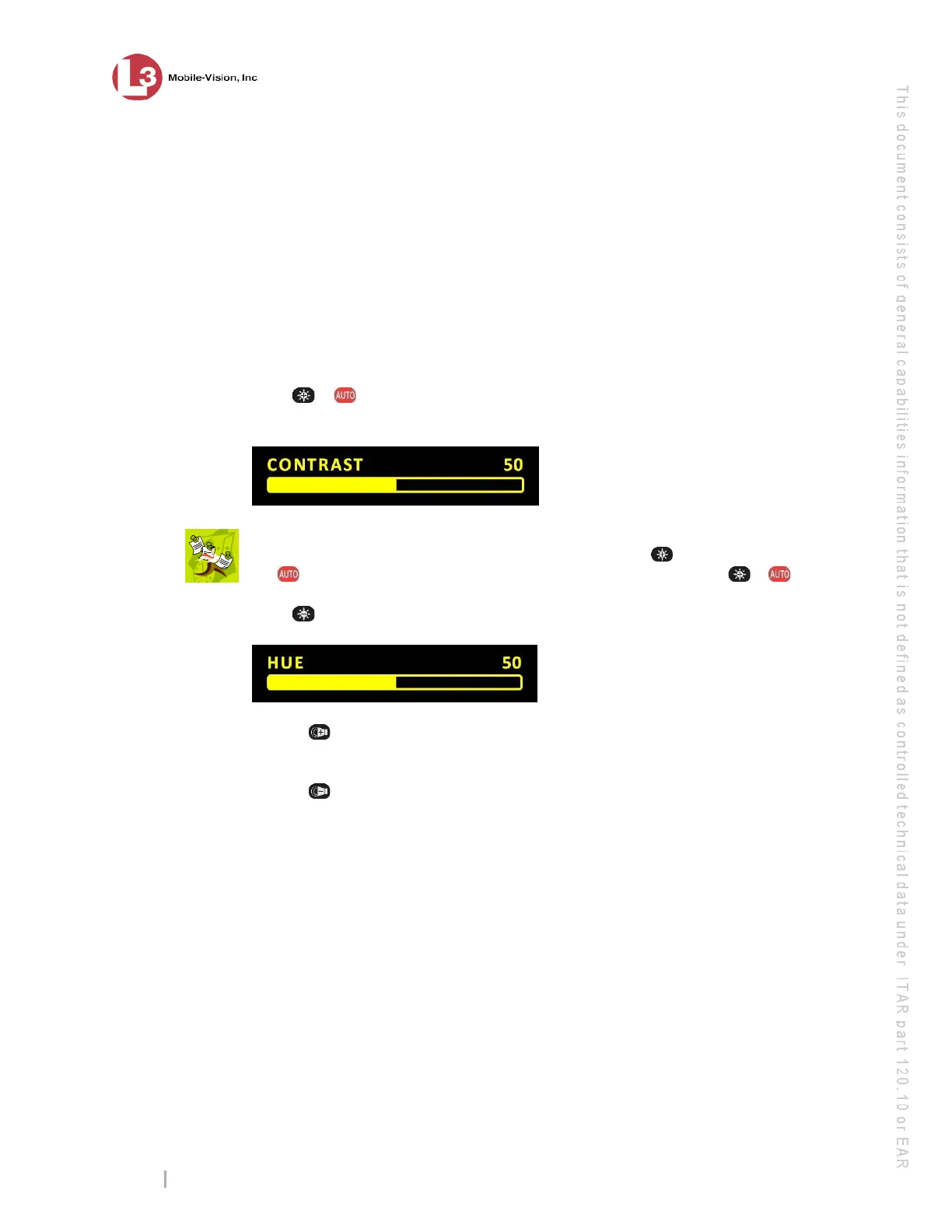
ress + simultaneously to enter Monitor Setup Mode. The yellow Contrast
bar displays at the bottom of your monitor.
N
OTE: If the red DIMMER display appears rather than the CONTRAST display
pictured above, it means that you accidentally pressed the button slightly ahead of
the
button. Wait until the display disappears, then trying pressing + again.
2 P
ress three times to advance to the Hue bar.
3 U
se the button to increase this setting in increments of five.
– OR –
Use the button to decrease this setting in increments of five.
A
fter several seconds of inactivity, the system will automatically exit Monitor
Setup Mode.
Adjusting the Monitor Sharpness Setting
This section describes how to adjust the sharpness setting for your Flashback
monitor. Levels range from 0 – 100. You can adjust this setting up or down in
increments of five (i.e., 5, 10, 15, etc.).
O
nce you change the sharpness level, it will remain at that setting until you or
another user changes it again.
Before you change this setting, it’s recommended that you turn the GPS monitor
display off, as it will make it difficult for you to see the Sharpness bar. For
instructions, see “Turning the ‘GPS’ Display On/Off” on page 138.


 To Next Page