DVR Settings
Entering/Changing System Settings
Flashback3 & Flashback HD User’s Guide
L3 Mobile-Vision 6.23.2017 Page 203
21 Repeat steps 19 and 20 until the administrator’s password is spelled out at the top of
your screen. If you need to add or delete a character, use the following buttons:
............Move forward one character
............Move back one character
............Delete previous character
To insert a space, use the icon.
22 O
nce the correct password displays, press four times to save your changes and
exit this option.
Enabling/Disabling the USB Login Feature
When the USB login feature is enabled, officers can use a USB login key to login to
the DVR. When the USB login feature is disabled, officers cannot use a USB login
key to login to the DVR. By default, the USB login feature is enabled.
For more information on the USB Login Key and how it’s used, see “Logging into a
DVR Using Your USB Login Key” on page 26.
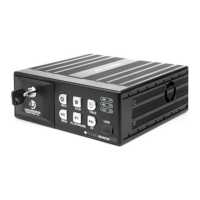
1 Make sure the door to your DVR is open and Auto mode is off. (If necessary, press
the button until the light turns off.)
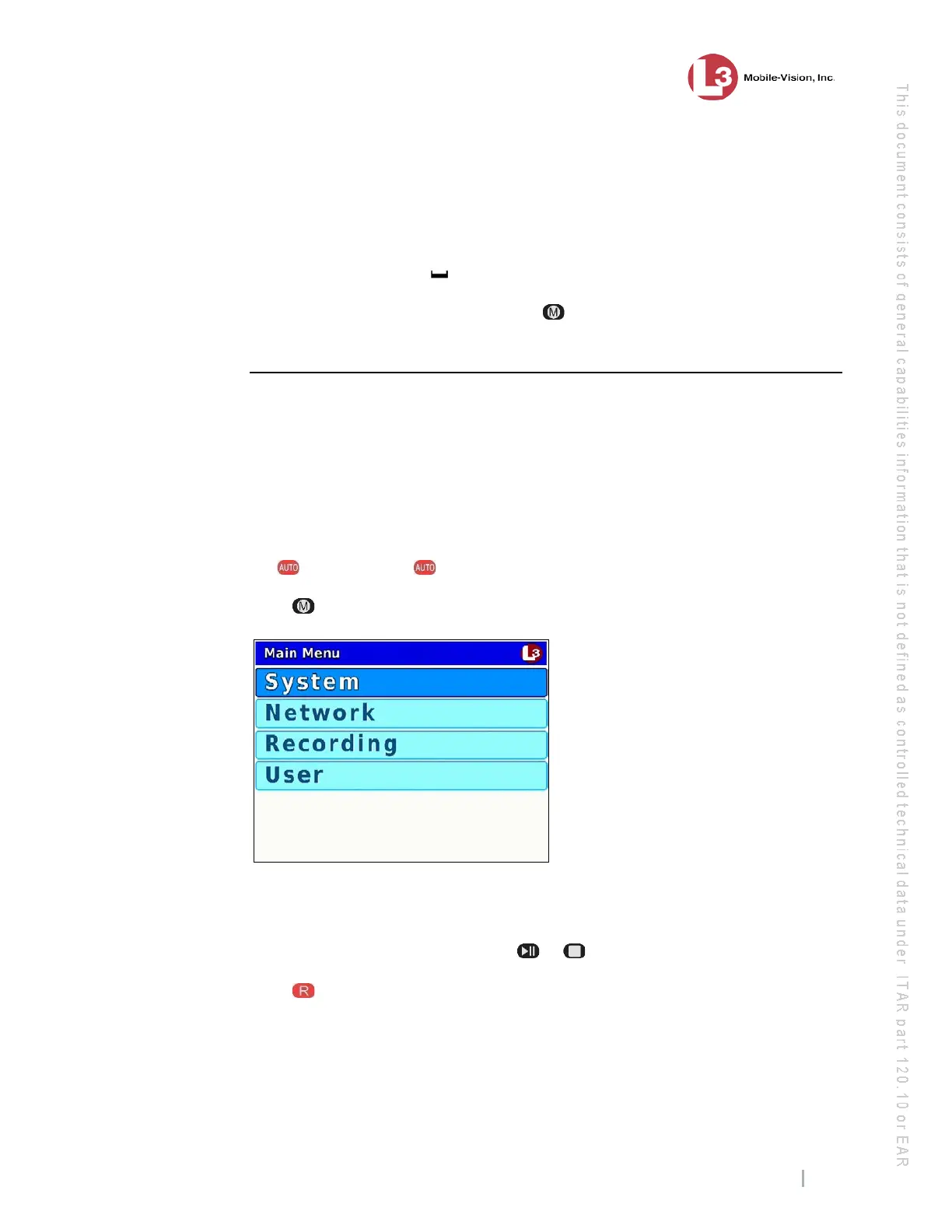
2 Press . The Main Menu displays.
3 If System is highlighted, proceed to the next step.
– OR –
If System is not highlighted, press the or button to advance to that option.
4 P
ress to select the System option. The System menu displays.


 To Next Page