DVR Settings
Changing the Record Settings
Flashback3 & Flashback HD User’s Guide
L3 Mobile-Vision 6.23.2017 Page 47
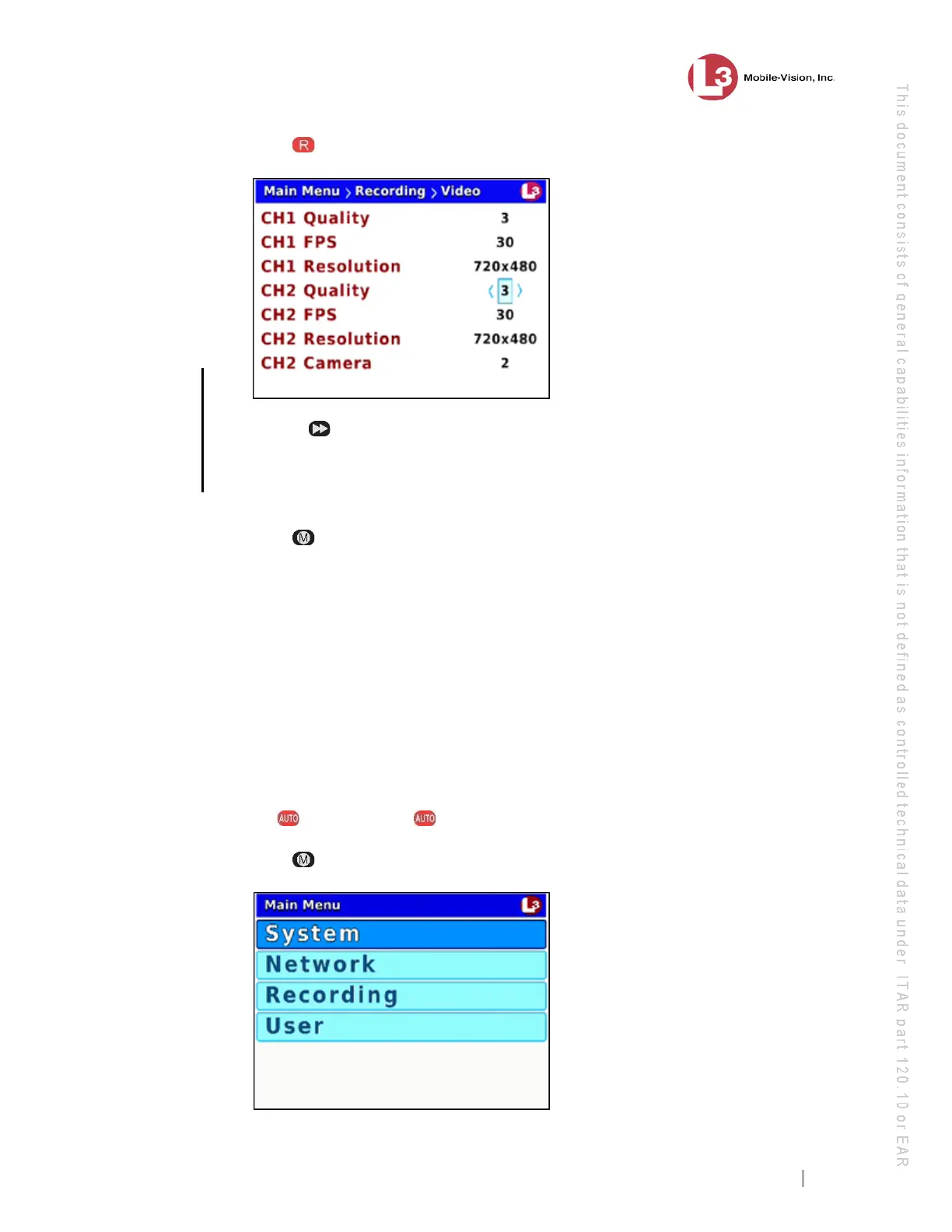
7 Press to select the current field.
8 Use
the button to select an appropriate number between 1 – 8:
If you’re changing Channel 1 for a Flashback3, select a number from 1 – 3
If you’re changing Channel 1 for a FlashbackHD, select a number from 4 – 8
If you’re changing Channel 2 for either DVR, select a number from 1 – 5.
9 Pr
ess twice to save your changes and exit the Video screen. The system will
automatically reboot.
Changing the Video Frames-Per-Second Setting for Regular Record
This section describes how to change the number of frames-per-second captured for
videos recorded from Channel 1 (Forward-facing zoom camera) or Channel 2 (all
other cameras) during regular record mode. To change the frames-per-second for
videos captured during Background Record, see “Changing the Video Frames-Per-
Second Setting for Background Record” on page 49.
The higher the number, the smoother the video’s picture and the larger the video’s
file size.
1 M
ake sure the door to your DVR is open and Auto mode is off. (If necessary, press
the button until the light turns off.)
2 P
ress . The Main Menu displays.
the number,
the better the
video quality
& the larger
the video size


 To Next Page