DVR Settings
Viewing/Updating Firmware
Flashback3 & Flashback HD User’s Guide
L3 Mobile-Vision 6.23.2017 Page 213
Viewing/Updating Firmware
Your DVR comes preloaded with the most current version of the Flashback
firmware. If you have an Extended Maintenance Agreement (EMA) with L3 Mobile-
Vision, you will periodically receive firmware updates via the Flashback application.
I
f you aren’t sure which firmware version you currently have installed on your DVR,
see the next section, “Viewing the Current Firmware Version.”
To upgrade your DVR’s firmware to the latest version, first copy the firmware file to
a USB memory stick, as described in “Copying a Firmware File from DEP to a USB
Drive” in chapter 5 of the DEP Administrator’s Guide. Next, import that file to your
DVR, as described in “Transferring a Firmware File from a USB Drive to a DVR” on
page 215.
F
or more information, see:
Viewing the Current Firmware Version, below
Transferring a Firmware File from a USB Drive to a DVR, page 215.
Viewing the Current Firmware Version
This section describes how to view the firmware version that is currently installed on
your DVR.
1 M
ake sure the door to your DVR is open and Auto mode is off. (If necessary, press
the button until the light turns off.)
2 P
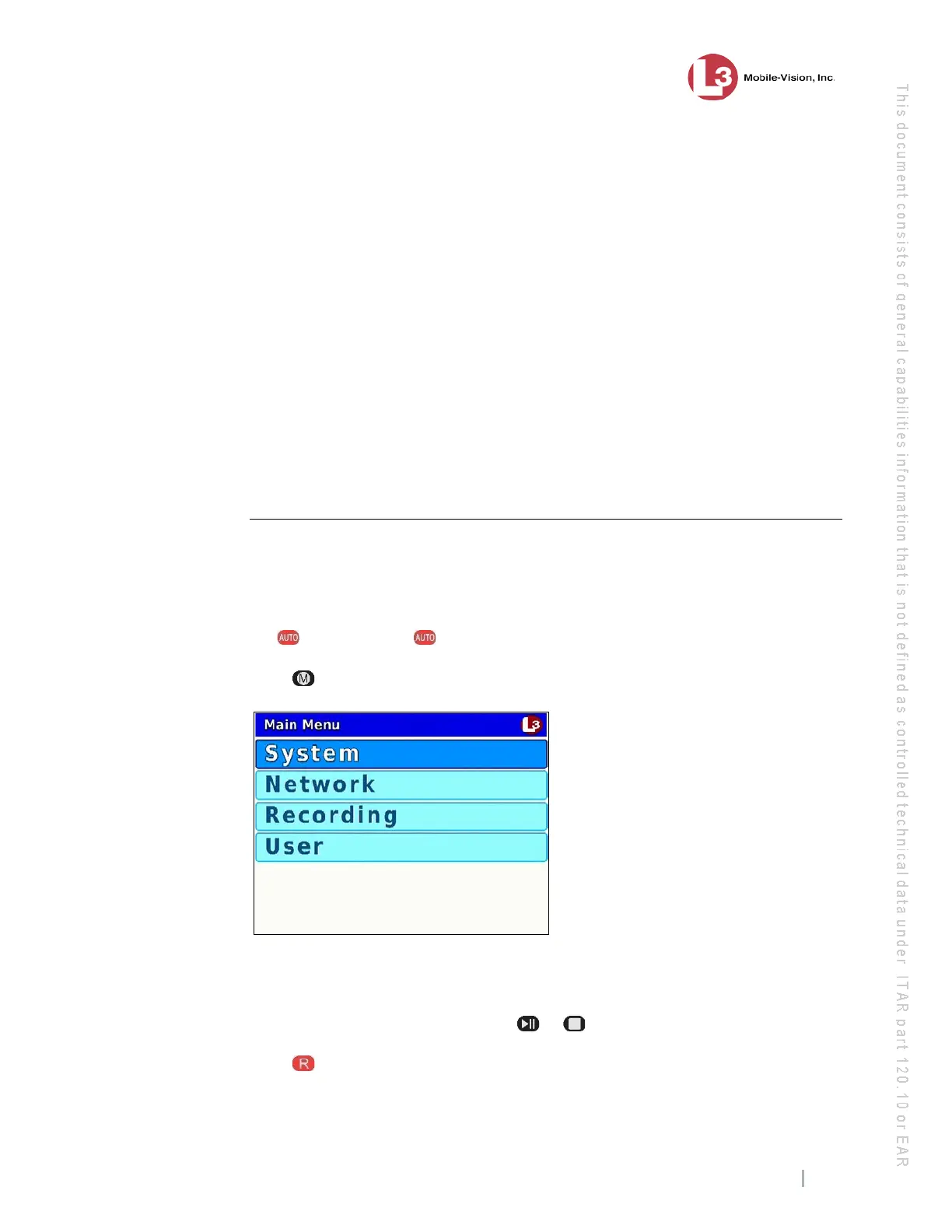
ress . The Main Menu displays.
3 If System is highlighted, proceed to the next step.
– OR –
If System is not highlighted, press the or button to advance to that option.
4 P
ress to select the System option. The System menu displays.


 To Next Page