DVR Operation
Starting a Recording
Flashback3 & Flashback HD User’s Guide
L3 Mobile-Vision 6.23.2017 Page 27
Starting a Recording
Regular recordings can be initiated in one of two ways: manually or automatically.
Manual recordings are initiated by the officer in different ways (see descriptions
below). Automatic recordings are initiated by the DVR in response to pre-pro-
grammed “trigger” actions, such as turning your emergency lights on. For more infor-
mation on record triggers, see “Selecting & Configuring Record Triggers” on page 90.
To
manually start a recording, first check to make sure the Verifying Storage message
no longer displays.
*
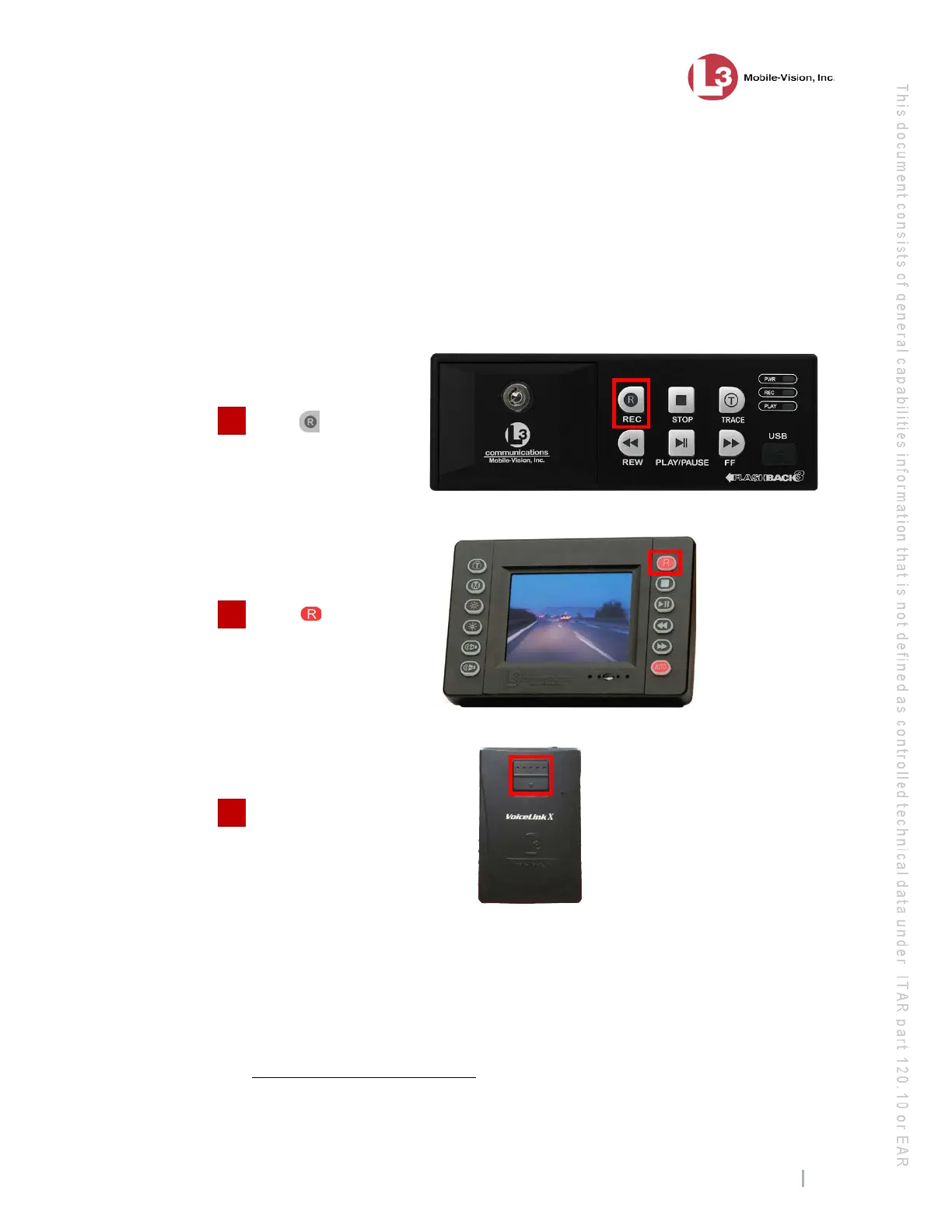
Next, perform one of the following actions:
Press on the DVR
P
ress on the monitor
Slide
the button on the front
of your VLP2 or VLX mic
down (see NOTE, right)
*
Never start a recording while the Verifying Storage message is displayed on your Flashback monitor. Wait until the
message disappears before attempting to start a recording!
2
1
NOTE: In order to initiate a recording
from the VLP2
or VLX, the device must
be turned on, its battery must be
charged, and it
must be configured as a
record trigger. For more infor
mation,
see “Turning the VLP Micro
phone
113.


 To Next Page