2-58 Service Manual
5041-030
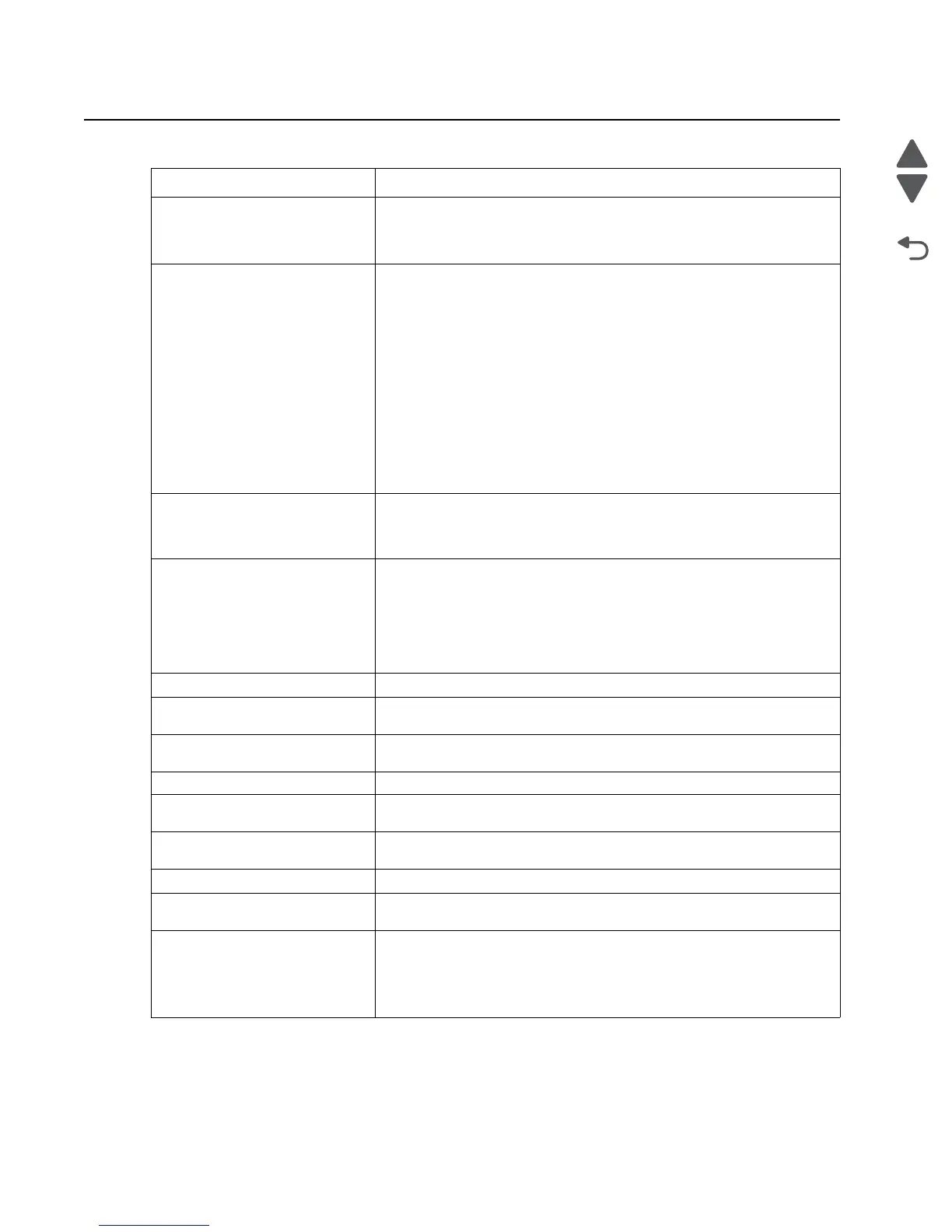
Other symptoms
Symptom Action
You cannot print color. Make sure the Color Correction menu item is not set to Black & White.
Make sure the color print units are completely installed in the printer.
Go to “Transfer belt up down check” on page 2-67.
The printer seems slow to print. If you set the Paper Type to Transparency or Card Stock, the printer
increases the fuser temperature and slows printing to improve the print
quality. After printing on these media, the printer requires additional time
to cool the fuser after you select another Paper Type setting (such as
Plain Paper or Letterhead).
If Printer Usage is set to Maximum Yield, the printer calibrates the print
head timing. The printer performs this same calibration each time you
turn the printer on and each time you open and close the top cover.
Depending on the types of jobs you print, these adjustments may
significantly slow print time.
If the belt is in the up position for color printing, the printer prints at 30
ppm only.
If the printer is in quick print mode, the printer prints at 17ppm until the
printer is fully warmed up.
You cannot remove paper
jammed in the fuser.
Open the fuser rollers by operating the fuser pressure relief lever. If you
cannot remove the jam, replace the fuser. The jam access panel can also
be opened. After letting the fuser cool, unscrew the two thumbscrew and
open the access panel.
You cannot clear the paper jam
message.
To clear the paper jam messages, you must remove all paper from the
printer paper path. Check both inside the printer as well as the paper
source you were using. Open and close the front cover, and press
Go. If
the message does not clear, go to “Paper path service checks” on
page 2-19.
Also check for torn pieces of paper that might be lodged in the sensors, or
actuators.
Paper jam in pick-up assembly. Go to “Paper path service checks” on page 2-19.
Cardstock doesn’t feed from tray
2 or optional trays.
Tray 1, and the MPF are the only paperfeed devices capable of using
cardstock on this device.
Print jobs are printing on the
wrong sized paper from trays 2-5.
Trays 2-5 have auto size sensing. Check the end guide in the paper tray.
The guide must be right on the correct notch to sense the right size.
Fuser failure. Go to “121.05 Fuser - fuser heater error” on page 2-32.
No paper pick-up from
multipurpose tray.
Go to “Paper path service checks” on page 2-19.
No paper pick-up from upper or
lower cassettes.
Go to “Paper path service checks” on page 2-19.
Registration roller does not rotate. Go to “Paper path service checks” on page 2-19.
Tray 1 not sensing the correct
paper size.
Tray 1 does not have auto size sensing. Check the paper size indicator
dial on the front of tray 1. Change the size showing on the dial if needed.
Operator panel does not operate
properly.
Go to the Diagnostic aids chapter and run the LCD and Button tests. If the
tests fail, replace the operator panel. If you still have a problem, replace
the RIP controller board.
If your machine beeps 5 times and the screen is blank or all diamonds,
replace the operator panel.



 To Next Page