L-Gate User Manual 100 LOYTEC
Version 3.2 LOYTEC electronics GmbH
To Enable Legacy NM Mode
1. In the L-Gate Configurator menu go to Settings Æ Project settings …
2. Click on the tab CEA709.
3. Put a check mark in Enable Legacy Network Management Mode.
4. Click OK.
5. Download the configuration to activate the change.
6.7.16 Upload Dynamic NVs from Device
In LNS-based tools it is possible to create dynamic NVs on the device manually. This is a
possible workflow to engineer the NV interface of the device in the LNS database. To use
those manually created dynamic NVs, the L-Gateway configuration software must
synchronize its dynamic NV information with the port.
To Upload Dynamic NVs
1. Select the CEA-709 Port folder.
2. Right-click and select Sync Dynamic NVs in the context menu. The L-Gateway
configuration software then loads any new dynamic NVs, which have been created and
are not yet part of the port interface definition. The process completes when the dialog
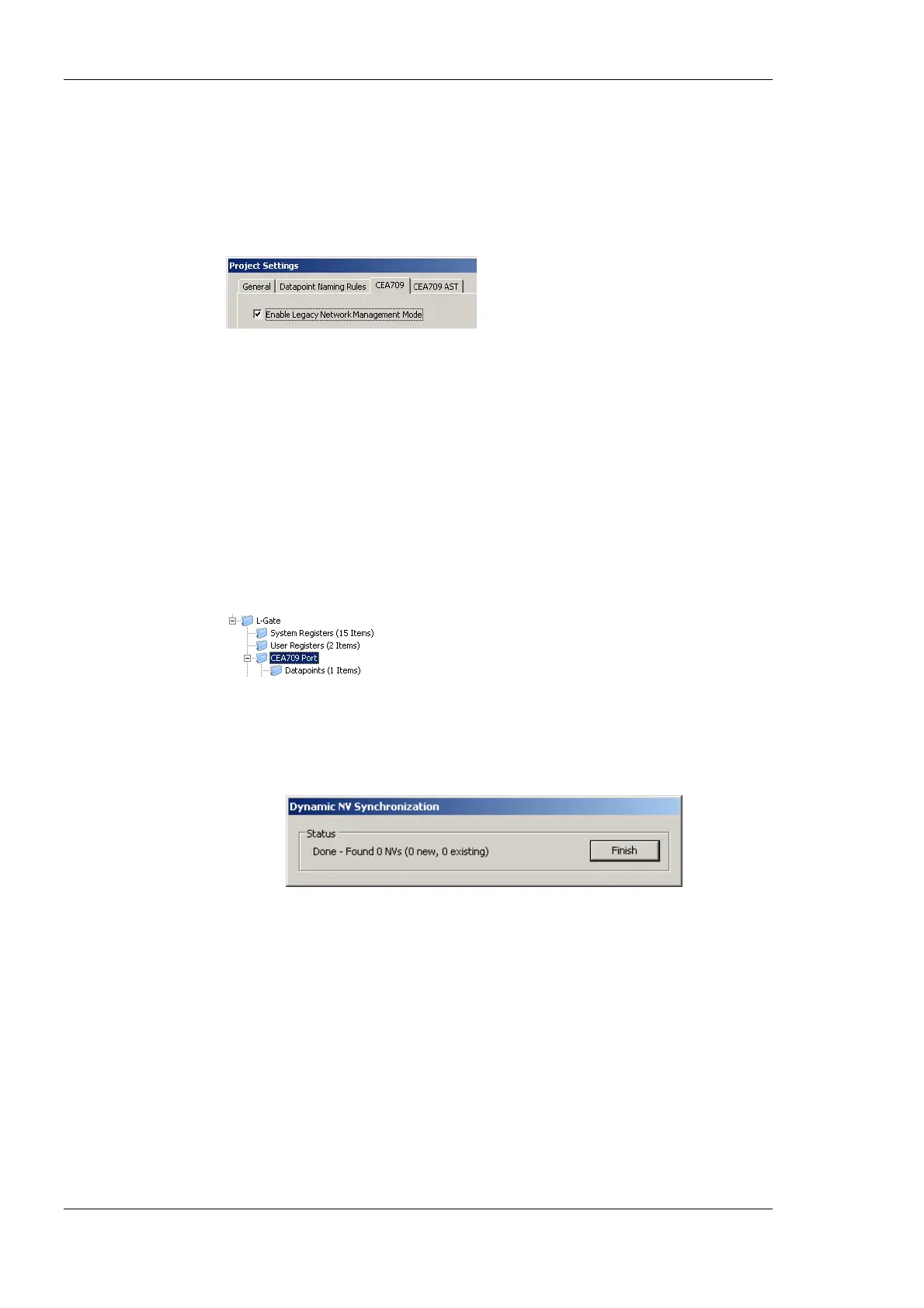
shown in Figure 86 appears.
Figure 86: Synchronizing dynamic NVs from the device.
3. Click on Finish. The new dynamic NVs now appear in the data point list and can be
edited and used for creating BACnet objects and connections.
6.7.17 Upload the System Log
The system log on the device contains important log messages. Log messages are generated
for important operational states (e.g., last boot time, last shutdown reason) or errors at run-
time. This file is important for trouble-shooting and is available on the Web UI (see Section
4.3.1). The file can also be uploaded from the device with the L-Gate Configurator.
To Upload the System Log
1. Connect to the device via the FTP or LNS method (see Section 6.7.2).



 To Next Page