L-Gate User Manual 128 LOYTEC
Version 3.2 LOYTEC electronics GmbH
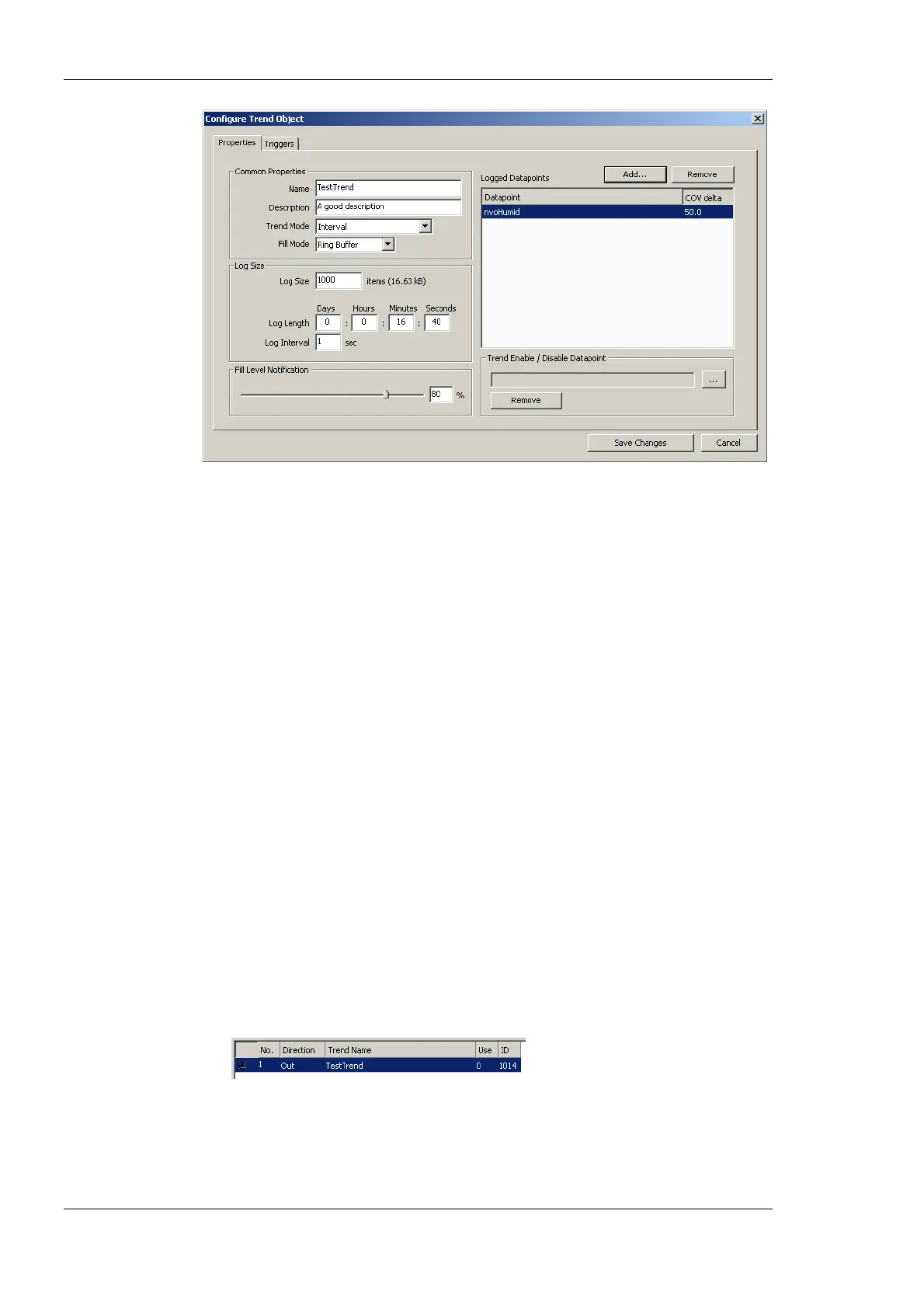
Figure 108: Basic Trend Object Configuration.
4. Select the desired Trend Mode.
5. Select the Log Size. The display in the dialog will adapt the estimations for needed
data logger file size in KB and duration of the trend log. Alternatively, for interval
trends, the estimated log duration and log interval can be edited.
6. Select a Fill Level Notification percentage. This will decide at which fill-level trigger
will fire. A fill-level trigger can be used to trigger the transmission of an e-mail (see
Section 6.14.5).
7. Click Save Changes to store the basic configuration of the trend object. The new trend
log object appears in the data point list of the Trend folder.
6.14.2 Configure Trended Data Points
When a local trend object has been created, it needs to be configured, which data points it
shall log. This is done by attaching data points to the trend object. Only simple data points
can be attached for trending, i.e., of class analog, binary, or multi-state. For trend log
objects in the CEA-709 technology, multiple data points can be attached for trending.
The trending can be enabled/disabled on behalf of an enable data point. This data point
should be of type binary. If the value of that enable data point is TRUE, the trend object
logs data as defined by the trend mode. If the value of the enable is FALSE, trending is
disabled. If no enable data point is configured, the trend log is always enabled.
To Attach Data Points for Trending
1. Select the trend object in the Trend sub-folder.
2. Right-click and select Configure Trend from the context menu. The same dialog
which appears when a new trend object is created is shown and allows configuring the
trend object. Of course, this step can also be done directly when the object is created.



 To Next Page