L-Gate User Manual 87 LOYTEC
Version 3.2 LOYTEC electronics GmbH
If the L-Gate is not yet connected to the network, go to the Firmware menu and select the
firmware version of the L-Gate to be configured. If the L-Gate is already connected to the
network it is recommended to connect the configuration software to the L-Gate.
To Connect to an L-Gate Stand-Alone
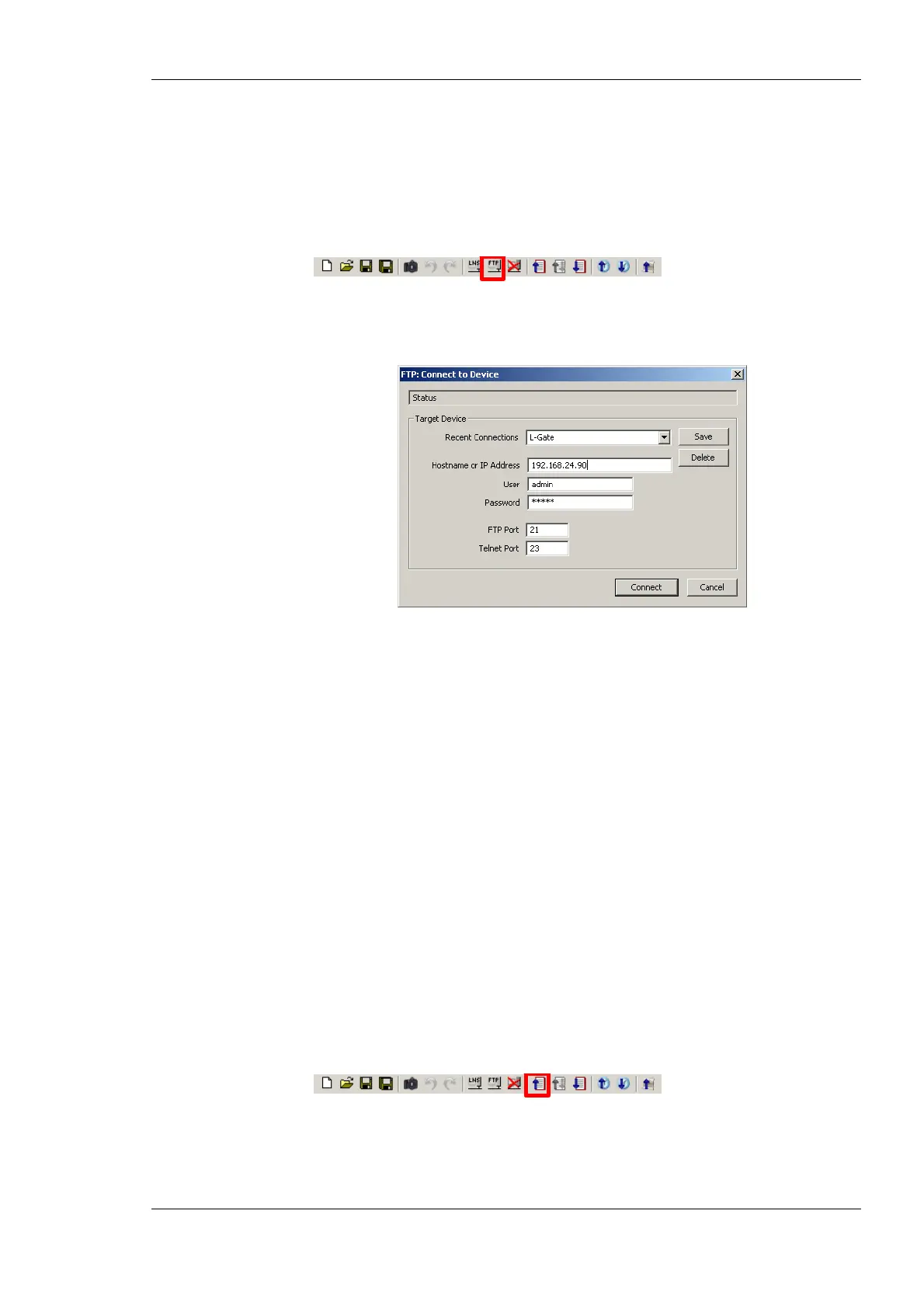
1. Select the FTP connection method by clicking on the FTP connect button
in the tool bar of the main connections window. The FTP connect dialog as shown in
Figure 72 opens.
Figure 72: FTP connection dialog.
2. Enter the IP address of the L-Gate, the user and password. The default user is ‘admin’
and the default password is ‘admin’.
3. Optionally, click into the Recent Connections field and enter a user-defined name for
this connection. That name can be selected later to connect. Click on Save to store that
connection.
4. If your device is located behind a NAT router of firewall, you may change the FTP and
Telnet ports to your needs for accessing the device. Clicking Save also stored these
settings.
5. Click on Connect. This establishes the connection to the device.
6.7.3 Uploading the Configuration
To get the current network variable configuration of the L-Gate, the port interface needs to
be uploaded. This will upload the entire configuration from the L-Gate, including data
points, dynamic NVs and schedules.
To Upload a Configuration
1. Click on the Upload Configuration button
in the tool bar. The configuration upload dialog opens up as shown in Figure 73.
2. If the check-box Automatically sync local dynamic NVs is marked, any manually
created dynamic NVs will be uploaded and merged into the data point configuration.



 To Next Page