L-Gate User Manual 92 LOYTEC
Version 3.2 LOYTEC electronics GmbH
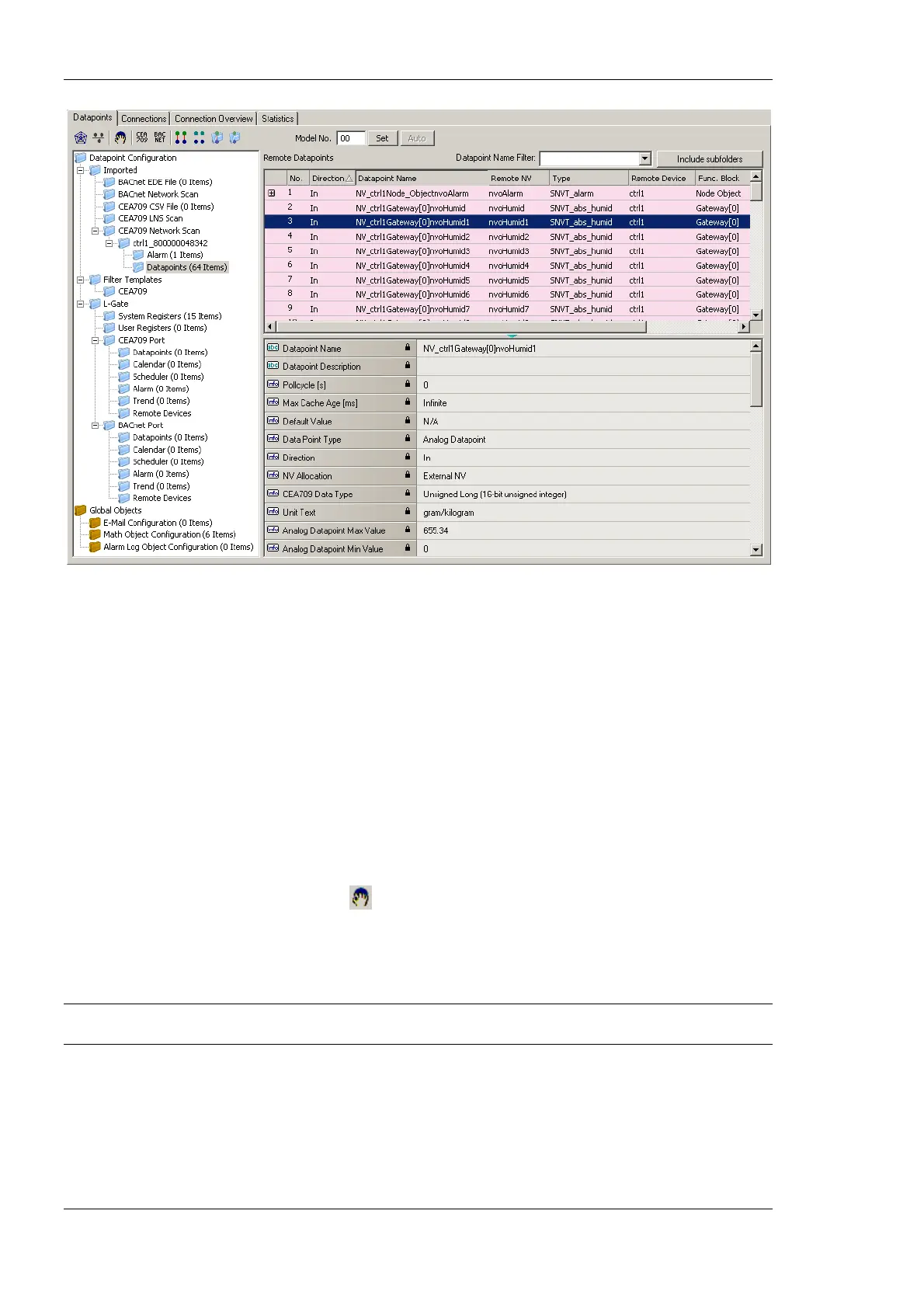
Figure 77: CEA-709 network scan results.
9. Click Close when all devices needed have been scanned.
6.7.7 Select and Use Network Variables
Data points in the CEA709 LNS Scan folder, the CEA709 Network Scan folder or in the
CEA709 CSV File folder can be selected for use on the device. Select those NVs, which
shall be exposed to BACnet objects.
To Use NVs on the Device
1. Go to any of the CEA709 LNS Scan, CEA709 Network Scan or the CEA709 CSV
File folder.
2. Use the multi-select feature by holding the Shift or Ctrl keys pressed.
3. Click on the button
Use on Device in the tool bar.
4. This creates data points in the L-Gate/CEA709 Port folder. All data points in that
folder will actually be created on the L-Gate device after downloading the
configuration.
Tip! Data points can be edited by selecting a single point or using multi-select. The available
properties to be edited are displayed in the property view below.
6.7.8 Change the NV Allocation
After selecting the Use on device action on scanned or imported NVs they are assigned a
default NV allocation in the L-Gate/CEA709 port folder. This default allocation can be
changed, e.g., for imported NVs when they shall be allocated as static NVs on the L-Gate.



 To Next Page