L-Gate User Manual 88 LOYTEC
Version 3.2 LOYTEC electronics GmbH
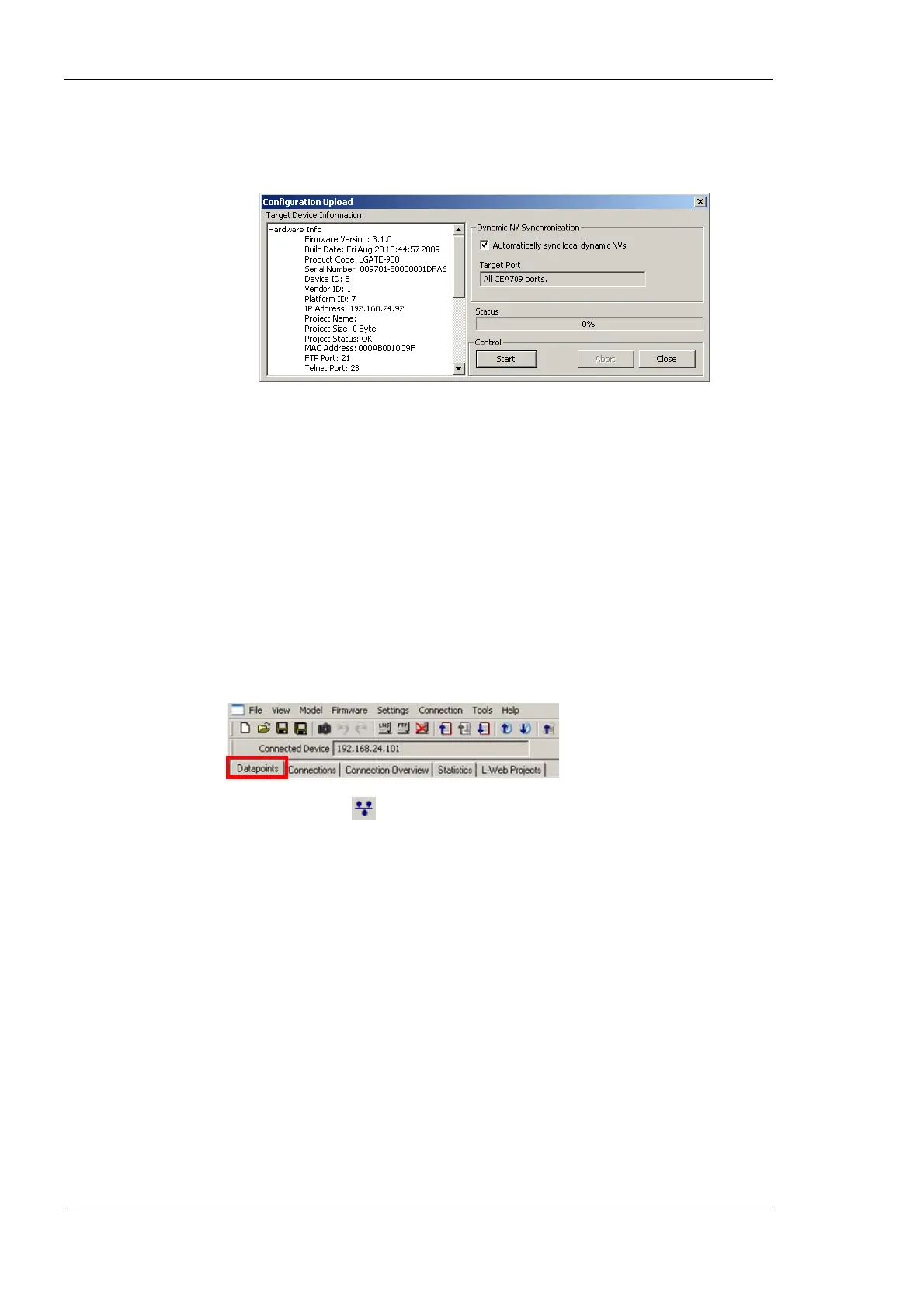
3. Click on the button Start to start the transfer. This will upload the configuration of all
ports, if the software is connected stand-alone via FTP or the network variable
interface, for which the LNS plug-in was started for.
Figure 73: Configuration upload dialog.
4. When asked, if schedules shall be uploaded also, click Yes, if you want the current
schedule configuration be extracted from the device. Note, that when doing so, the
original schedules in the project are replaced by the uploaded schedules.
5. If dynamic NVs were synchronized, click on Finish.
6.7.4 Scanning for Network Variables
When the Configurator software is connected to an LNS database, network variables can
be scanned in from that data base.
To scan network variables from the LNS database
1. Click on the Datapoints tab.
2. Click on the button
Scan channel. This scans in all NVs on all devices connected
to the CEA-709 channel of the device.
3. After the scan has completed, the folder LNS Database Scan is populated with the
found NVs. Data point names for those NVs are automatically generated, following the
data point naming rules defined in the project settings (see Section 6.3.2). By default
the name is generated from node name, object name, and NV name. These names are
ensured to be unique by adding a counter for multiple occurrences of the same name.



 To Next Page