L-Gate User Manual 27 LOYTEC
Version 3.2 LOYTEC electronics GmbH
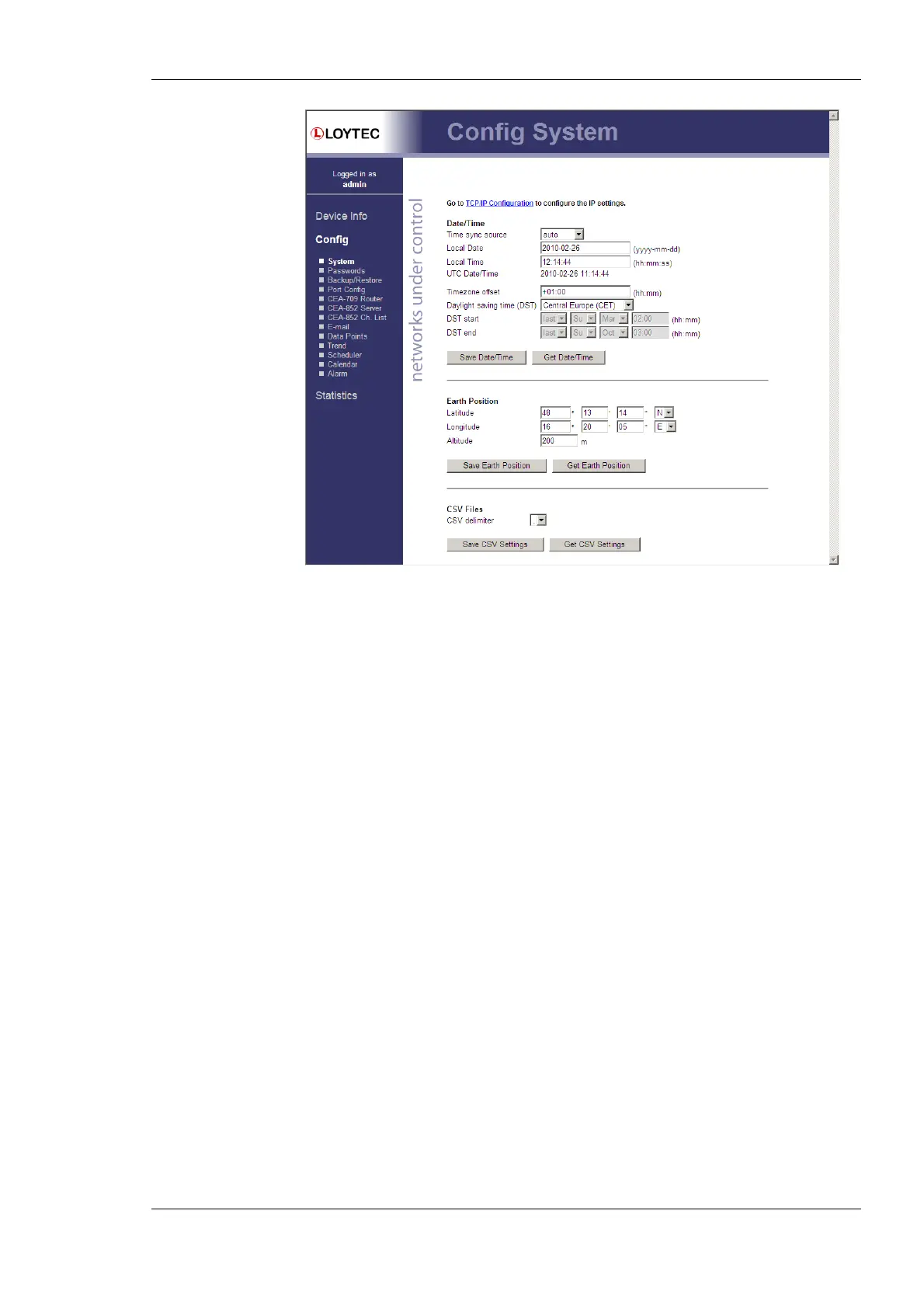
Figure 13: System Configuration Page
The next section on the page allows configuring the L-Gate’s earth position. This setting
defines the longitude, latitude and elevation of the device. The latitude and longitude are
entered as degrees, minutes, and seconds. The altitude (or elevation) is entered in meters
from sea level. This setting is used for an astronomical clock. For fixed locations such as a
building, the position can be entered on this page. For moving locations, this setting can be
updated over the network using the network variable nciEarthPos (see Section 7.2.3).
For generating CSV files for trend logs, alarm logs, etc. the delimiter for those CSV files
can be configured. This setting can be changes between a comma ‘,’ and a semi-colon ‘;’.
The change takes effect immediately for all files generated by the device.
4.2.2 Backup and Restore
A configuration backup of the L-Gate device can be downloaded via the Web interface.
Press the Backup/Restore link as shown in Figure 14 to start the download. The L-Gate
device assembles a single file including all required files. A file requestor dialog allows
specifying the location where the backup file shall be stored.
To restore the device settings, simply select a previously generated backup file in the
Restore Configuration section of the page by clicking the button next to the Filename
field. Then press the Restore button.
The backed up configuration data consists of:
• Device settings (Passwords, IP settings, e-mail config, etc.),
• Data point configuration,
• CEA-709 binding information,
• BACnet server objects and client mappings,
• AST settings.



 To Next Page